Helpdesk SLA policies
Set first response, next response and resolution targets for ticket tracking.
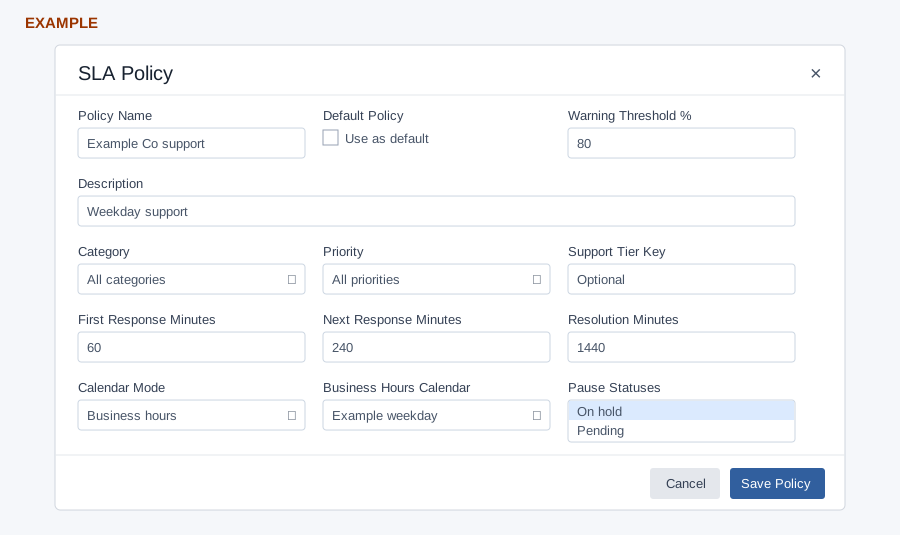
Create or edit a policy
Open Account Settings → Helpdesk → SLA Policies as an administrator. Add SLA Policy or use Edit on a policy row. Enter Policy Name (required, maximum 120), optional Description, and optionally check Default; saving a default clears the default flag on other active policies. Set Warning Threshold from 1–100 percent; the default is 80. The SLA calculation stores this percentage but does not use it to send a notification; do not assume changing it schedules an alert.
Choose Category and Priority, including All categories and All priorities; priority choices are LOW, MEDIUM, HIGH, URGENT and CRITICAL, and optionally a Support Tier Key (maximum 30). The current ticket matcher uses category and priority, not this stored key. Set First Response, Next Response and Resolution in minutes (minimum 1; initial values 60, 240 and 1440). Choose 24x7 or Business hours. Business hours reveals a required calendar selector. In Pause Statuses select On hold and/or Pending; On hold is initially selected; clearing all pause statuses is normalized back to On hold. Save Policy reloads the table; Cancel dismisses the dialog. The system normalizes out-of-range warning thresholds to 80 and invalid or nonpositive targets to defaults; reopen the saved policy to verify the effective values.
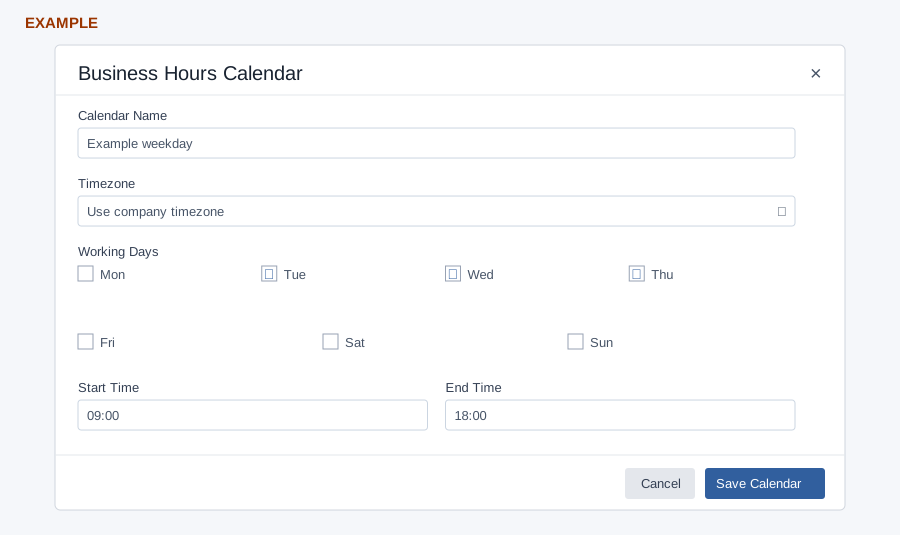
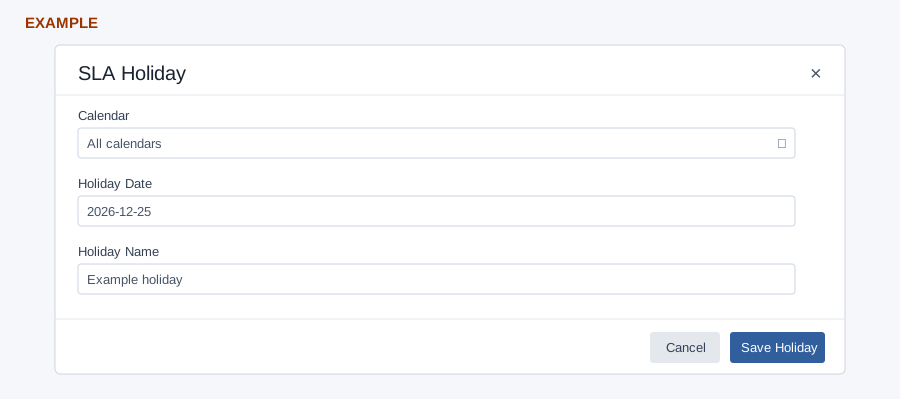
Calendars and holidays
Add Calendar opens a form for Calendar Name, Timezone (company timezone or a listed timezone), working days Monday–Sunday, Start Time and End Time. The initial days are Monday–Friday and times 09:00–18:00; an empty day selection is normalized to weekdays. Calendar Name is required and End must be later than Start. Save Calendar, then select it in a business-hours policy. Add Holiday asks for All calendars or one calendar, Holiday Date and Holiday Name (both required, name maximum 120); save to exclude the date from applicable calendars. Existing rows have edit and delete actions; deletion asks for confirmation and successful changes reload the page.
Build a weekday support policy
- Select Add Calendar, name it Example Support Weekdays, select the applicable timezone, Monday–Friday, 09:00 and 18:00. Select Save Calendar and verify its row.
- For each planned closure, select Add Holiday, choose this calendar, enter the date and a descriptive name, and save. Choose All calendars only when the closure applies to every calendar.
- Select Add SLA Policy, name it Example Hardware Support and choose the Hardware category. Keep All priorities unless a priority-specific target is intended.
- Enter 60 minutes for first response, 240 for next response and 1440 for resolution. Choose Business hours, select Example Support Weekdays, and select the appropriate pause statuses.
- Select Save Policy. Reopen Edit to verify the effective values and the selected calendar. An example using 24x7 needs no calendar.
- When reviewing a ticket under the policy, compare the target with its creation time, working days, holidays and pause state. Avoid assuming that 60 working minutes always means one clock hour.
Understand the targets
| Target | Service question |
|---|---|
| First Response | How soon should staff first respond to a new request? |
| Next Response | A stored next-response target. The sync calculates its deadline from ticket creation; it does not reset the deadline for each customer turn. |
| Resolution | The resolution deadline is calculated from ticket creation using the selected calendar or 24x7 target; paused time is not added back. |
| Pause Statuses | Which supported statuses mark the SLA state Paused? Clearing the selection restores On hold. The sync does not add paused time back to deadlines; it recomputes them from ticket creation. Paused items are excluded from active breach and due-soon queues while paused, but can appear overdue after resuming. |
Review and troubleshoot
The policy table shows Policy, Scope, Targets, Calendar, Pause Status and Actions. Matching first favors the specific category over all categories, then the specific priority over all priorities. Among otherwise equal matches, the default flag wins, followed by the newest ID; if none match, the company resolve-time fallback applies. A category-specific, all-priority policy can therefore outrank an all-category, priority-specific policy. Deleting a policy makes it unavailable for subsequent matching and retains ticket SLA rows. Later ticket synchronization can select another active policy and update deadlines; do not assume retained rows permanently preserve the deleted policy’s targets. An active policy prevents deletion of its calendar. Missing feature setup can disable controls; ask an administrator to complete the setup if the page reports it missing.
For example, a weekday 09:00–18:00 policy with a 60-minute first response target tracks support working time. Verify the saved row and calendar, then inspect an appropriate test ticket’s deadline; check the paused state and holidays; do not assume paused time extends the deadline. No save or deadline was exercised here.