Chats workspace
Find an assigned or queued conversation, respond, and coordinate ownership while keeping lead context nearby.
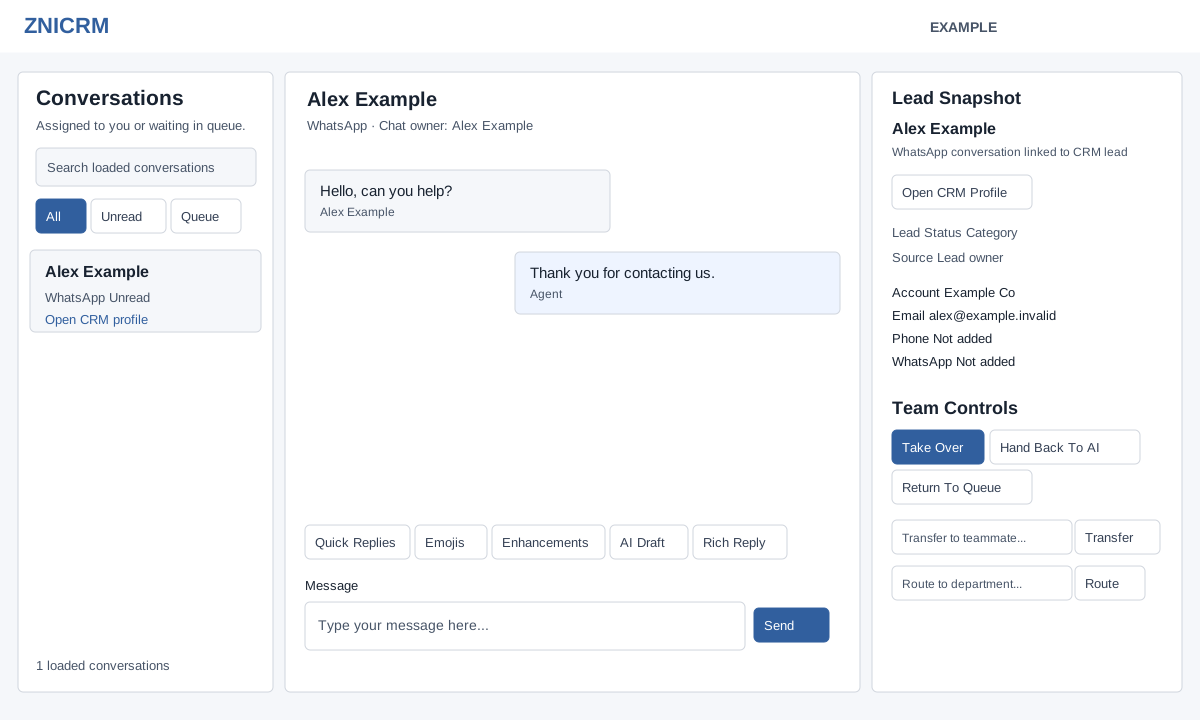
Open and find a conversation
Choose Chats in the main navigation. The Conversations roster shows chats assigned to you or waiting in queue. Search filters the loaded conversations; use All, Unread, or Queue to narrow them. Select a name to open its thread. Badges can identify queue, unread customer reply, teammate review and response timing. On smaller screens use Chats and Lead Snapshot to open the side panels.
You need access to the chat and the Chat app to reply or route it. A lead owner without Chat access can open a linked conversation read-only (an administrator can also open a valid linked chat without Chat access); the page says a chat license is required for actions. CRM profile permission controls the profile link and lead details. If a conversation is unavailable, ask an administrator to check access and assignment.
Read and reply
- Select a conversation and review its transcript, channel and chat owner. Loading a thread updates its last-accessed timestamp, including an authorized read-only view; the transcript request retrieves up to 100 messages. Use Jump to latest when it appears. If loading fails, choose Try again.
- Type in Message. Quick Replies, Emojis and Enhancements insert content into the composer. Review and edit it before sending. Enter sends; Shift+Enter adds a line.
- Choose Send. Check the transcript and any delivery status for the resulting message. A successful submission alone does not prove the customer received it.
For WhatsApp, an AI-handled conversation can lock manual replies until you take over. A closed free-form session requires the approved-template flow described in WhatsApp replies in Chats.
Lead snapshot and team controls
When a linked lead exists, the snapshot can show status, category, source, owner, account, contact details, interested products and upcoming tasks. Open CRM Profile opens the linked profile when permitted. The lead owner and chat owner are separate fields. Reply Availability, Saved AI Notes and Latest Flow Handoff appear only when their conditions and data exist.
- In Team Controls, select an available teammate and choose Transfer, or select a department and choose Route. The department selector offers departments with an eligible chat-enabled user and can show the resolved assignee; it prefers an eligible member other than the current owner. Transfers write a system message and notify the assignee.
- Where offered, use Take Over to take control, Hand Back To AI to return handling to AI, or Return To Queue to release the conversation to the queue. Only the current chat owner can return it to queue. Hand Back To AI requires the current owner, an active chat license, AI enabled and human control. A manager may take over another assigned chat; an eligible agent may take one from the queue.
- Confirm the success message. Transfer, department routing and return to queue navigate back to the Chats roster; takeover and hand-back reload the thread. Reopen or check the roster and owner to confirm the new state. Your access may change after routing.
If takeover reports that AI control failed, ownership may already have changed: refresh and inspect both owner and handling state before retrying. For other errors, check the selected destination and current ownership and refresh before retrying. Ask an administrator to check access and routing if it remains unavailable. See AI Assist in Chats for drafts and lead capture.