Personal Notes
Open and save a personal note
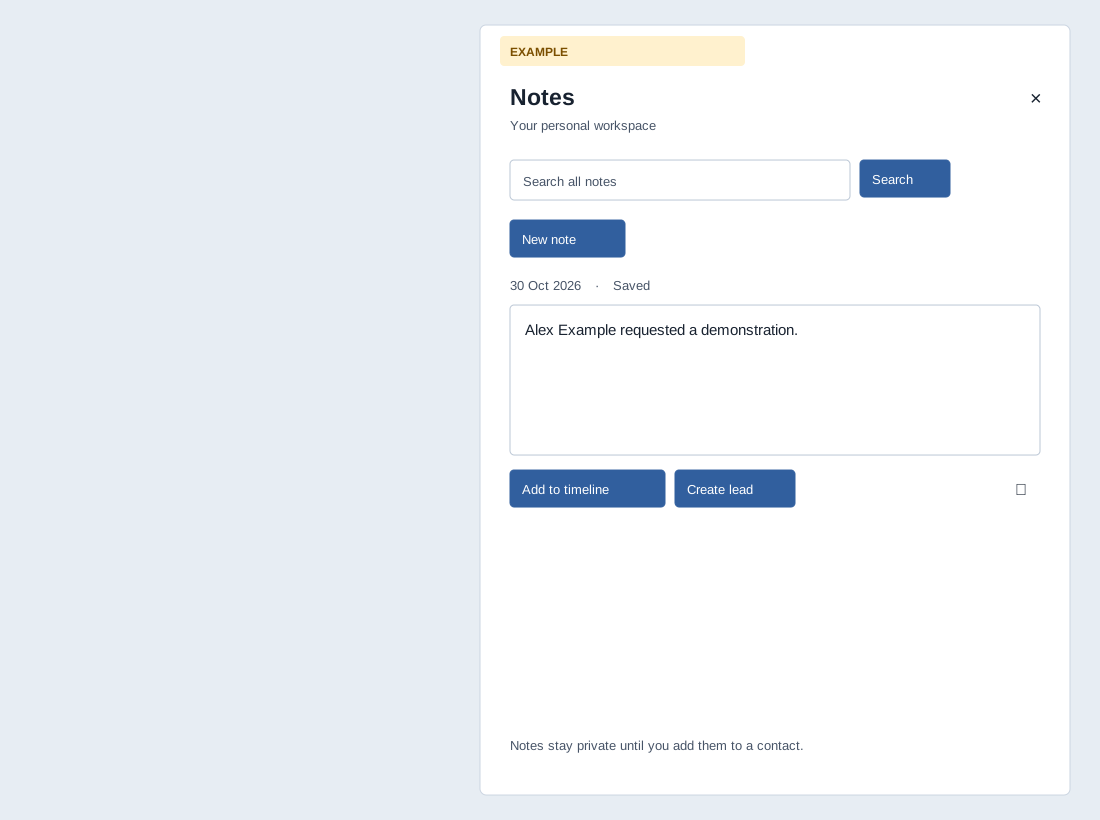
On pages that include the shared panel, select Notes. Select Open notes to open the Notes panel. Close with × or the backdrop. Escape returns from Add to timeline or Create lead to the note list; from the list it closes the panel. Notes belong to your user and company and stay private until added to a contact.
- Choose New note and type in the note box. A new empty draft is not saved until its contents change. The editor accepts up to 60,000 characters in the browser; the system limits saved text to 60,000 bytes, so multibyte text can reach the system limit sooner.
- Typing shows Unsaved changes and schedules autosave after 700 ms of inactivity; leaving the field also saves. Saving… changes to Saved on success. If Not saved appears, use Retry save. Within one panel, edits made while a save is in progress are saved again after that request completes; wait until the latest text shows Saved. Separate tabs do not coordinate versions, so concurrent edits to the same note may overwrite one another. The panel attempts to save all dirty notes before search, loading more or closing. If close fails, it stays open: retry or copy the text before reloading. Leaving the page with pending changes can trigger a browser warning.
For a call, write “Alex Example requested a demonstration.” Wait for Saved, close and reopen Notes, and verify the text. If a save fails, keep the panel open, check the connection or session and use Retry save.
Find and delete
Enter up to 200 characters in Search all notes (the system also limits the encoded query to 200 bytes) and choose Search. The count shows loaded notes, not necessarily the total; Load more notes fetches the next page (50 at a time). Retry loading notes repeats a failed load. Search and load first try to save pending edits. New note clears an active search and reloads the list first.
The trash button opens “Delete this personal note?” Choose Keep note or Delete note. Deleting removes the personal note; any timeline entry already published remains. A blank unsaved draft is removed locally. If deletion fails, the note remains and the panel displays an error.
Add a note to a contact timeline
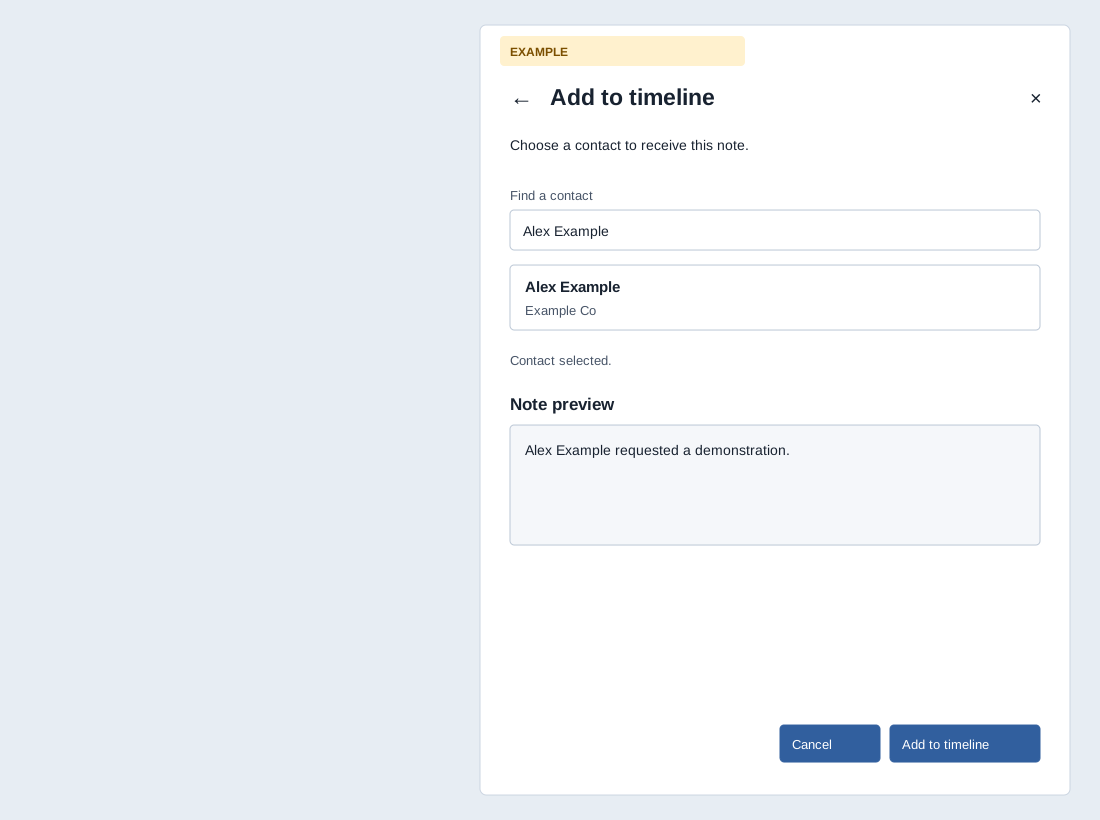
CRM access and write permission are required; without them Add to timeline and Create lead are disabled. Enter nonempty note text and let it save, then select Add to timeline. Find a contact searches accessible contacts by name, phone or email after at least two characters (up to 120 characters, subject to a 120-byte limit); select a result to enable Add to timeline. The search can return up to ten contacts. Review Note preview and choose Add to timeline; Cancel or the back arrow returns without publishing.
On success the panel returns to Notes and shows Added to timeline and, where accessible, Open contact. The saved note text is copied to the contact timeline. Later personal-note edits stay private and do not update that published entry. A note already linked to a timeline returns its existing link instead of creating a second timeline entry; if the linked contact is no longer accessible, an error is shown.
Create a lead from a note
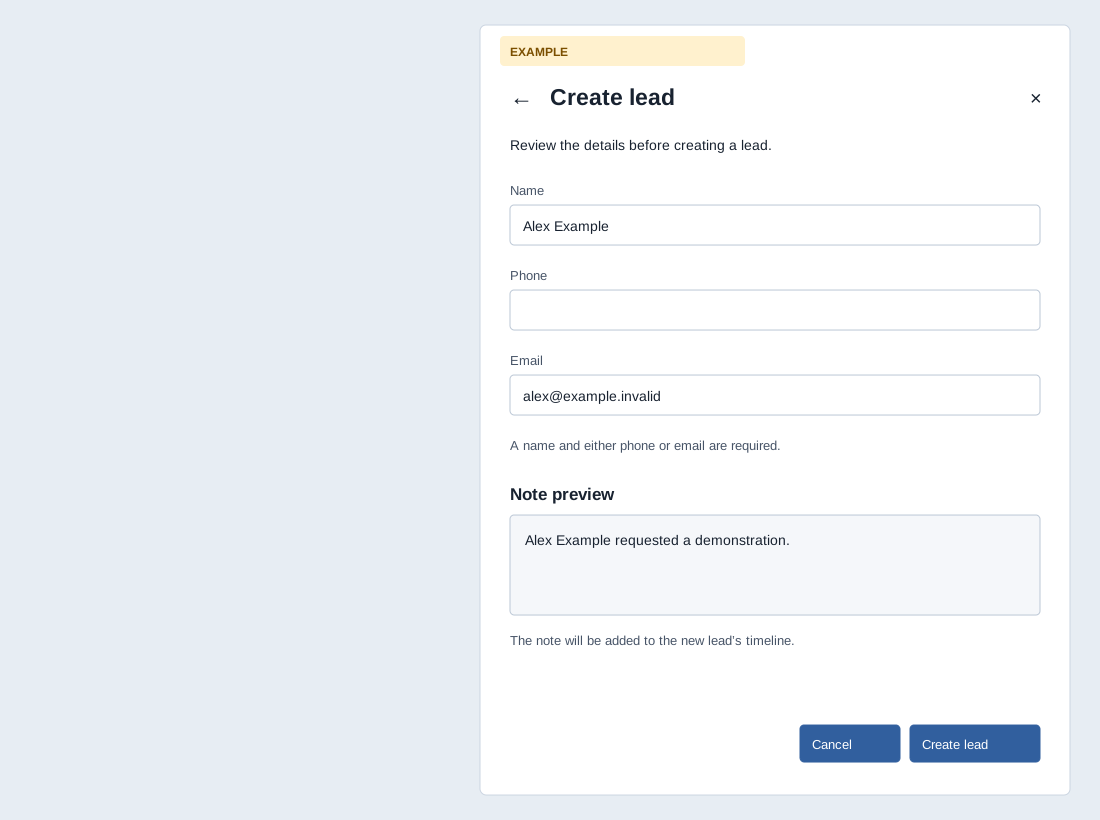
Select Create lead on a saved nonempty note. Review the suggested values: the panel may extract a name, phone or email from the note. Name is required (up to 120 characters), plus Phone or Email. Phone accepts an optional plus, digits and common separators; it must contain 7–15 digits including country code after normalization. Email must be valid and at most 120 characters. Review Note preview, then choose Create lead; Cancel or Back leaves CRM unchanged.
Creation requires CRM write access and available contact capacity. Existing matching phone or email is rejected: use Add to timeline for the existing contact. A successful action creates a manual-source contact owned by the signed-in user, uses the supplied name as the initial company name as well, and adds the saved note to its timeline. The panel then returns to Notes with Open contact. This flow does not offer an assignment selector. If a request fails, the note is kept; check the message and existing contact before retrying. The system links one timeline entry to a personal note, so a repeated request for that linked note returns the existing link instead of adding another entry or lead. For a lead, review “Alex Example” and [email protected] before submitting, then open the contact to verify the timeline entry.