Helpdesk categories
Route ticket topics and select category-specific feedback forms.
Create a category
- Open Account Settings → Helpdesk → Categories as an administrator and choose Add Category.
- Enter Category Name and Category Description; both are required by the dialog. Under Route Tickets To Department, choose Available To All or a support department.
- Choose Ticket Assignment: Capture-based leaves new tickets in the unassigned queue for an agent to capture; Automatic assignment chooses an eligible support user with the lowest daily assignment count at creation. Select Add Category; Close dismisses the dialog.
Company-owned category rows provide the actions below. Shared system categories can be listed without these actions; this page does not provide a general name, description or department editor.
Assignment and forms
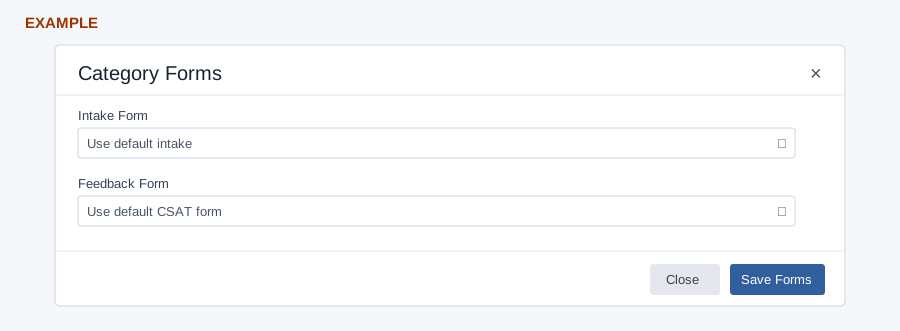
In the category table, use Assignment to change Assignment Mode and Save Assignment. Use Forms to choose an Intake Form (Use default intake or a listed form, including inactive labels) and a Feedback Form (Use default CSAT form or an eligible contact form), then Save Forms. The intake association is stored but current ticket intake does not use it; the feedback form overrides the default for this category. Forms requires the category-form feature setup.
- Locate the exact category row and select Assignment.
- Choose Capture-based or Automatic, then Save Assignment. Reopen Assignment to verify the retained mode. This setting controls new assignment; it does not bulk-transfer existing ticket owners.
- Select Forms on the same row. Choose the feedback form needed for that ticket topic, or keep Use default CSAT form to inherit the company choice.
- Select Save Forms and verify the Forms column after reload. Do not rely on the stored Intake Form selection to alter the current ticket form.
Verify and delete
The reloaded table shows Category, Department, Assignment, Forms and Actions. For example, route “Hardware” to the support department and use capture-based assignment; confirm the row and assignment before relying on the queue. Delete requires confirmation and marks the category inactive; the warning says data will be lost and cannot be recovered. The row is removed on success. If Forms is unavailable, ask an administrator to check the required feature setup; if routing is unexpected, check the selected department, eligible support users and assignment mode.