Global navigation and app switcher
Move between CRM workspaces from the header.
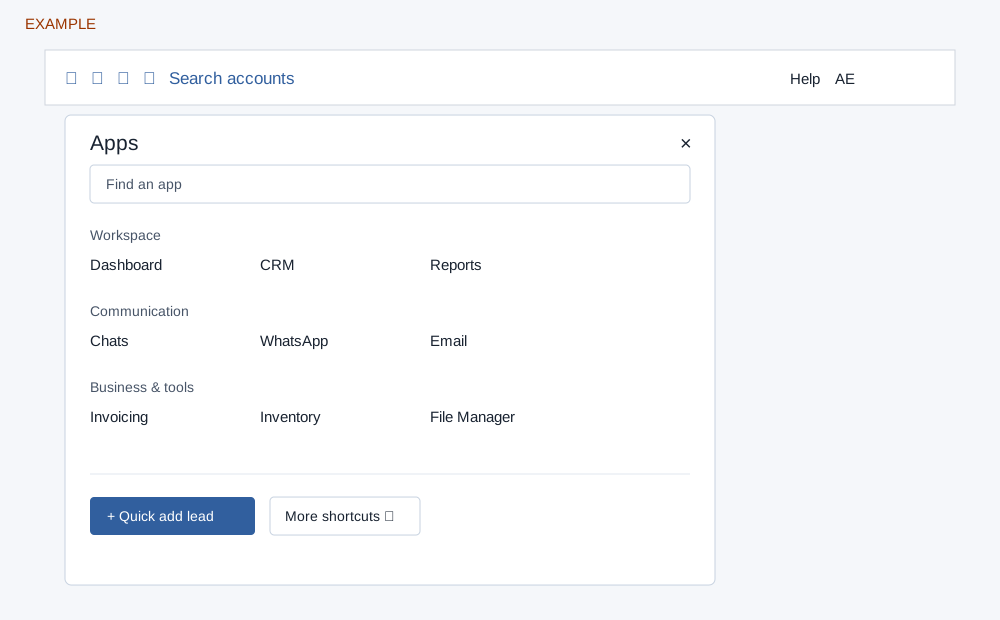
Switch apps
- Select Switch app (the grid icon). Type in Find an app to filter the visible links; No matching apps means no visible item matches. Select an app to open it. Close, Escape or clicking outside dismisses the panel.
- Workspace can include Dashboard, CRM, Reports, Projects, Assignments and Helpdesk. Communication can include Chats, WhatsApp, SMS, Email, Dialer and Telephony. Business & tools can include Invoicing, Inventory or Product List, AI Chat and File Manager. Availability depends on role and app permissions; a displayed link does not guarantee permission at its destination. Projects is additionally conditional on SMS and project read access in the navigation.
- More shortcuts expands Digest, Contacts where permitted, Chats, Tasks and, for administrators, Account Settings. Use the new Daily Digest for CRM work. Quick add lead opens the short lead form.
Open the new Digest
Use Switch app → More shortcuts → Digest to open the new workspace at /v4/crm/digest/v1/index.php. Confirm that it has Today, Conversations, Discussions, Analytics, Notifications and Favourites. The header/star, profile and sidebar Daily Digest links, and the CRM app tile, can open the older inbox depending on the account’s list-access policy. The account-settings sidebar’s Dashboard link also opens the older inbox for a non-administrator. If a shortcut opens the older layout, use the More shortcuts link instead. Only the new Digest is documented here.
Other header controls
The star menu provides permitted shortcuts to Contacts, Tasks, Chats and Daily Digest. On smaller screens the menu button opens navigation; the backdrop or Escape closes it. On desktop use the sidebar collapse/expand control. Search accounts opens global search. The conditional Timeclock records attendance and work sessions.
Help and profile
Help offers Request Support, WhatsApp support, Configure AI Chatbot, How-To Articles, Training Videos, webinar registration and YouTube videos; these open external destinations. The profile menu shows your name and email, View Profile, Integrations, Daily Digest and Logout. Administrators also see Need Help, Account Setting and Billing. Logout ends the signed-in session. Use Profile to manage personal details.
See also incoming call popup and due task notification.