Location Permissions
Review location permissions in the Timeclock report.
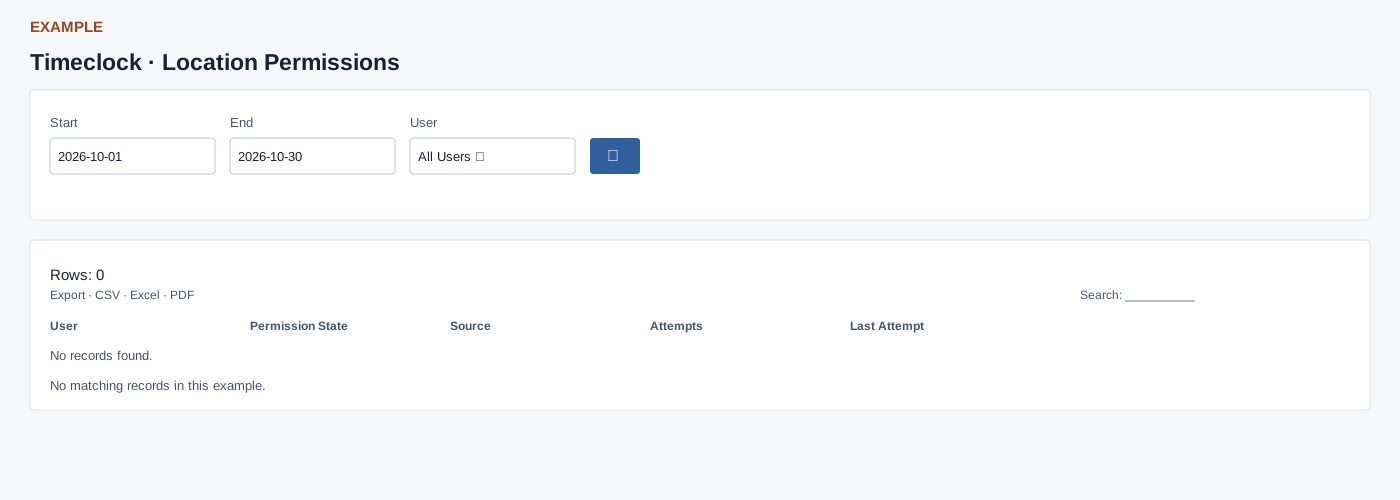
Open and filter
Open Reports → Timeclock → Location Permissions. This tab requires attendance location audit access; only permitted tabs appear. Choose Start, End and User, then select the search icon. There is no status, source or limit selector. The date range defaults to the first of the current month through today; reversed ranges are clamped to Start and ranges over 366 days are shortened. Daily defaults to today. Switching tabs retains dates and user but does not retain the other filters.
Read the results
Columns: User, Permission State, Source, Attempts, Last Attempt. Groups permission events by user, state and source using attempted date; Attempts is event count, not distinct users. Rows shows the number returned; Period shows the chosen range or date. The shared report enhancement adds table search, sorting and 100-row pagination, plus CSV, Excel and PDF exports of matching loaded rows. It does not fetch beyond the source limit. The original table may differ if enhancement fails; wide tables scroll horizontally. If there is a setup warning or no records, ask an administrator to check timeclock setup, permissions and the selected period.
Example and verification
Choose Alex Example and the relevant date to inspect a record. Compare the appropriate date basis and status with the underlying attendance or meeting record; if missing, check permission, user, date and any limit before drawing conclusions.