Bulk transfer contacts
Assign contacts matching a saved filter to another team member.
- Open Account Settings → CRM Data → Transfer.
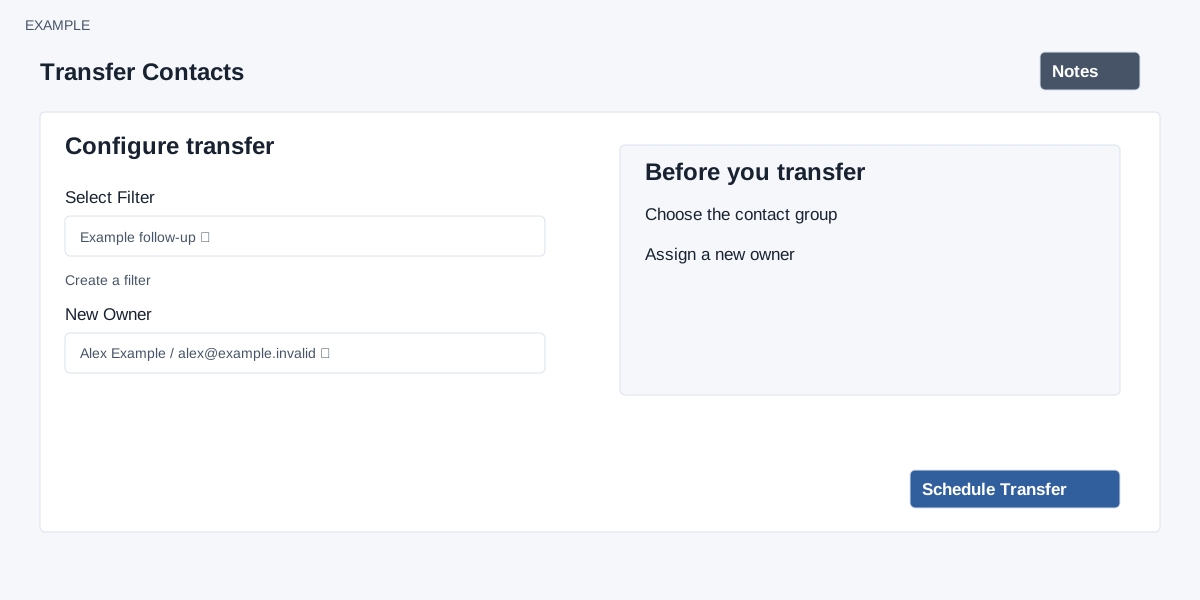
- Select the saved filter defining the contact group. Use Create a filter if needed.
- Select the New Owner and verify both the filter and owner carefully.
- Select Schedule Transfer. The page says processing runs in the background and an email is sent when it completes.
Review the filter’s results before scheduling because the background operation has a row limit and may change ownership for other contacts on the same accounts.
Scope and verification
ADMIN access is required. The filter selector contains saved filters; New Owner lists users by name and email. Both selections are required. The Create a filter link opens reporting filters. The request queues the filter and selected user, not a fixed preview of contacts; review the saved filter and its results before scheduling.
The operation processes at most 500 matching rows by default. A saved result limit can reduce legacy-filter results; advanced filters do not apply that limit to this operation. Processing validates the target user and changes ownership at the company/account level for each matching contact’s account. Other contacts sharing that account can therefore be affected. The completion message does not report each contact’s result. A scheduled message is not proof that every account changed: check the completion notification and sample affected accounts and owners. On an error, inspect the filter, target user and current ownership before retrying.