Escalations
Set up approval routes and the people responsible for decisions.
Find a legacy rule
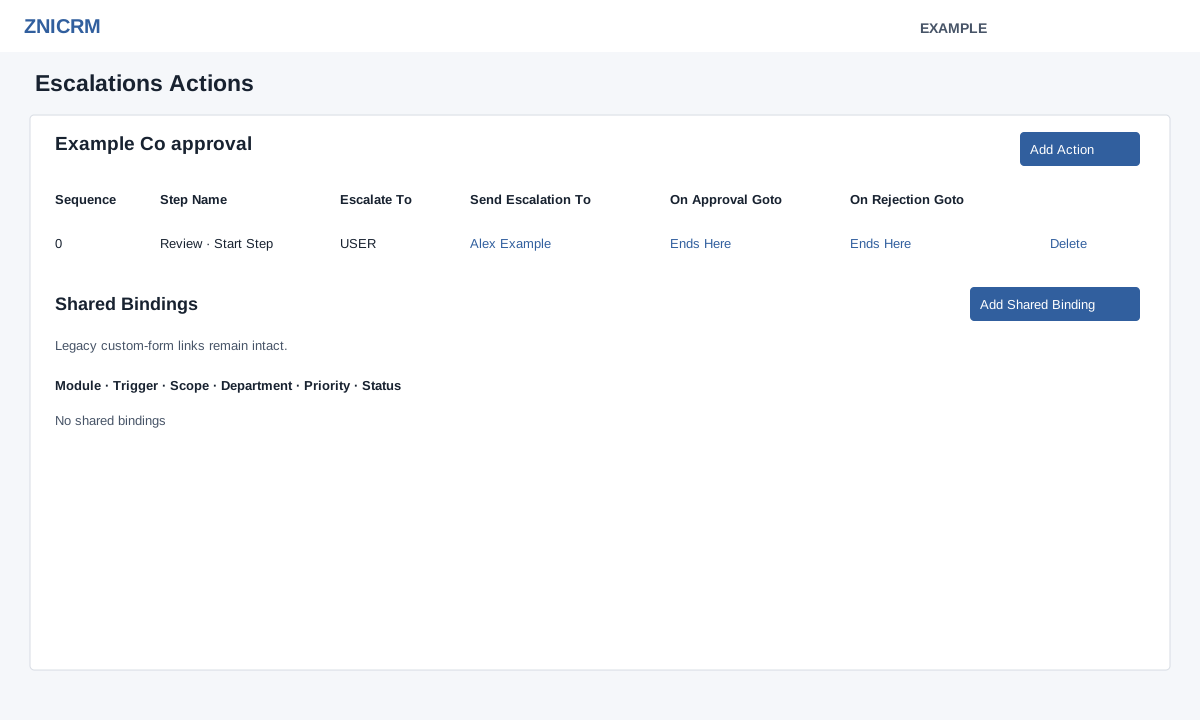
Administrators open Account Settings → Escalations. The list shows Name, Description, Used In, Pending Queue, Created On and Status. Search, column sorting and pagination operate on the loaded list, which contains up to 50 rules. A missing search result does not establish that a rule does not exist. Select a name to open its actions and recipients.
Used In describes linked usage. Pending Queue distinguishes pending assignments from active instances; a dash appears when neither count is present. Shared Rules and Shared Reporting appear when shared storage is ready. The settings icon opens Personal Notes.
Create a rule
- Select Add New.
- Enter a required Name and Description. For example, “Example purchase approval” and “Route an example purchase request to the responsible manager”.
- Select Create Escalation. Success opens the new rule’s action page. Cancel or × dismisses the unsaved dialog.
- The system defaults a new legacy rule to Active. Return to the list, disable it and verify the status before adding recipients or connecting it to a module. Then open the rule and configure its actions.
- Review the route and recipients before enabling the rule with its status control.
Enable or disable a rule
- Find the intended row and inspect its usage before changing Status.
- Select Active and confirm Disable rule, or select Inactive and confirm Enable rule. Cancel leaves the status unchanged.
- Check the success message and updated status, then reload to check the saved status. This changes the legacy rule; do not assume it cancels decisions or notifications already in progress.
Creation limits and upgrade notices
Creation is limited by the plan’s escalation allowance. Despite the underlying counter’s name, it counts all legacy rules, including inactive ones; disabling a rule does not free this allowance. If creation fails, check Name, Description, administrator access and the displayed plan error before retrying. If a status change fails, reload and inspect the current value before trying again.
When shared storage is ready, opening the list may create missing shared counterparts; opening a legacy rule synchronizes its shared steps. These views are not necessarily read-only. If a mandatory upgrade notice appears, follow Upgrade Escalations.