Reporting filters
Save conditions for finding a group of contacts again.
Create a filter
- Open CRM → Reporting Filters or Account Settings → CRM Data → Reporting Filters. Select Create filter.
- Enter the required name and description.
- Choose initial conditions as needed: Owner, Created By, Status, Product, Last Contacted (Days Ago), Created from and Created through.
- Select Create filter. The dialog says to use Edit after saving to add or refine rules.
Use a saved filter
Search by name or description. Select View contacts to see matching records subject to your access, Edit to refine conditions, or Create dialer batch to send the audience to the dialer. Each row also has a delete control. The page says matching contacts are evaluated when the filter is used.
For example, a sales manager could start with an owner and an in-progress status, then review matching contacts. Validate the result before using the filter for an export, transfer or bulk deletion.
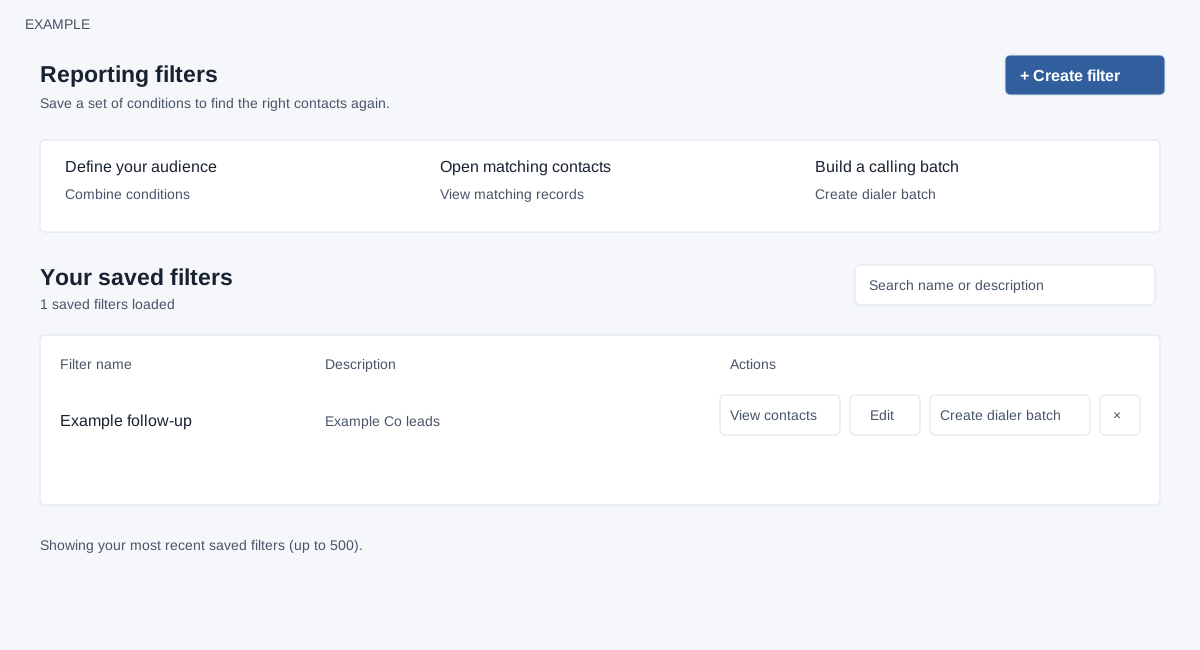
List controls and access
CRM access is required. Search narrows the displayed filter names and descriptions; Clear search resets it. A filter row opens matching contacts, Edit opens the condition builder, and a delete icon asks for confirmation. Create dialer batch appears only when the dialer permission allows it. Deleting a filter removes its saved definition, not matching contacts. The list and admin selectors use filters owned by the current user; the list is capped at 500.
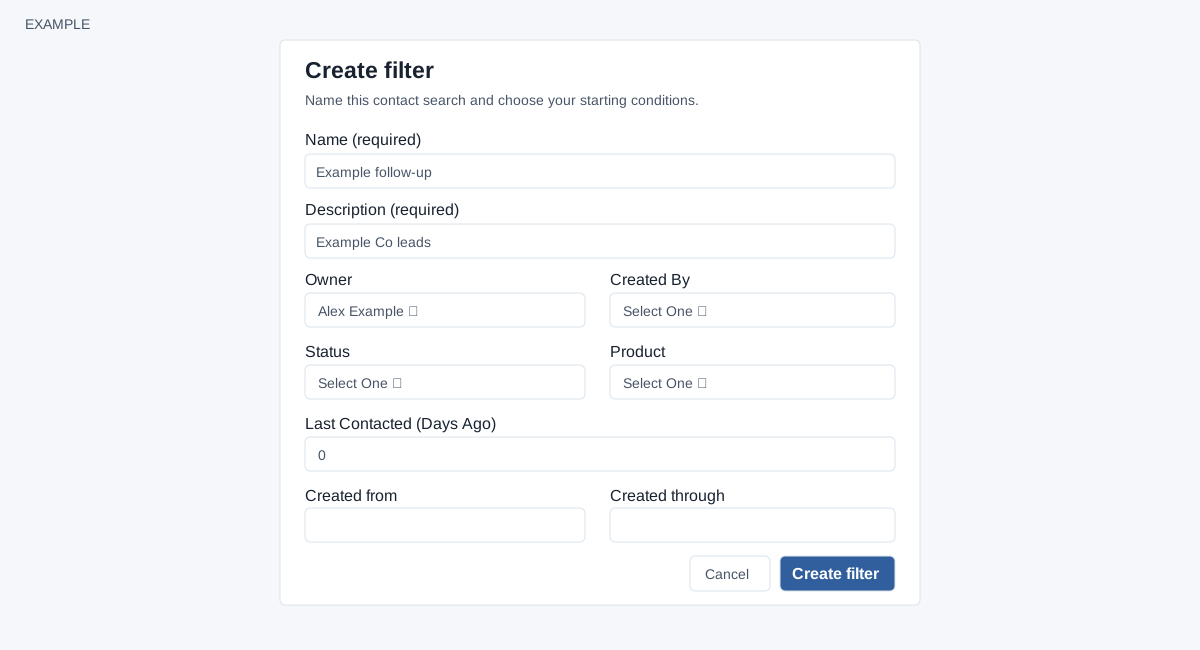
Initial conditions
Name and Description are required in the creation dialog. Owner, Created By, Status and Product have a Select One choice and account-specific options. Last Contacted (Days Ago) starts at 0; Created from and Created through use date pickers and can be cleared. Review the dates and other defaults before Create filter. Cancel or × closes the dialog without creating it. A successful creation reloads the list. To inspect and refine the resulting logic use Filter editor; check View contacts before using it for a bulk action.