Users
Manage team members and their access from Account Settings → HRMS → Users.
An Administrator role is required for these settings.
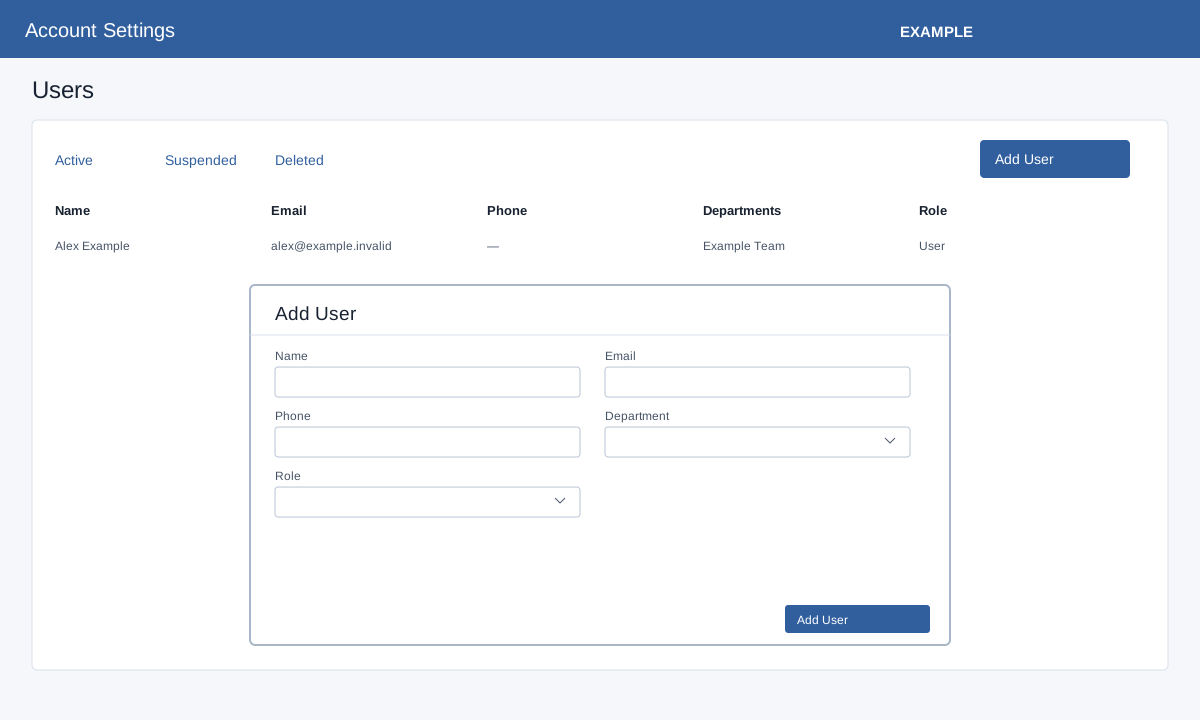
Add a user
- Select Add User.
- Enter the person’s name, email and phone number.
- Select the department and role appropriate to the person’s responsibilities. Review the role’s permissions before assigning it.
- Select Add User, or Cancel to leave without adding the person.
The form checks the entered fields; successful creation opens the user profile.
Find a user
Choose Active, Suspended or Deleted. Search the list, change rows per page, or sort by a column heading. The table shows name, email, phone, department and user access. Select a name to open the user profile. See the profile guide below for available account actions.
User profile and account actions
The form checks name, email, phone and a selected role. The role dropdown excludes Administrator roles; the selected department must be valid. The CRM creates the user and attempts to send a welcome email with login details; a successful creation does not establish delivery. On success it opens the new user profile; an error leaves the form for correction. See Manage a user profile for role, departments, suspend, restore, password and queued deletion with lead-transfer handoff. Confirm the intended recipient before deletion and check the profile after processing.