Tasks
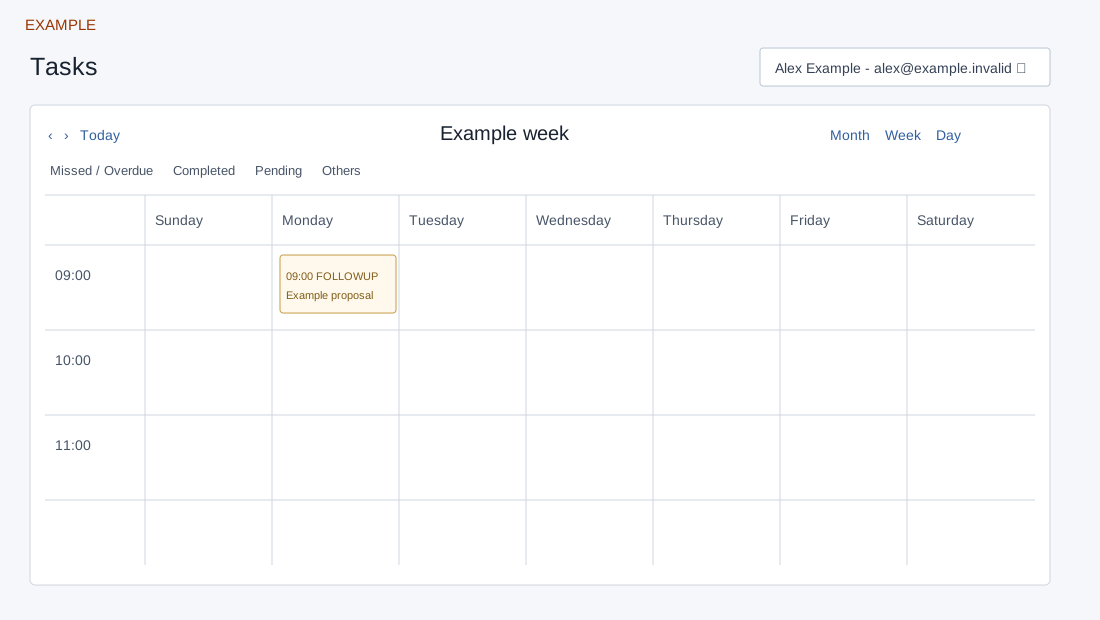
Review tasks in a calendar by day, week or month.
Navigate the calendar
- Select Tasks in the header or CRM navigation.
- Use the user selector to choose the relevant team member where access permits.
- Select Month, Week or Day.
- Use Previous period and Next period to move through the calendar.
- Use the status legend to distinguish missed or overdue, completed, pending and other tasks.
For example, choose Week to review the coming working week, then inspect overdue and pending items. The calendar opens the linked contact or booking; manage contact follow-ups in the contact task workspace.
Calendar scope and controls
CRM access is required. The calendar defaults to Week. Administrators can select a company user; department managers can select users they manage; other users see their own tasks. The selector includes None; a None, missing, invalid or unauthorized selection falls back to the current user. Search within the user selector, then choose a user to reload that calendar. Previous, Next and Today move the visible period; Month, Week and Day change the view. Month limits visible events to three per day before the calendar’s overflow control.
The calendar fetches at most 500 tasks for the selected owner and visible period. It labels each event with type and subject, positions it at its due time, and colors completed first, otherwise overdue if due is past or pending if due is future. A booking event opens booking reports; other events open the contact conversation, not an editable calendar event. The calendar has no configured double-click or empty-slot action to create a task, nor a working add, delete, edit, drag-reschedule, reassignment, comments or attachment control. Open the contact’s Tasks tab for the supported actions. The settings icon opens personal notes. If a task is missing, check user, date and the 500-item limit; a calendar entry is not proof a reminder was delivered.