Attendance location
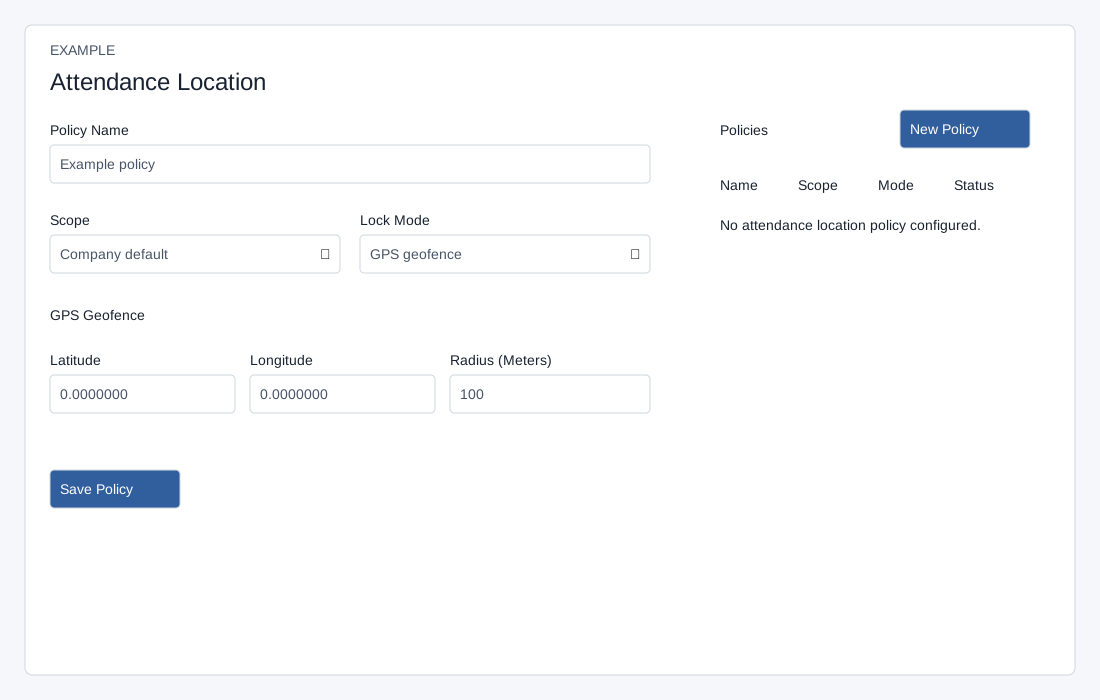
Create or edit a policy
ADMIN opens Account Settings → HRMS → Attendance Locations. New Policy clears the editor; Edit selects an existing row. Policy Name is required (up to 120 characters). Scope is Company default, Department or User; the latter choices reveal the corresponding account-specific selector. Lock Mode is GPS geofence, IP address, GPS or IP, or GPS and IP. The policy mode determines which fields must be supplied; the separate global Attendance Location Lock in Timeclock Settings determines which checks are applied to attendance.
GPS modes require Latitude (−90 to 90), Longitude (−180 to 180) and a positive Radius (Meters), maximum 100,000; the form starts at 0, which is not sufficient for GPS. IP modes require a valid Single IP Address or IP CIDR Range. Either field may match; exact IPv6 addresses are accepted, but CIDR matching supports IPv4 only. GPS or IP still requires configuration of both types of data in this form. Select Save Policy to submit; no autosave is present. Verify the success message and row. A token error requires refresh; correct invalid scope, coordinates, radius or IP and retry.
Eligibility and policy list
For a user the service selects the latest active user policy, otherwise the latest policy for the user’s primary active department, otherwise the latest company policy. The global lock chooses GPS, IP, either or both; choose matching data in the effective policy. A non-None lock with no effective policy rejects the event. With global None, Require attendance location checks for GPS capture without a geofence. GPS locks check distance and reported accuracy; browser location denial can reject GPS-or-IP as well as GPS-and-IP before the OR test. Review access with affected users and an administrator before rollout.
Policies lists Name, Scope, Mode and Status, up to 500. Deactivate submits immediately for an active row; no confirmation is shown. It removes that policy from effective selection, potentially exposing a lower-scope policy. Editing an inactive policy does not reactivate it; saving creates a new active policy. Check the resulting list before retrying, as duplicates can change which policy wins. Back to Timeclock Settings returns to global controls. Verify eligibility and errors through approved operational channels.