Invoicing settings
Set document defaults, taxes and payment modes for quotes and invoices.
Document defaults
- Open Account Settings → Invoicing → General Settings. On General, use Gallery to choose the document logo.
- Review quote and invoice titles, serial prefixes and starting sequences, company information and terms. The page says to click a value and confirm each field to save it; these edits can save immediately.
- Review payment-link settings; a connected payment gateway is required. Quote settings also provide an option to link quotes to deals.
Taxes
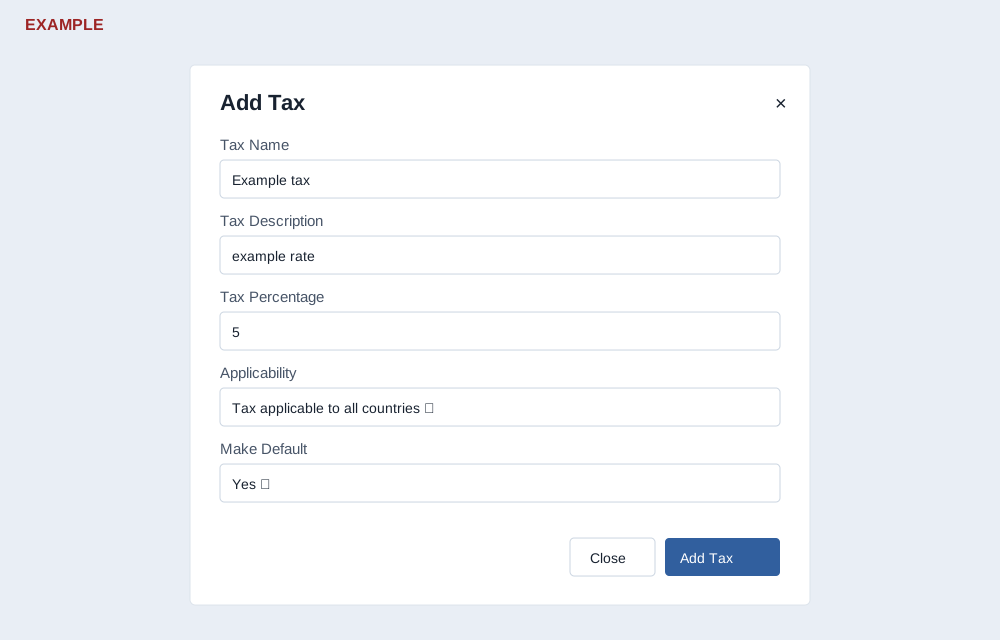
- Select Taxes → Add new tax.
- Enter a name, description and percentage. Choose whether the tax applies to all countries or is country-specific; complete any regional fields shown.
- Choose whether to make it a default and select Add Tax. Default taxes are added automatically when applicable, based on customer or linked-office address. Review final tax lines on each document.
Payment modes
On Payment modes, select Add new mode, enter a name and description, choose Bank, Payment Gateway, Cash or Other, then select Add Mode. A payment mode records how money was received; it does not connect an online gateway. The page advises recording customer funds before settling an invoice.
See the invoicing workspace for related workflows.
Detailed procedures: Document defaults · Taxes · Payment modes.