Attendance shifts
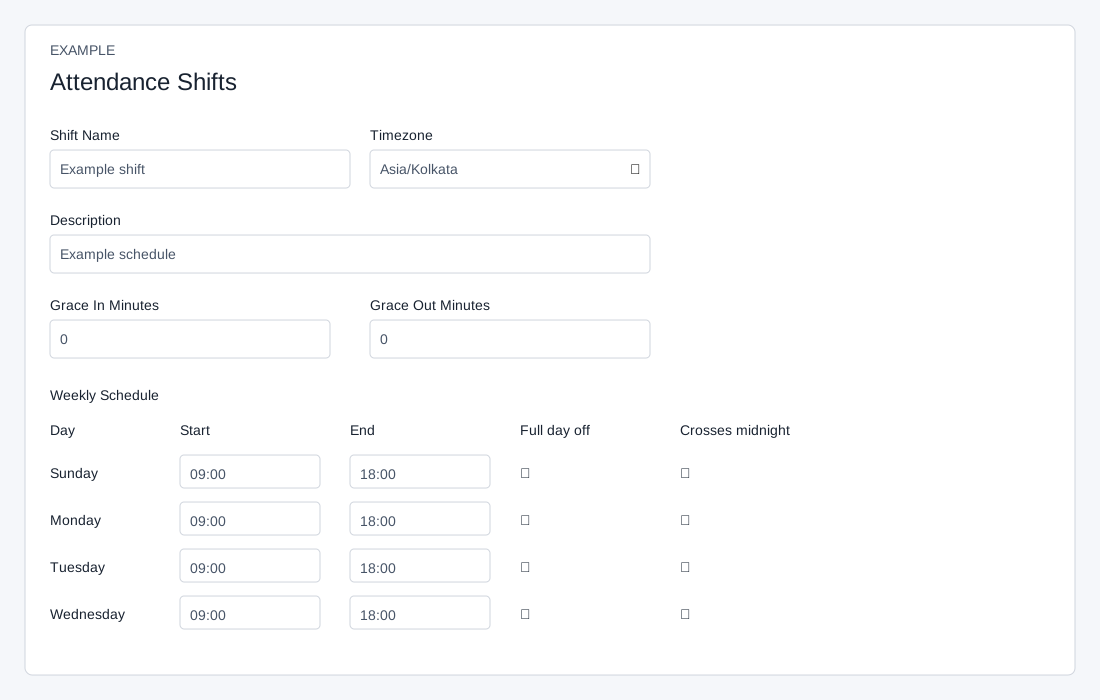
Create or edit a shift
ADMIN opens Account Settings → HRMS → Attendance Shifts. New Shift returns to a blank editor; the pencil opens a listed group. Shift Name is required (up to 120 characters); Description is optional (up to 255). Timezone choices are Asia/Kolkata (default), UTC, Asia/Dubai, Europe/London, America/New_York and America/Los_Angeles. Grace In Minutes and Grace Out Minutes start at 0 and accept 0–240.
The weekly schedule lists Sunday through Saturday, each with Start, End, Full day off and Crosses midnight. Defaults are 09:00–18:00, with Saturday and Sunday off. Set the overnight flag when the end is on the next day; an off day has no effective shift interval. Save Shift Group submits the group and then its seven days separately. If the second step fails, the group may already be saved: reopen and inspect the name and every day before retrying. The list shows Name, Status and edit action; there is no group delete button on this page.
Assign and remove
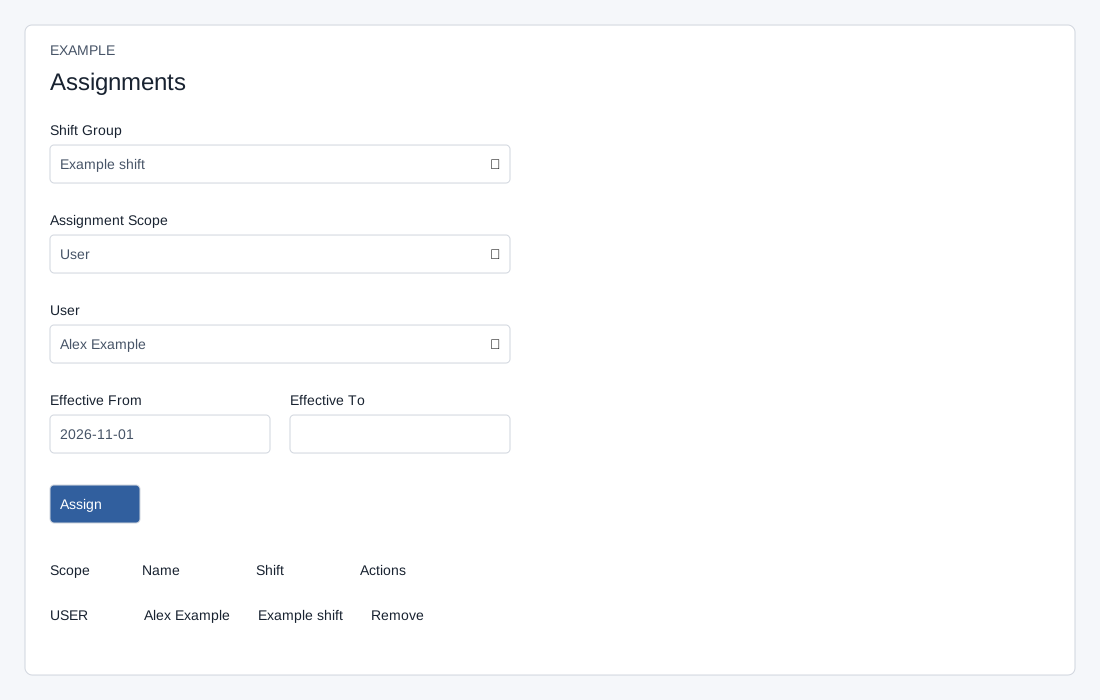
Choose an active Shift Group and Assignment Scope: Company default, Department or User. For a department or user choose the account-specific value. Effective From defaults to today; Effective To may be blank. Assign creates a separate active assignment. Existing active assignments show Scope, Name, Shift and Remove; Remove deactivates immediately without an on-page confirmation. The table does not show effective dates, so keep a record of the intended dates. Invalid scope or shift returns an error; refresh and inspect assignments before retrying.
For each date the service resolves user assignment, then primary active department, then company assignment, then the default shift in Timeclock Settings. When assignments overlap within a scope, the latest effective-from date and then latest ID wins. Department is the first active department by membership sequence. For Example Co, configure weekdays and weekend off, assign to Alex Example from the intended date, then verify the effective schedule using your approved attendance workflow. Removing an assignment can reveal another assignment or the default.