Helpdesk custom fields
Collect consistent ticket information, such as an affected product family.
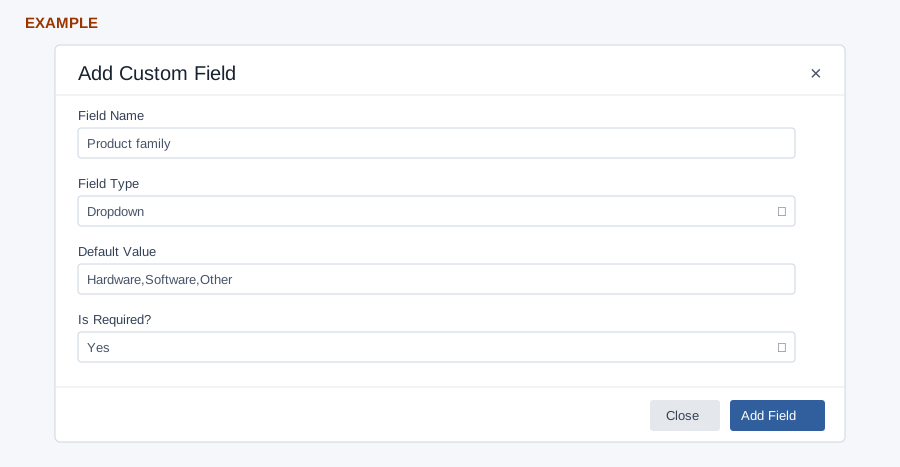
Add a field
- Open Account Settings → Helpdesk → Custom Fields as an administrator and select Add Field.
- Enter a Field Name. Choose Field Type: Text for a single-line answer or Dropdown for a controlled choice.
- In Default Value, enter optional initial text for Text; for Dropdown enter the choices separated by commas, for example
Hardware,Software,Other. - Choose Is Required? No or Yes, then select Add Field. Close dismisses the dialog.
Review or delete
Dropdown choices are required. The reloaded table shows Field Name, Type, Default Value, Required and Delete. Reopen Create Ticket to verify the new field and its choices; the company-wide active list is limited to 50. Delete requires confirmation and marks the field inactive; the warning says data will be lost and cannot be recovered. The row is removed on success. Check downstream use first; the page provides no edit or reorder action. If the new field is absent, check the name, dropdown choices and the 50-field limit, then refresh.
Example: make Product family a required dropdown so a support agent can categorize incoming troubleshooting requests consistently. Verify it appears on ticket creation without submitting a real ticket.