Email gateways
Manage the company email connections used by CRM messages.
Open the list
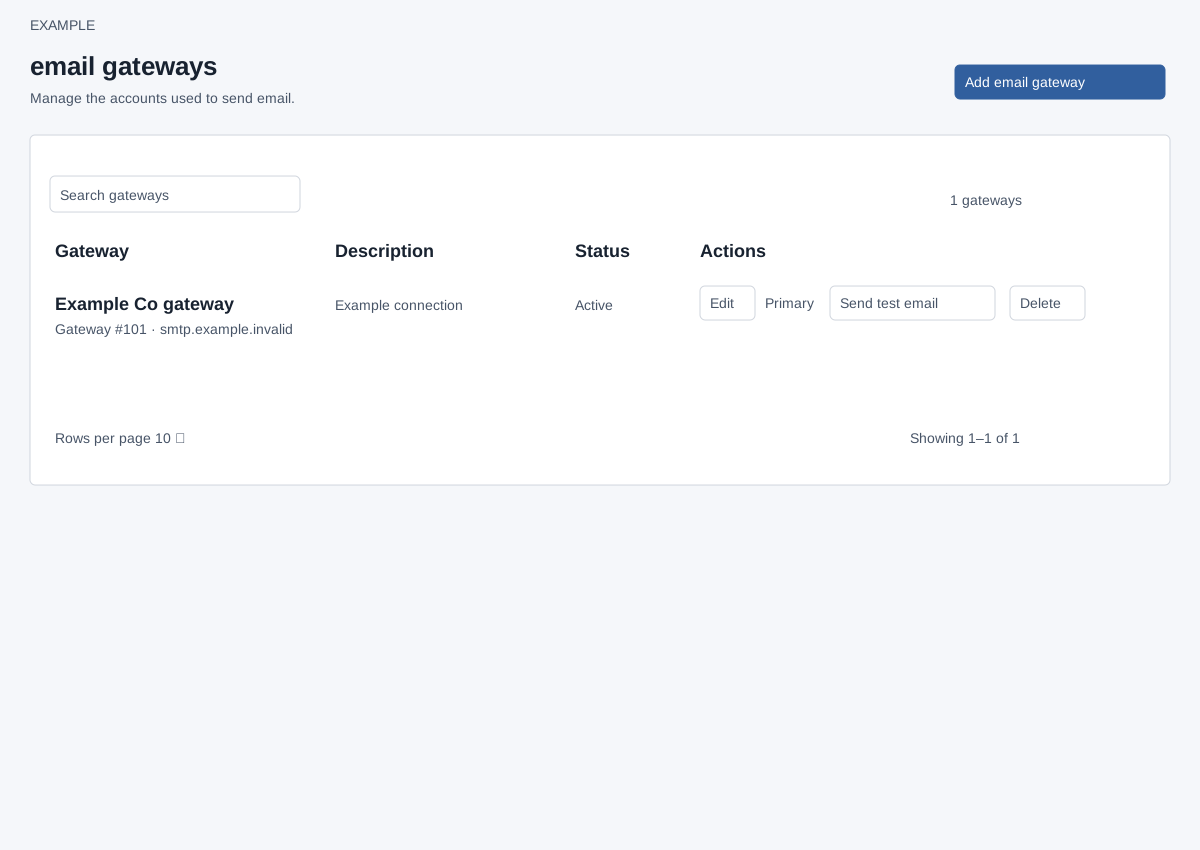
In Admin settings open Email gateways. These screens require an ADMIN role. Search gateways filters the table; the table initially displays 10 rows per page, with rows-per-page and paging controls. Each row shows gateway name, local number and host, description, Active or Pending status, and actions. Notes opens the notes sidebar. Add email gateway opens the setup form.
Edit, test, set primary or delete
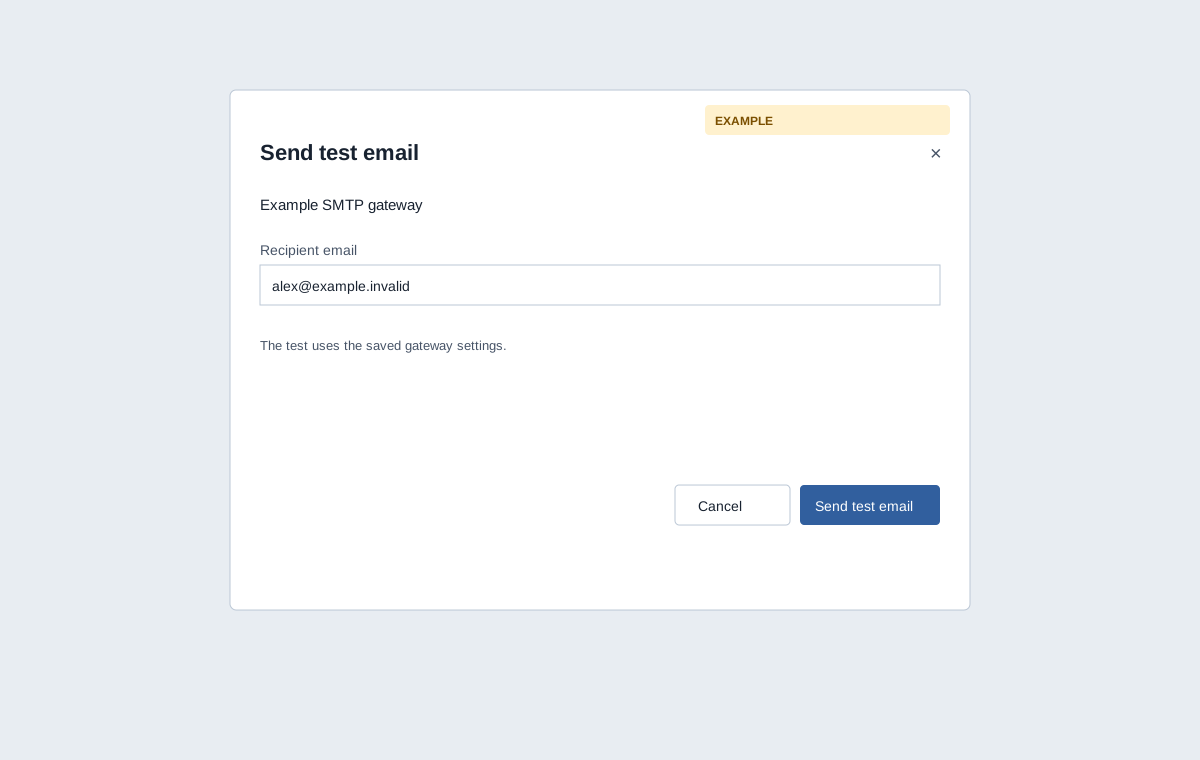
Select Edit to change a company gateway in place; the existing primary status and references remain. Send test email opens a dialog for the recipient and uses saved settings. A connected Gmail API row also shows this button, but the SMTP diagnostic cannot validate its internal Gmail API host; use the Gmail integration to verify that connection. Set primary asks for confirmation and changes the company default for future messages that use it. The existing primary row displays Primary. Delete asks for confirmation; a primary gateway cannot be deleted until another is made primary. Existing messages may still reference a deleted gateway. Deleting a connected Gmail API gateway also invokes deletion of its Gmail integration. The first added gateway becomes primary if no default exists.
Use Cancel to leave a confirmation or test dialog without making that change. A successful change reloads the list. If a request fails, refresh and check the actual status before trying again. If an edit link reports the gateway unavailable, return to the list and select an available company record.
Add or edit an email gateway · Gateway tests and recovery · SMS gateways