Helpdesk preferences
Choose the tools and queues that help agents investigate tickets, hand work to colleagues and review service performance.
Open Account Settings → Helpdesk → Preferences as an administrator. Changes apply to the company workspace. They do not grant a user access that their role otherwise denies.
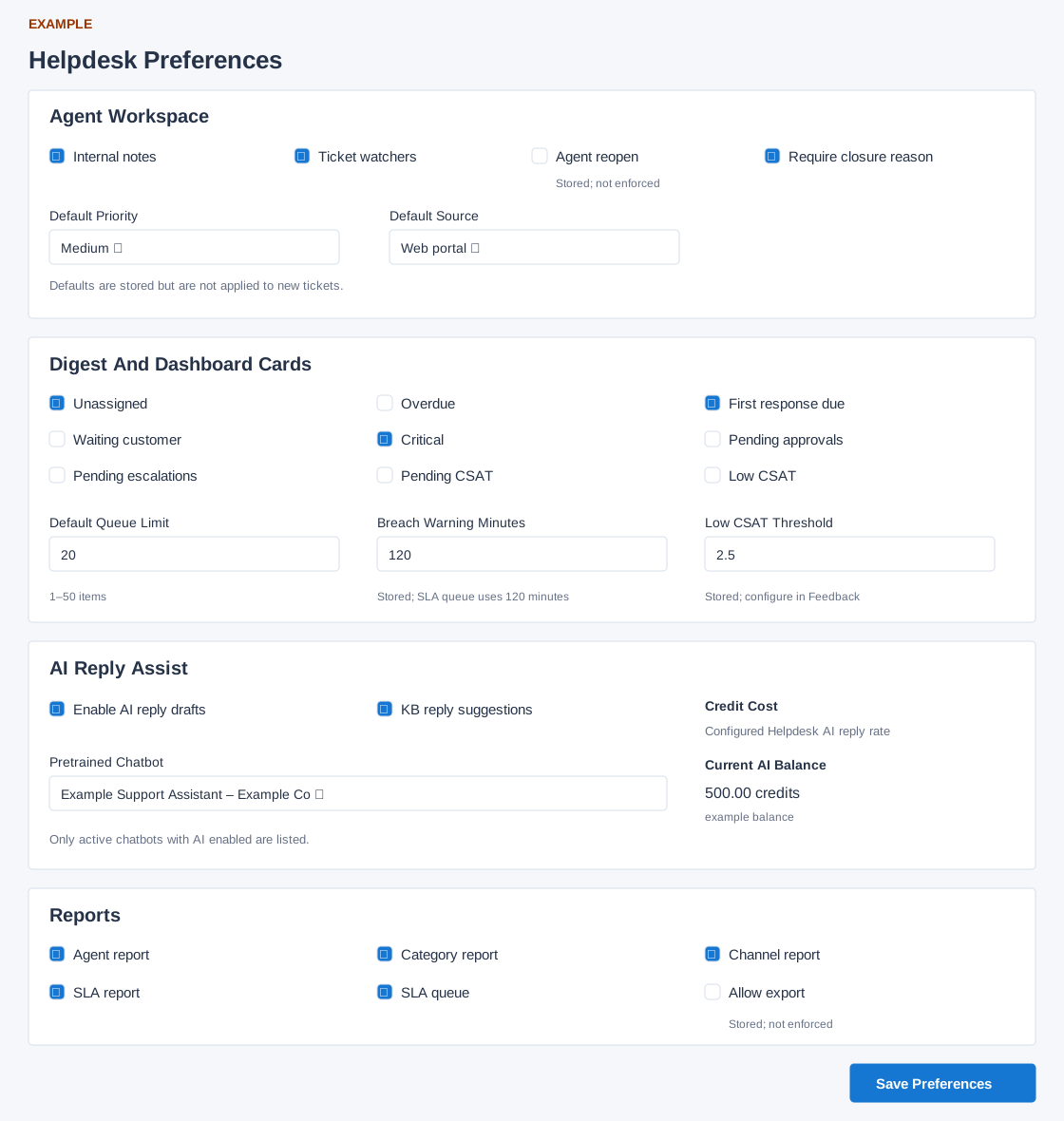
Choose agent tools
| Control | What to use it for |
|---|---|
| Internal notes | Make staff-only investigation and handover notes available in the ticket workspace. Keep customer-facing replies in the reply composer. |
| Ticket watchers | Allow agents to follow a ticket without becoming its owner. Use this when another specialist needs to monitor progress. |
| Agent reopen | A stored preference that is currently not enforced. Turning it off does not reliably prevent reopening. |
| Require closure reason | Ask agents for an outcome and reason when closing a ticket so the service record explains the resolution. |
| Default Priority | Low, Medium, High, Urgent or Critical. The selection is stored but is not applied to new tickets; agents must check each ticket’s priority. |
| Default Source | Web portal, Email, WhatsApp, Phone, Chat, Cloud telephony or Internal, plus a retained current value where applicable. Stored only; ticket creation does not apply this default. |
Choose Digest and Dashboard cards
Enable the queues your support team should review. These settings concern Helpdesk queues. The CRM daily-work guide uses only the new Digest.
| Card | Work it highlights |
|---|---|
| Unassigned | Open tickets without an owner; useful for a capture-based support queue. |
| Overdue | Tickets past the company resolve time. Do not equate this with every policy-based SLA breach. |
| First response due | Tickets with no recorded staff reply. |
| Waiting customer | Tickets whose latest reply was from staff. |
| Critical | High, Urgent or Critical priority tickets; this card includes more than Critical alone. |
| Pending approvals | Actions awaiting an approval decision. |
| Pending escalations | Outstanding escalation work. |
| Pending CSAT | Surveys awaiting dispatch or a response. |
| Low CSAT | Low scores awaiting recovery follow-up. |
Default Queue Limit accepts 1–50 items in supported queues. A short list is not proof that no additional work exists. Breach Warning Minutes is stored only; the SLA queue uses 120 minutes. Low CSAT Threshold accepts 1–5 in 0.1 steps but is stored only here: configure the effective classification in Feedback & CSAT. See the queue reference for scope and interpretation.
Configure AI assistance and reports
- Prepare an active, AI-enabled chatbot containing suitable support knowledge. Select it under Pretrained Chatbot; inactive or non-AI bots are not offered.
- Enable AI reply drafts if agents should request draft replies. Enabling drafts without a valid bot is rejected. Enable KB reply suggestions for knowledge-base assistance as appropriate. Agents still review a draft before sending it.
- Read the Credit Cost description and Current AI Balance. The page describes the configured Helpdesk reply rate; do not assume a numeric rate from this example image. A request in the ticket workspace can use credits.
- Choose the reports to expose: Agent report compares staff performance; Category report compares ticket topics; Channel report compares sources; SLA report reviews response and resolution; SLA queue shows current deadlines and breaches. User permissions still apply.
Allow export is stored but currently not enforced. Do not use this switch as an export restriction. AI controls can be disabled when the required setup is unavailable.
Save and verify the configuration
- Review each section, including any selections made earlier on the same page.
- Select Save Preferences. This submits all sections together.
- After the success message, reopen Preferences and compare every changed value. A success message alone is not the check.
- Open the relevant Helpdesk workspace or report and confirm that the supported tools and queues appear. Do not send a reply or change a ticket simply to check visibility.
Example: Example Co uses a shared support queue. Enable Unassigned, First response due and Ticket watchers, set the queue limit to 20, then verify those selections after saving. Agents can capture work and invite a specialist to follow the investigation.
If saving is unavailable, read the setup-readiness message and contact the administrator. If the chatbot list is empty, train and enable a suitable bot. If saving fails partway through, reopen and check all sections before retrying: the save routine writes sections separately. A stored-only preference will not change behavior even when its saved value is correct.