Dashboard
Use the dashboard to see current CRM activity and open the reports behind the numbers.
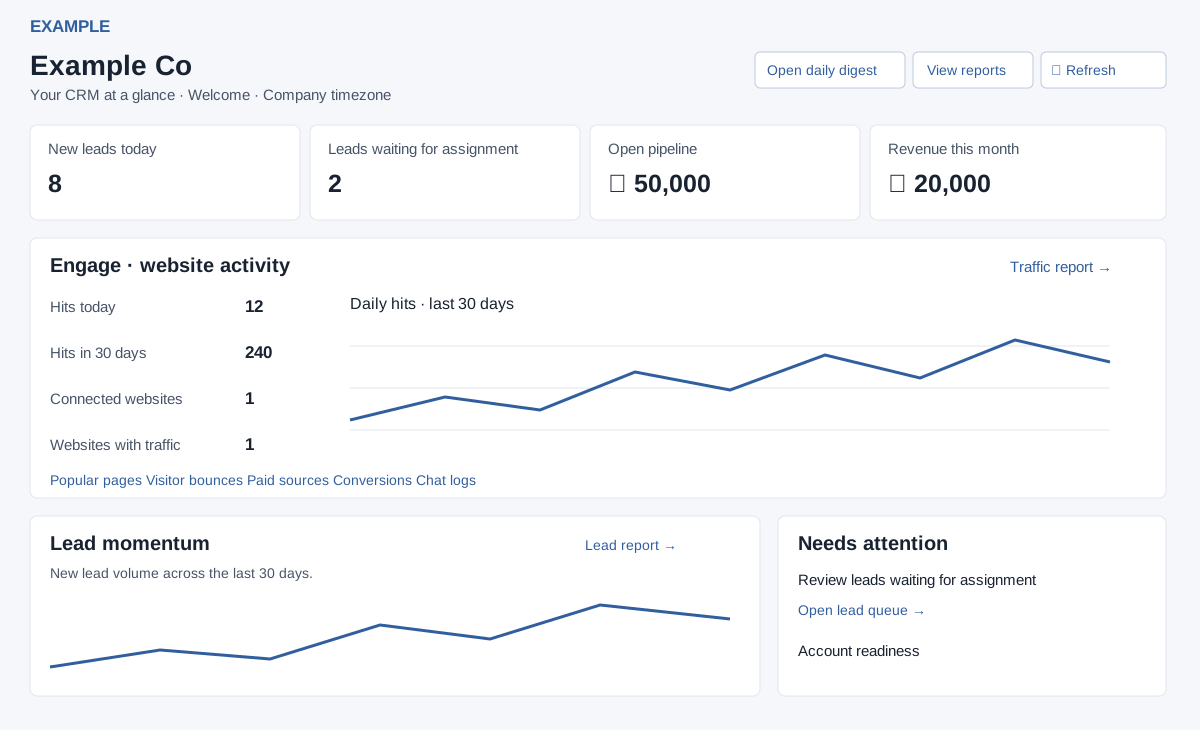
Open the dashboard
The dashboard is for administrators. Other roles are redirected to the new Daily Digest. Guided setup may redirect an eligible initial visit to onboarding; its resume and launch buttons appear only when available. Settings opens the administration hub.
- Open the account navigation and select Dashboard.
- Select Refresh dashboard to refresh the displayed information.
- Select a metric or report link to open its underlying view.
Read the page
| Area | What it shows or opens |
|---|---|
| Key CRM metrics | New leads today, leads waiting for assignment, open pipeline expected to close this month and revenue this month. |
| Engage · website activity | Today’s hits, hits in the last 30 days, connected websites and websites with traffic. Links open traffic, page, bounce, paid source, conversion and chat reports. |
| Lead momentum | Lead volume over the last 30 days and links to the lead report, contacts and accounts. |
| Needs attention | Setup or lead-assignment actions and account readiness. |
| Deals and revenue | Current outcomes of deals created in the last 30 days and invoice revenue by month. |
| Team activity and lead breakdown | Today’s assigned, contacted and pending counts; switch the breakdown between Status, Source and Department. |
| Workspace & guided setup | Configuration counts, license date, setup wizards and CRM shortcuts. |
Move from an overview to action
Select a metric to open its linked report or setup page. Report links marked today, 30 days or month receive that date window; the destination can have its own filters and access rules. In Lead breakdown select Status, Source or Department to change the displayed grouping. Needs attention can offer up to three actions, including assignment or configuration; follow the displayed action and verify the destination. For Example Co, select the waiting-for-assignment card and review the queue before assigning a lead.
Explore your CRM links to tasks, assignments, SMS, Helpdesk, WhatsApp, telephony, projects, email and inventory reports. Workspace counts link to users, departments, contact forms, bots, automation and escalations; the license date appears when available. The chatbot wizard opens setup; the conditional CRM launch wizard can create a live test enquiry and follow-up. Footer shortcuts open Contacts, Accounts, Import data and CRM settings. Use the new Daily Digest for daily work: the dashboard's Open daily digest link points to an older page.
Preview, refresh and recovery
Preview mode and Sample data badges identify example values; do not treat those figures as account results. An ordinary page load may reuse session-cached data. Select Refresh dashboard and check the updated time. The summary may remain unchanged for up to five minutes after a refresh. If the dashboard or website activity is unavailable, refresh in a moment; if a destination is denied, check your role and that feature's access.