Project management workspace
Open the page
Switch app > Projects. Project permissions determine access and available actions.
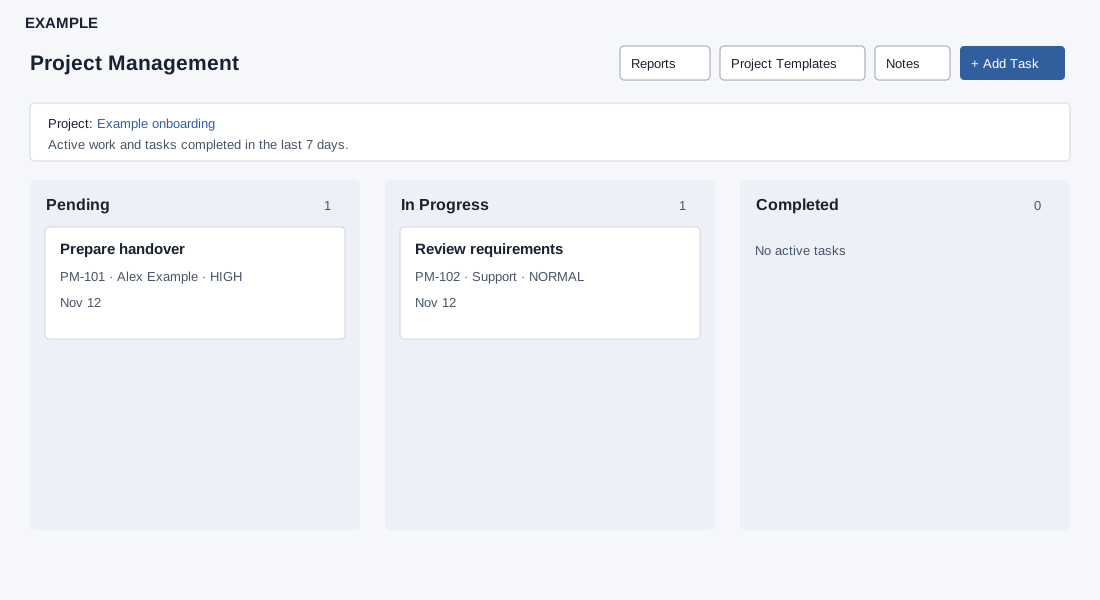
Understand the board
- Choose Project to display an active project template and its stages. The board groups tasks in stage columns and shows active work plus tasks completed within the last seven days. Each column shows a count for the loaded board.
- A task card can show its number, owner user or department, priority, blocked status, due or overdue state, and SLA warning or breach. Open a card to view its details. The board loads up to 1,000 tasks, so do not assume it is a complete history.
Change stages and navigate
- Where permitted, drag a task card into another stage. Moving is a live change: The system sets the task status based on the destination stage, may recalculate the due date, and updates SLA and escalation state. A DONE stage marks the task completed. Verify the destination before dropping.
- If the board says there is no active project template or no active stages, an administrator must configure the template or stages. Reports and Project Templates open related pages where permitted; Add Task opens the creation dialog.
Project topics
- Create a project task
- Project task details and actions
- Project reports
- Project report task lists
- Project templates
- Manage a project template
- Project stages
- Project tasks on a contact
Board controls and results
Project access requires project-management read permission. The Project picker lists active templates and remembers the last selection for your company and user; its selection reloads the board. Reports, Project Templates and Add Task appear only with their respective reports, template-management and create permissions. Notes opens the personal notes panel.
Columns represent active stages and counts include the cards loaded in that column. Cards show title, task number, owner user or department, priority, and conditional BLOCKED, due/OVERDUE and SLA WARNING/BREACHED badges. The board requests at most 1,000 tasks and includes active work plus completed tasks since midnight six days ago, so its counts are not a complete historical total.
With move-stage permission, drag a card to a different column. On failure the card returns to its original position and an error appears. On success inspect the task detail: moving to a DONE stage sets COMPLETED; another stage sets IN_PROGRESS, calculates a new due date from a positive stage offset or clears it, and attempts to update SLA and escalations. The board does not reload on success, so badges may be stale. This board has no status filter, card context menu or search control; use the Project picker, reports, or a contact’s Projects panel for their available views. For example, move Example Co’s handover task to the team’s In Progress stage and check its new due and SLA values.