Report tables and charts
Use the shared report controls to search returned rows, explore charts and export the matching table.
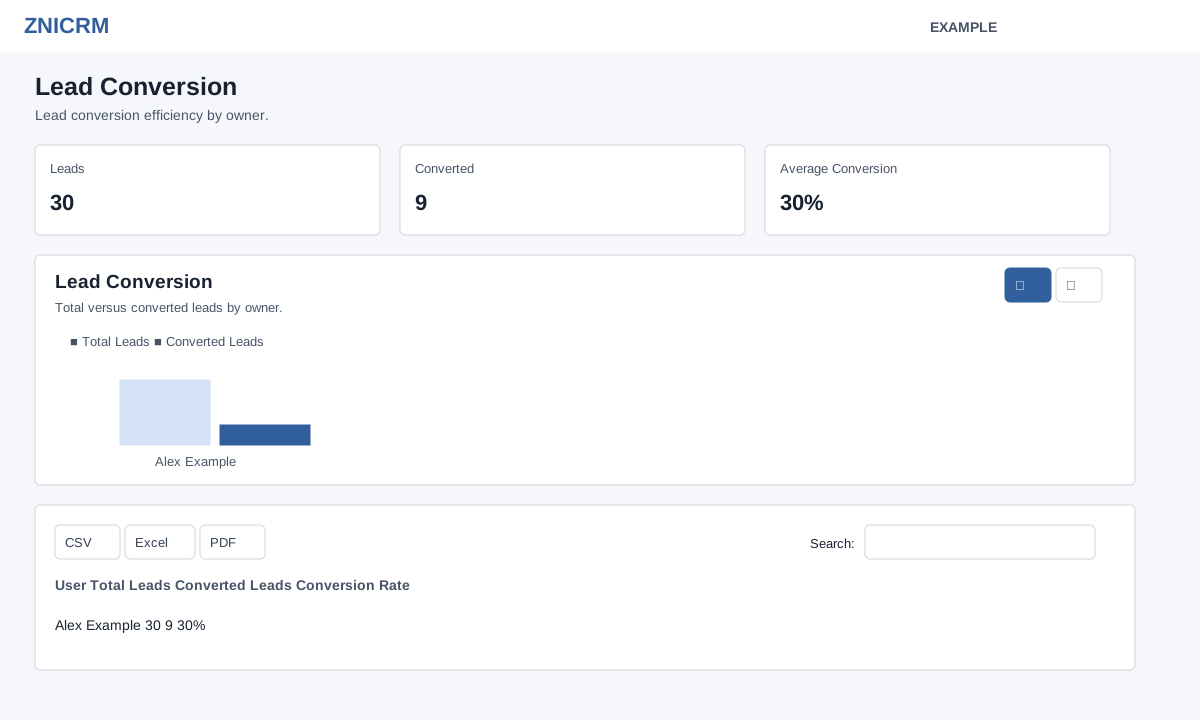
Run and search
- Open a report from Reports, set its own owner, date, department or other filters, and run or apply them. These report filters determine the rows returned by that report.
- Use the table’s Search to narrow those loaded rows; it searches the visible text across columns. Sort using a column heading and use pagination to navigate the matching rows. The enhanced table shows 100 rows per page.
- Generated charts tied to that table redraw when its search or sort changes and use matching rows across pages, not only the current page. A page with multiple tables can have a chart tied to a particular table; search that table to change its chart.
Generated summary metrics are calculated when the dashboard is built; table search redraws charts but does not recalculate those cards. Native report totals may have their own behavior. Check the report’s own filters, row limits and table before interpreting totals.
Charts and rankings
Use the chart’s icon buttons to switch between Bar and Line where offered, or Doughnut and Bar for distributions. Switching changes the presentation of the same chart data. Rankings instead show ordered bars and may show the top 10 rows. Select a truncated page or identity label to expand its full value and website context. Engage timeline charts include all returned dates in chronological order and can scroll horizontally.
Distribution charts count rows unless the chart specifies a value such as amount or count; weighted charts add that value by category. Series charts add values for rows sharing a category, and most show at most 14 categories. Engage doughnuts with more than five groups combine the remainder after four into Other categories. Charts and metrics can be absent when the required columns or data are unavailable. See the chart index for each report’s titles and measures.
Read metrics carefully
Generated sum cards add numeric values in the source rows, row-count cards count rows, and distinct cards count different nonempty values. Averages are simple averages of available numeric row values, not weighted averages: for example an average of owner conversion rates is not necessarily total conversions divided by total leads. Sums of already aggregated counts can count the same contact in multiple rows. Use underlying rows and report definitions for decisions; a chart combining counts and currency does not make their units directly comparable.
Export and recover
Each enhanced table offers CSV, Excel and PDF. The export contains all currently searched matching rows in that table, including rows beyond the current page; it does not fetch records outside the report’s returned dataset. Excel is an HTML-based .xls file. PDF may fall back to a browser print window if its PDF library cannot load; allow pop-ups and choose the browser’s print or save option.
If no rows match, clear the table search or adjust the report filters and run again. If charts or enhanced controls do not appear, reload and check whether the report uses its own native chart or has chartable data. If enhancement assets fail, the original table may remain available; contact support if reloading does not resolve it.