Import contacts
Prepare a CSV file to add contacts to the CRM.
Prepare
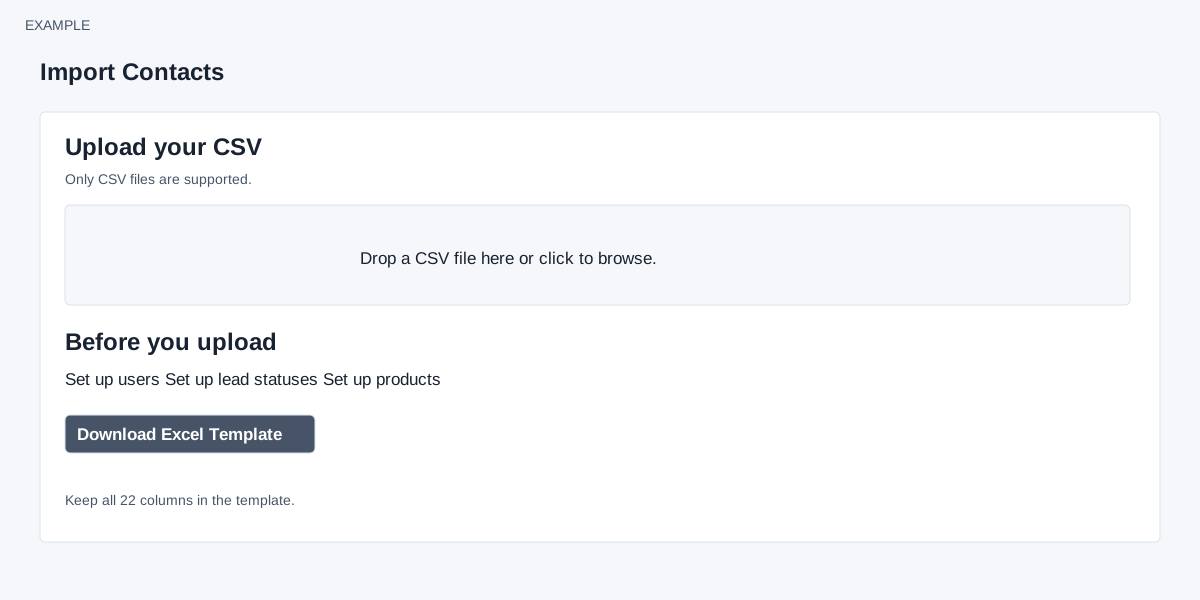
- Open Account Settings → CRM Data → Import. Set up the users who will own the imported contacts, required lead statuses and products before importing.
- Select Download Excel Template. Keep all 22 columns, including unused optional columns.
- Enter the lead owner’s email in column A and contact name in column C. Enter a primary email in column F or phone in column H. Existing matches may be updated; check the matching behavior below.
- Enter optional company, work, address, product, status and other details as needed. If no status is provided, the page says the default is Lead.
- Save the completed sheet as CSV (comma-separated values). Only CSV files are accepted for upload. The page warns that mandatory fields are required; rows are rejected unless they contain exactly 22 columns.
Upload
Drop one CSV file in the upload area or select it to browse. Follow the on-screen instructions and review the outcome.
Column checklist
A: agent email; B: company; C: contact name; D–E: designation and department; F–I: two emails and two phone numbers; J–O: office and address details; P: product required; Q: lead status; R: remarks; S: GST number; T–U: GPS latitude and longitude; V: industry. Only A and C are individually marked required; primary email or phone is also required.
How each column is applied
| Column | Processing |
|---|---|
| A — agent email | Looks up a user; an unrecognized or blank value falls back to the importing user for a new contact and the remarks entry. It does not transfer an existing contact. |
| B–E — company, name, designation, department | Nonempty values update the matched contact or account. A new contact can derive an account name from name, email or phone when company is blank. Name is split at the first space. |
| F–I — emails and phones | Primary values are used for lookup; secondary values substitute if a primary is blank. The other nonempty values are added to the contact profile. |
| J–O — office and address | An account address is added and assigned to the contact. Office name falls back to contact name. Country is resolved by two-letter ISO code or country name when possible. |
| P, Q and V — product, lead status, industry | Only recognized names are applied. Product/status matching is case-insensitive; industry matching also removes spaces, commas and ampersands. Product is added as an association. |
| R — remarks | A nonempty value becomes an outgoing EMAIL-type conversation entry attributed to the selected or fallback owner. This records history; it is not an email-send step. |
| S–U — GST number and coordinates | Passed into the account address information. |
The lookup searches the company’s contact profile values for either phone or email, not necessarily both. It removes a leading zero from the phone and also tries a country-code version for a number of at most ten digits. A match is reused even if only one value matches; review potential collisions before importing. New contact creation is subject to the account plan’s contact limit. Long CSV records can be parsed incorrectly; keep records compact and verify results. A row whose first field equals agent_email_id (ignoring case) is skipped as a header.
Upload, matching and outcomes
Only ADMIN can open this page. The upload area accepts one CSV at a time and sends it immediately; it then queues background processing. The upload strips all characters except letters, digits, periods and hyphens from the filename. Choose a distinctive filename: uploads use a shared temporary filename and a collision could replace a file before processing. There is no field-mapping or preview step. The upload success message means the file arrived, not that rows were imported. Check notifications for the processing result and inspect the contacts. Upload and queue errors appear separately.
The parser requires exactly 22 columns, including blank optional columns; rows with too few or too many are skipped. It uses email 1 and phone 1, falling back to email 2 or phone 2 if their primary counterparts are empty; rows without either usable email or phone are skipped. Existing matches are reused and profile information can be updated, secondary email/phone added, and remarks added as an outgoing email conversation entry. A recognized agent email selects that owner for new contacts and remarks; otherwise the importing user is used. Existing ownership is not transferred by this import. Recognized status, product and industry names are matched to configured records.
The completion count increments for a matched existing record as well as a newly created record and before all profile updates are known to succeed. Inspect individual records and avoid blindly re-uploading: partial processing and duplicate remarks can occur. A failure notification can mean no rows were counted; check file format, 22-column structure, contact values and configured names first.
The selected CSV is uploaded first. The import is then queued separately; an upload success message does not prove that the import completed. Check the later result before retrying.