Bulk delete contacts
Use a saved filter to schedule contacts for deletion.
- Open Account Settings → CRM Data → Delete.
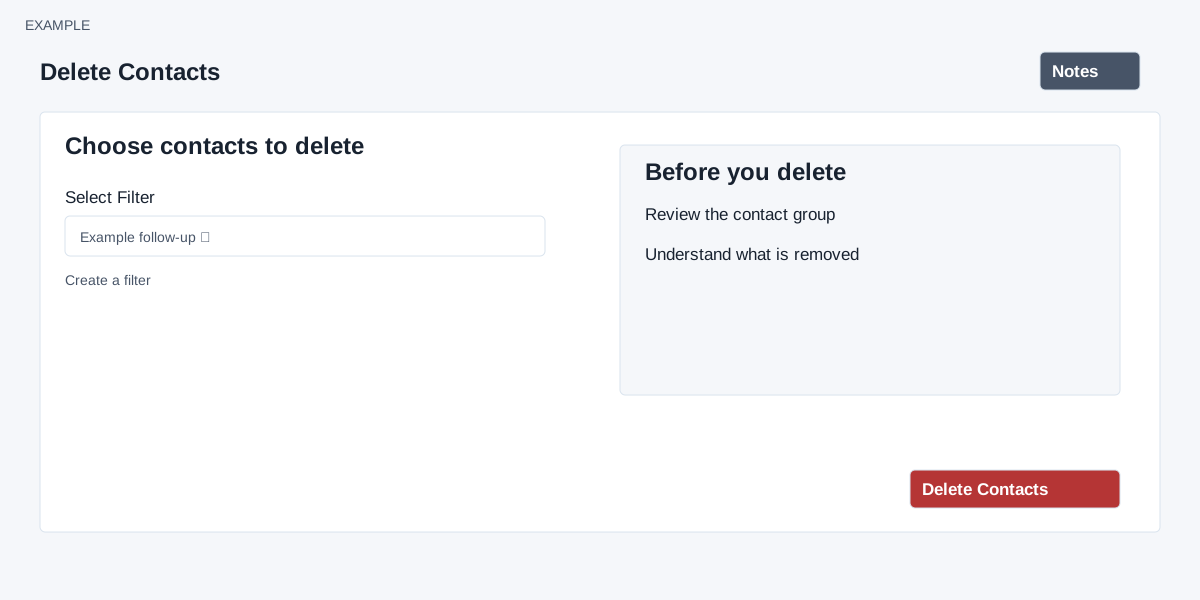
- Choose the saved filter that defines the contact group. Use Create a filter if needed, and review its results independently.
- Select Delete Contacts. The page says a confirmation is requested before scheduling, and an email is sent on completion.
- Review the confirmation and proceed only when the selected records and consequences are correct.
Inspect the resulting recycle-bin records before assuming a particular contact can be restored.
What the source currently does
ADMIN access and a saved filter are required. Delete Contacts opens a warning with Yes, delete it! and No, cancel plz!; cancellation queues nothing. Confirmation submits a background request; the scheduled message is not completion.
The page warns that deletion is permanent and mentions related tickets, invoices and deals. the queued bulk operation selects up to 5,000 matching contacts and marks each deleted, making them candidates for the recycle bin; it does not directly call permanent deletion there. A positive saved limit can reduce legacy-filter results; the advanced-definition path does not pass that saved limit. Results can be partial even if the operation reports success. Check the recycle bin for the intended contacts. Verify the target filter and recycle bin after processing, and do not assume either complete processing or permanent removal from the initial message. Permanent removal is available separately in Recycle Bin. If the filter includes more than 5,000, inspect the remainder before any further request.