Real Estate Activity report
Review property marketing, customer enquiries and site-visit outcomes, then open the assignments behind the viewing totals.
Open and choose the period
Open Real Estate → Reports, or open the Reporting Workspace → Real Estate → Real Estate Activity card. Inventory, CRM and Assignments read access are required. Customer enquiries and viewings are restricted to contacts you can access.
- Enter From date and Through date. Both are required; the through date must be the same as or later than the from date.
- Select Update report. The initial range is the current month in the company's time zone.
- Read Report clock and the Catalog snapshot timestamp before comparing the results with another report.
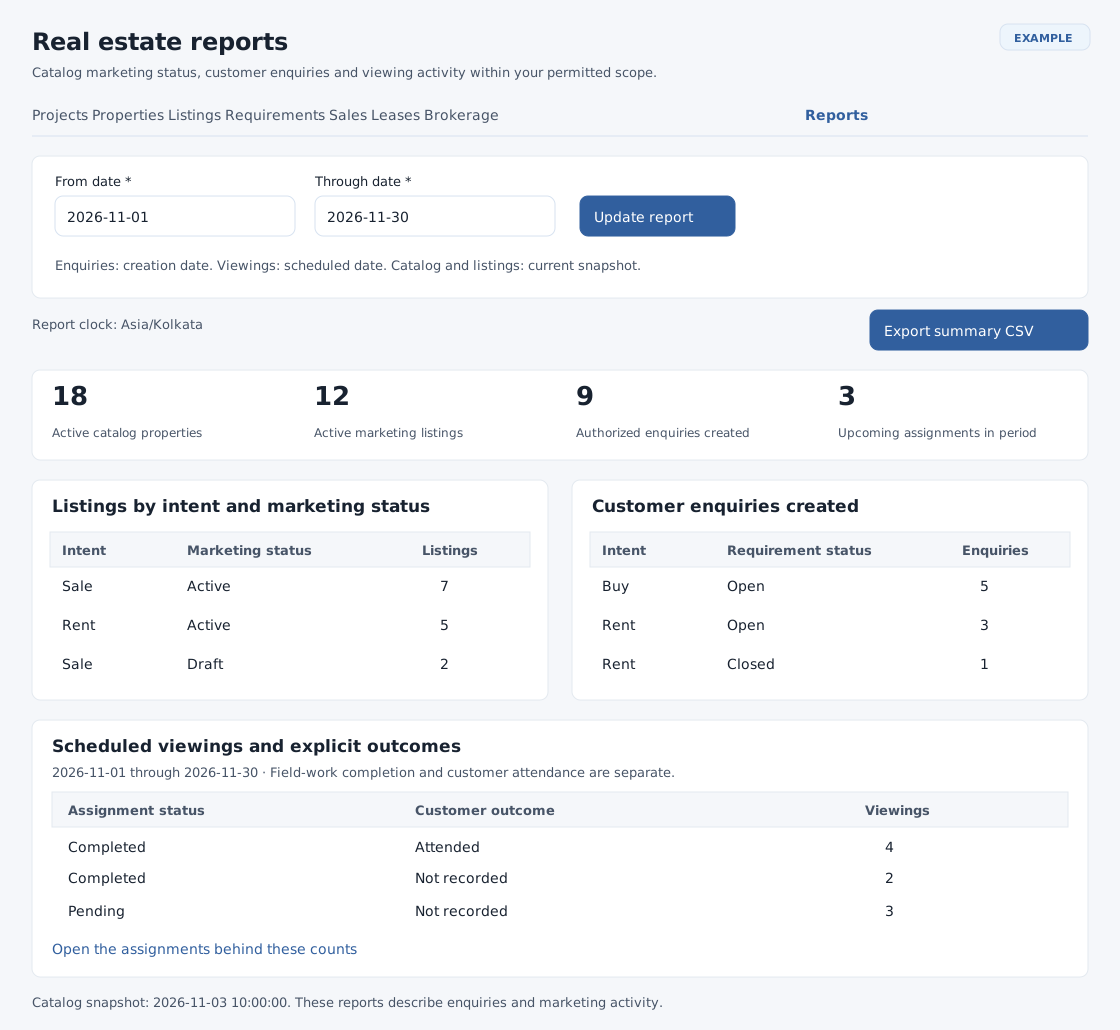
Interpret the summary and tables
| Measure or table | Meaning | Date basis |
|---|---|---|
| Active catalog properties | Active property items in active Property categories. Catalog status describes the property record, not a completed sale or tenancy. | Current snapshot; independent of the selected range. |
| Active marketing listings | Sale and rental listings whose marketing status is Active. One property can have separate sale and rent marketing cycles. | Current snapshot. |
| Authorized enquiries created | Requirements created for contacts you can access. The table groups these by Buy/Rent intent and current requirement status. | Recorded requirement creation date, including both selected dates. |
| Upcoming assignments in period | Pending viewings whose scheduled time has not passed and is within the selected period. | Scheduled assignment date and the company's current clock. |
| Listings by intent and marketing status | Counts by Sale/Rent and Draft, Active, Paused or Closed. | Current snapshot, including marketing history. |
| Customer enquiries created | Intent, Requirement status and Enquiries columns show the distribution of the selected requirements. | Requirement creation period. |
| Scheduled viewings and explicit outcomes | Assignment status, Customer outcome and Viewings columns separate field-work status from Attended, No show, Declined or Not recorded. | Assignment scheduled date, including both selected dates. |
A completed assignment does not by itself mean the customer attended. Record the viewing outcome on the requirement or viewing workspace. Similarly, changing the reporting period does not turn the current catalog and listing counts into historical end-of-month balances.
Inspect the work behind the report
- Under Scheduled viewings and explicit outcomes, select Open the assignments behind these counts. This carries the report's date range into the viewing list.
- Open the relevant assignment to check its schedule and field-work status. Review its requirement and explicitly recorded customer outcome.
- Use the header's View assignments shortcut for the viewing workspace without carrying a selected report period.
- Return to Reports and select Update report after the relevant records have changed.
Export the summary CSV
- Apply the required dates and review the displayed report.
- Select Export summary CSV. The download is named real-estate-summary.csv.
- Open the file in your spreadsheet application. It contains Section, Intent, Status, Customer outcome, Count, From, Through and Snapshot at.
- Use the Section column to distinguish Projects, Properties, Listings, Enquiries, Viewings and Upcoming viewings. Projects and Properties include Active/Archived counts; the snapshot timestamp includes the company time zone. Enquiry and viewing rows carry the requested From/Through dates.
The export contains grouped counts. Use the linked operational workspaces to investigate individual records. Catalog snapshot time is generated when the export is requested, so a later download can differ from a previously displayed page if records changed.
Example: review a month's viewing follow-up
Set From date to 2026-11-01 and Through date to 2026-11-30. If the table shows two Completed assignments with Not recorded outcomes, open the assignments for that period and review the viewing records with the assigned team. Enter the confirmed customer outcome in the viewing workspace, then refresh the report. Do not count those two assignments as attended without an outcome.
Resolve missing or unexpected totals
- No enquiries in this period: verify the requirements' creation dates and your contact access. A requirement can remain open from an earlier month without appearing in the current month's creation count.
- No viewings in this period: check scheduled dates, not the date on which a viewing was entered.
- Upcoming count differs from total viewings: upcoming includes only Pending assignments at or after the current company time within the selected range.
- The report could not be loaded: confirm valid dates in order, then update the report again. If it persists, ask your administrator to check access and service availability.
- Report card is missing: clear the Reporting Workspace search and check Inventory, CRM and Assignments access.
For owner collections, expenses and remittances, use Owner Statements. Review Sales, Leases and Brokerage in their operational workspaces.