Lead Status Wise Report
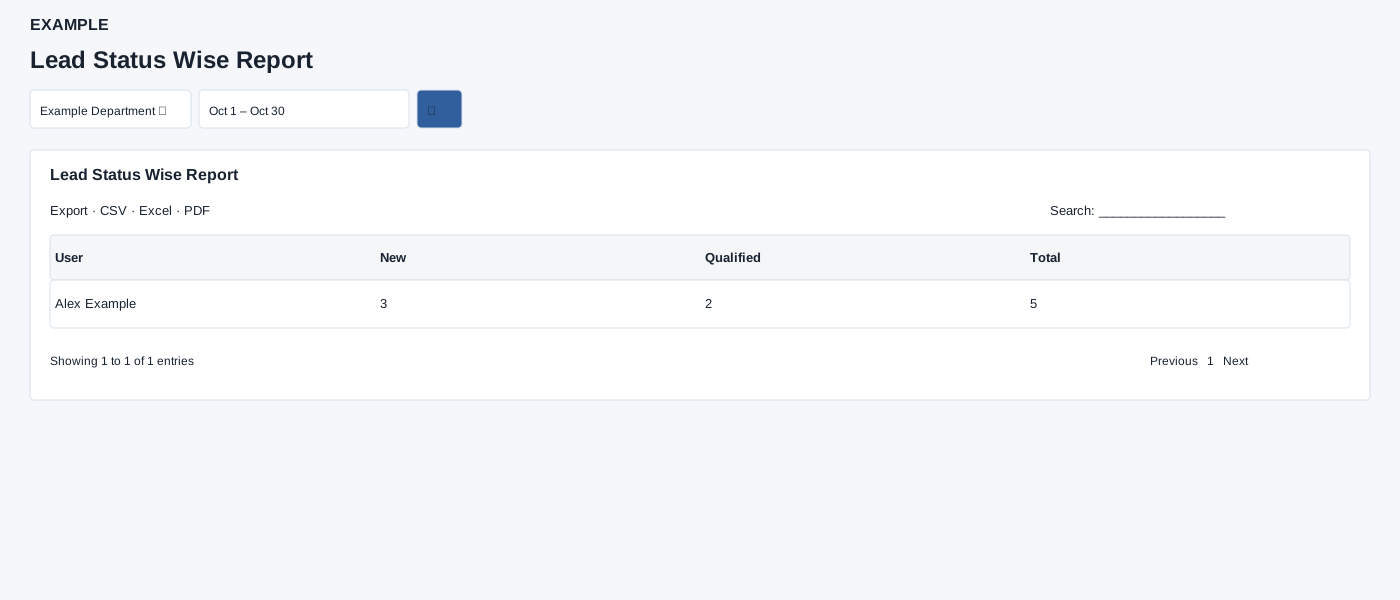
Open and filter
Open Reports → Lead Status Wise Report. Choose a department and date range; a no-data message appears if no matching rows exist.
Controls: Select Department, Date range.
Read the results
Columns: User, Status columns, Total. Counts are grouped by user and configured status; status columns are generated from results. The initial range is one month ago through today.
Scope, dates and export
The selected department report counts contacts by their current owner and current lead status using the contact date in the selected range. Department choices are limited to the viewer’s permitted scope; selecting a department requires manager or administrator access. The date picker offers Today, Yesterday, Last 7 Days, Last 30 Days, This Month and Last Month, plus custom dates. Select the search icon to apply. When rows exist, the table has Excel, CSV and PDF controls and initially displays up to 100 rows per page.
Interpretation and limits
The department view includes whole selected days and groups by owner and status name; identically named owners can be combined. Contacts missing a matched status or owner are excluded by inner joins. With no department selected, the overall view returns an All row: administrators see company contacts, while other users see only contacts they currently own. This view requires a matched status but does not require a matching owner.
Example and verification
Select Alex Example’s department and a month. If the row shows 3 New and 2 Qualified, Total is 5 for the displayed statuses; use this to plan follow-up. If the table is empty, check the department and date range.
See charts for this report and shared table and export controls.