Departments and teams
Organize users into departments and identify a manager.
An Administrator role is required for these settings.
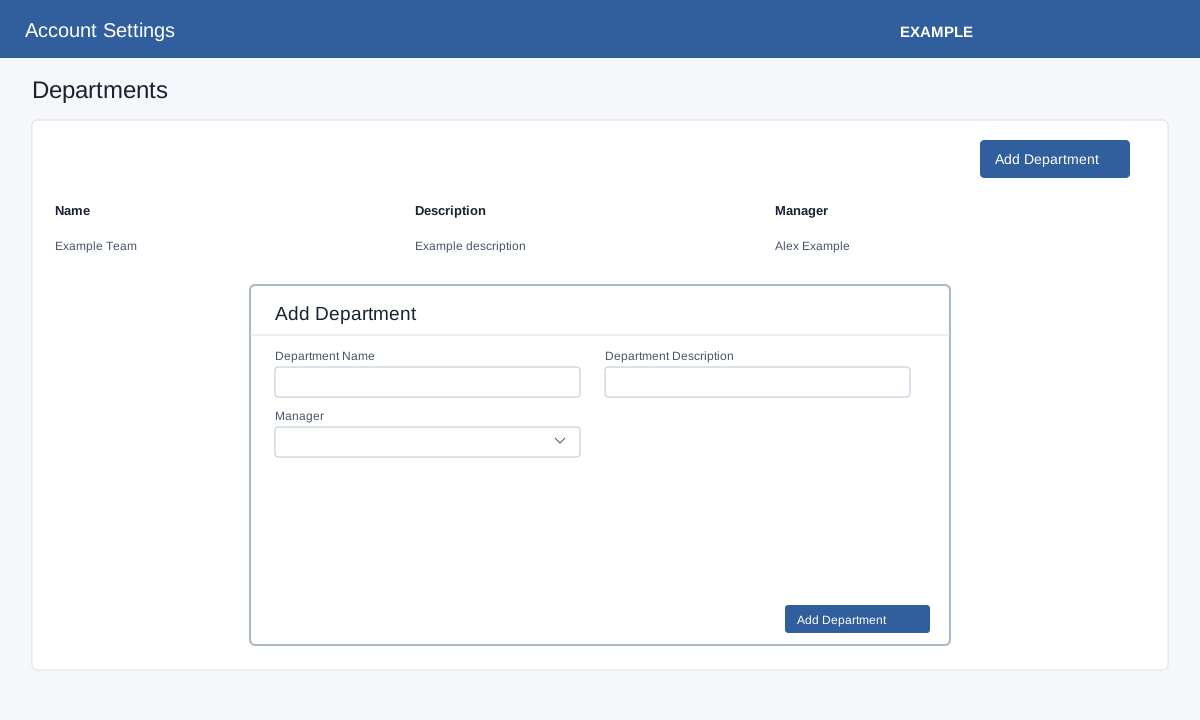
Add a department
- Open Account Settings → HRMS → Departments / Teams and select Add Department.
- Enter a department name and description. Select a manager or leave the selection as None.
- Select Add Department; choose Cancel to discard the form.
Review and change departments
Search, sort or page through the list. Each row displays the name, description and manager, with controls to edit each and delete the department. Select a department name to open its details. Review dependencies and consequences before deleting a department.
Edit, delete and membership
Name and description are required. Manager can be None at creation. The edit dialog requires a selected user, so it cannot reliably clear the manager. Each pencil opens a separate Save changes dialog. Delete asks for confirmation; the service refuses deletion while active users remain and otherwise marks the department inactive. This screen provides no recovery control; transfer members and inspect routing dependencies before proceeding. Open Department details and membership for support routing, user membership and call sequence.