Create a lead
Create a contact and record the enquiry for the team.
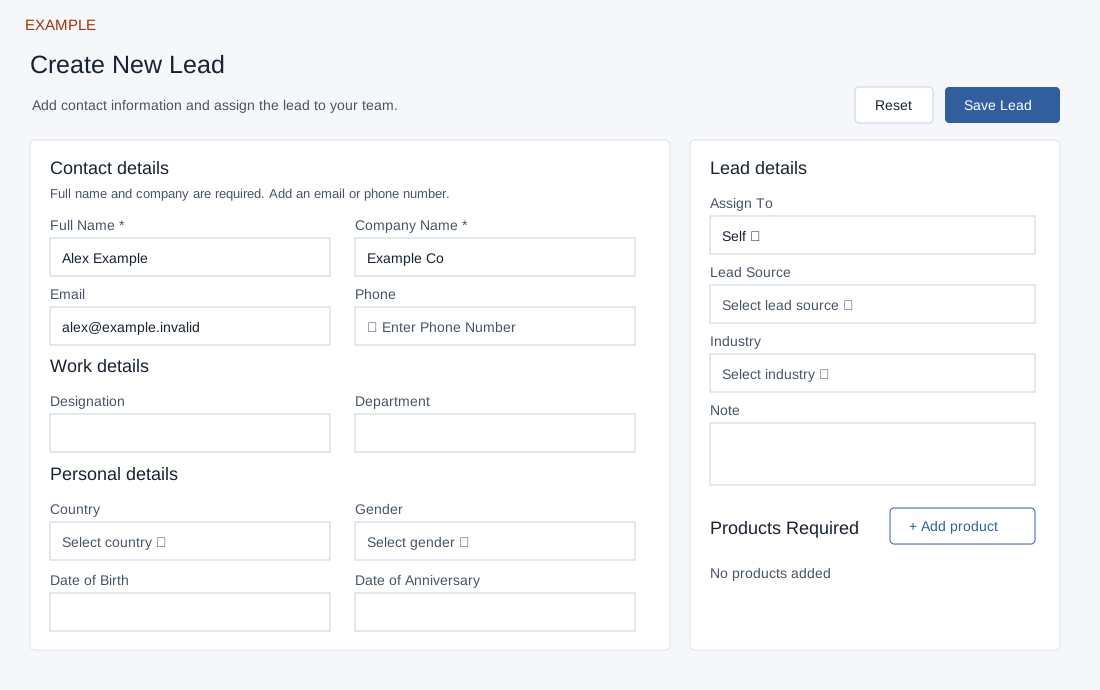
Enter contact details
- Open CRM → Create Lead. CRM access is required; the creation service also checks the plan’s contact limit. Enter Full Name and Company Name, then at least one of Email or Phone. Company suggestions appear after three characters; the service may reuse an existing account with the same name.
- For Phone, select a country and enter a valid number. The phone country and Personal details Country synchronize. If the phone control fails to load, reload before submitting a phone. Optional Work details are Designation and Department, which describe the contact rather than selecting a CRM team.
- Personal details are optional: Country, Gender (Male, Female, Transgender), Date of Birth and Date of Anniversary. Dates use the calendar. A blank gender is stored as Other by the form. Configured custom fields are loaded in the page source but are not displayed in this form; update them later from the contact Profile.
Set lead details and products
- Assign To defaults to Self; choose a valid company user if another owner is intended. Lead Source and Industry offer configured choices. Search within the dropdowns; Retry reloads choices if loading fails.
- Enter an optional Note. This is recorded as an outgoing call conversation, so use it only when that classification is appropriate. Add product opens Product Name search. Select a suggestion and choose Add Product; duplicate products are rejected. The displayed hint says three characters, while the search starts at two. The staged list has no remove control; Reset reloads the form and discards all unsaved entries.
- Choose Save Lead. On success the dialog offers to open the contact; cancel keeps you on the form. Verify the record before further work.
Duplicates and recovery
The CRM checks existing contact profile values by phone or email, including a country-code variant of short phone numbers. If a duplicate is reported, find and review the existing contact rather than submitting again. Creation may fail at the plan limit. The account is created or reused before the contact is added. If contact creation fails, check the account list before retrying. The contact is created before optional profile values, dates, note and products are applied. Reopen the contact and check these details after saving. Confirm each important field and the owner on the resulting record. The additional ownership call uses the contact ID as a company ID, so do not assume that call completed correctly; inspect the saved owner and any affected account. If an error occurs after submission, search for the contact before retrying to avoid duplicates.
Example: create Alex Example at Example Co with [email protected] and select a configured product. Quick Add Lead provides a shorter form.