Export contacts
Schedule a CSV export using Download All Contacts or a saved filter, subject to access scope and the export row limit.
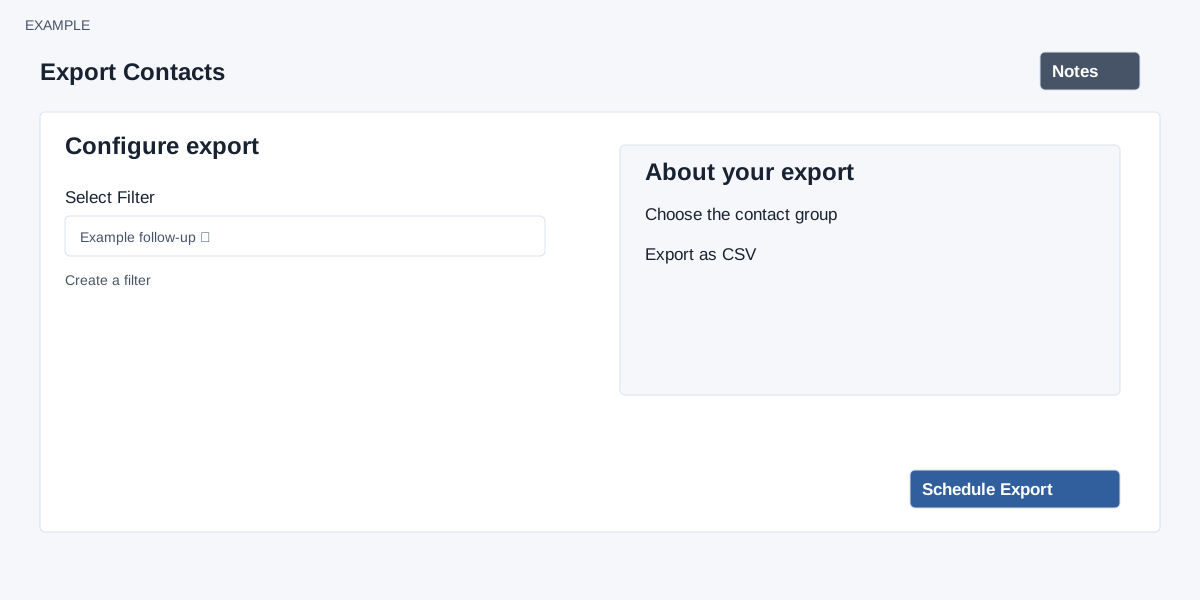
- Open Account Settings → CRM Data → Export.
- Under Select Filter, choose a saved filter or Download All Contacts. Use Create a filter if the required group does not exist.
- Check that the selection covers the intended contacts, then select Schedule Export.
- The page says the export runs in the background and an email is sent when the CSV download is available.
Handle the resulting file according to your organization’s data-access rules.
Access, scope and result
ADMIN is required. The default Download All Contacts or a saved filter is evaluated by the background job. The export includes up to 10,000 rows; this is not a guarantee that every matching record is included. A positive saved result limit can reduce legacy-filter results; the advanced-definition path does not pass that saved limit. Success disables the scheduling button until the page is reloaded, and confirms queueing only. The export creates a ZIP containing a CSV in File Manager’s Export Data area; check the completion notification and File Manager rather than expecting the CSV directly on this page.
The CSV columns are Registration Date, Customer Name, Phone, Email, Company, Address, City, State, Zipcode, Country, Product Required, Lead Status, Owner, Owner Email, Requirement, Tags and Contact Id. Multiple phones, emails and tags are pipe-separated. An empty result can show success without creating a file. Check File Manager for the download. If no file appears, check the filter results and File Manager before rescheduling; handle the file as sensitive customer data.