Helpdesk feedback and CSAT
Set up survey requests and follow-up for low customer ratings.
Survey lifecycle
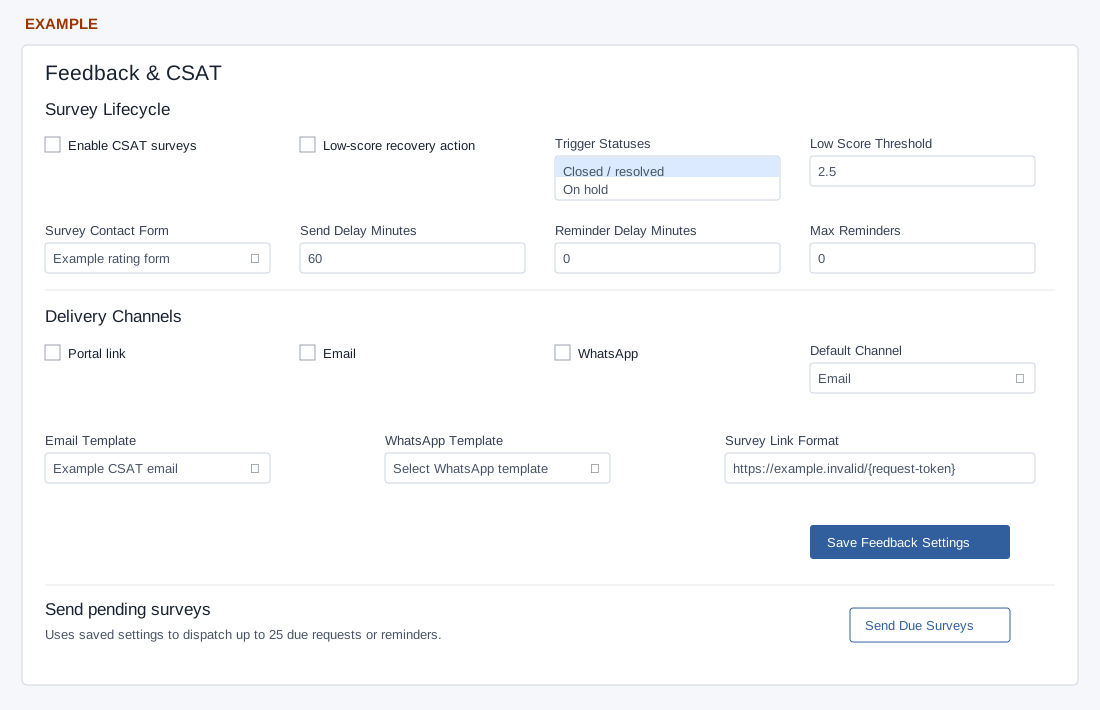
Open Account Settings → Helpdesk → Feedback & CSAT as an administrator. Prepare a Contact Form with a CSAT/rating field using values 1–5. Enable CSAT surveys and optionally Low-score recovery action, which flags low scores for follow-up and matching escalation rules. Trigger Statuses offers Closed / resolved and On hold. An empty selection is normalized to Closed. Keep Closed selected for automatic closure surveys; On hold is eligible in the request service but has no automatic status-change trigger.
Set Low Score Threshold from 1–5 in 0.1 steps; ratings at or below it count as low. Select the Survey Contact Form. Send Delay Minutes is at least 0; Reminder Delay Minutes is at least 0 and 0 disables reminders. Max Reminders is 0–10 after the first send.
Delivery and dispatch
Enable Portal link, Email and/or WhatsApp; Default Channel offers Portal, Email or WhatsApp and sets attempt order. Every enabled channel is attempted, beginning with the configured preference and then email, WhatsApp and portal in order without duplicates. The dispatch summary counts a request successful if at least one channel succeeds; another channel may have failed. The settings page shows only the aggregate dispatch message, not the returned per-channel results. Email Template lists Helpdesk CSAT Email templates; include {{Helpdesk.Survey.Link}} or {{Survey.Link}} in its body. WhatsApp Template lists approved templates and may retain a configured template no longer in that list; a configured sender is needed. Survey Link Format is read-only and uses the General Settings support domain.
Save Feedback Settings saves and shows a success message. Send Due Surveys uses saved settings to dispatch up to 25 due requests and reminders combined and can contact customers. Saving and dispatching are disabled if the required feature setup is unavailable. Saving checks the selected form and CSAT email template and updates the WhatsApp settings; if it fails, the configuration is rolled back.
Set up a closure survey
- Prepare the rating form and, for email, a Helpdesk CSAT Email template with a survey-link placeholder. Confirm the support domain in General Settings.
- Enable CSAT surveys, choose Closed / resolved, then select the form. Set the low-score threshold and whether recovery work should be created.
- Choose the initial send delay, reminder delay and maximum reminder count. For example, 60 minutes, 1440 minutes and 1 reminder mean an initial wait followed by at most one reminder; 0 reminder delay disables reminders.
- Select the channels you intend to use and the matching templates. Default Channel changes the attempt order; it does not limit dispatch to that channel.
- Select Save Feedback Settings. Reopen the page and verify the values before any dispatch.
Review and send due surveys
- Review the pending feedback work and recipients in the Pending CSAT queue. A request must be due; saving settings alone is not proof that it has been sent.
- When authorized to contact those customers, return here and select Send Due Surveys. This is a sending action, not a preview, and uses the saved configuration.
- Read Checked, Sent, Reminded and Failed in the result. Up to 25 requests and reminders combined are handled per invocation; pending requests are processed before reminders use the remaining capacity.
- Inspect the feedback queue and available delivery records separately. This settings page does not display the per-channel result array. A request counted as sent can still include a failed channel, and provider acceptance does not prove the recipient read the message. Do not repeatedly dispatch to diagnose a template error.
Example and troubleshooting
Example Co can select Closed, a rating form, threshold 2.5, email and a 60-minute send delay to request feedback after closure and flag scores of 2.5 or below. Reopen settings to verify the saved choices and check the feedback queue and delivery status after a suitable test. A configured channel or dispatch attempt does not itself prove delivery. If links or sends fail, check the domain, template placeholders, approved WhatsApp template and sender, form, timing and any missing setup message.