New Digest: plan your day
Use Today to choose the next customer action, review overdue work and open the appropriate CRM record.
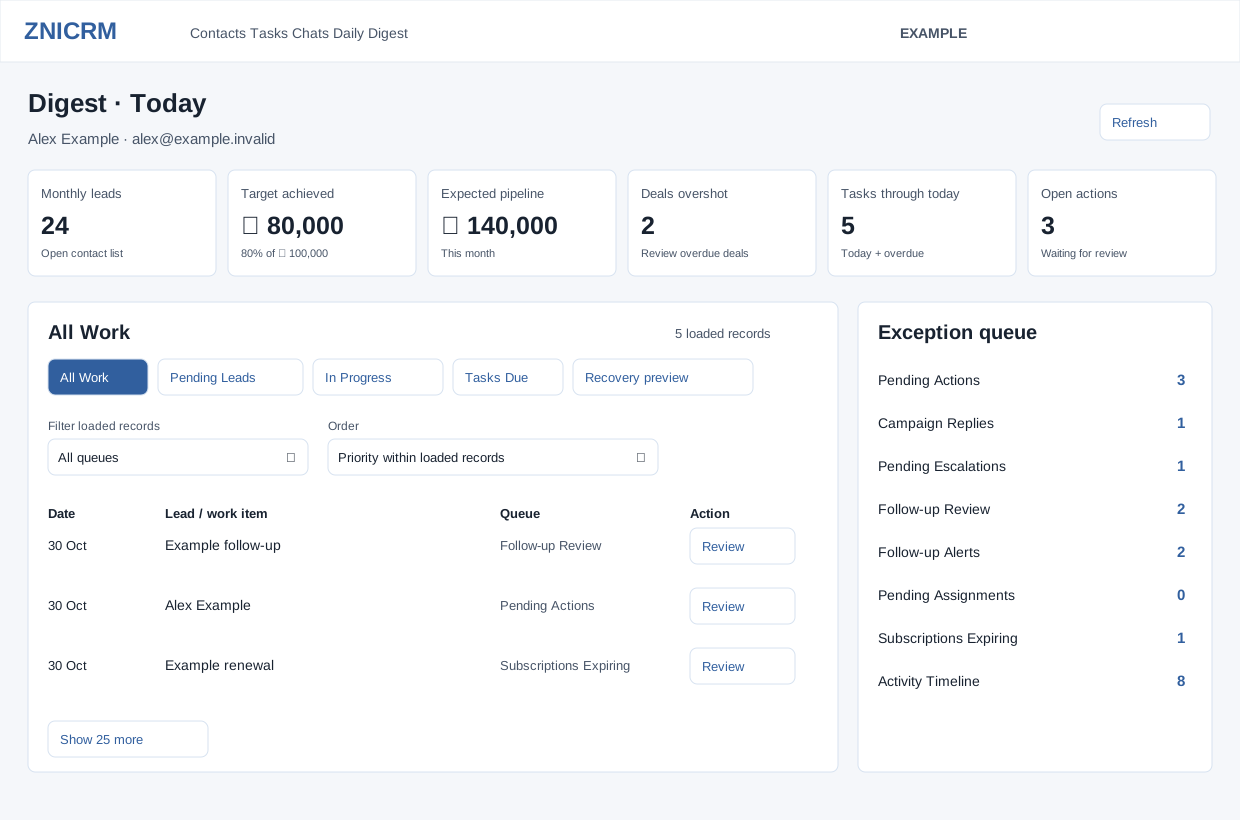
Open the right workspace
- Open Switch app → More shortcuts → Digest. Other Daily Digest shortcuts can open the older inbox depending on account policy; use this shortcut to reach the new workspace. The new Digest includes Today, Conversations, Discussions, Analytics, Notifications and Favourites. Open the new Daily Digest from the CRM workspace.
- If a user selector is available, search by name or email and select the intended team member. Administrators and department managers can see this selector; the selected user must be within their permitted scope. Review the selected name before interpreting counts.
- Select Today. Wait for the counts and queue status to finish loading. Select Refresh to retrieve current work when needed.
- Choose a queue or report using the procedures below. Returning from a contact or closing a changed report can refresh Today. Check its latest state before taking the next action.
Choose a section
The shell loads the selected section on demand. Switch to Conversations for recent contact activity, Discussions for team threads, Analytics for targets and trends, Notifications for personal updates, or Favourites for your starred contacts. Opening Notifications marks up to 200 of your unread notifications as read, including some not shown in its 50-row list. The Notes button opens your personal Notes panel.
Loading can update recovery records: when Deal Analytics is enabled, Today retrieves revival data. Those reads can repair active queue entries whose retained owner is no longer active, assigning a replacement or resolving entries with no active owner. A page refresh is therefore not guaranteed to leave all CRM records unchanged. See Revival Queue for the operation and limits.
Read the business pulse
| Control | CRM use and result |
|---|---|
| Monthly leads | Shows the selected user's monthly lead count. Its link opens the permitted contact list; use that list's filters to inspect records. |
| Target achieved | Shows achieved value, target and percentage. It is a summary, not an action button. When the configured target is zero, the percentage is shown as zero. |
| Expected pipeline | Shows this month's expected pipeline value. It is not a payment or collected-revenue confirmation. |
| Deals overshot | Opens the overdue-deal report for investigation. |
| Tasks through today | Opens Tasks Due, including today's and overdue tasks. See the task calendar for limits and navigation. |
| Helpdesk overdue / Open actions | The helpdesk metric appears when the selected user's Helpdesk access and support membership allow it; otherwise the summary offers Open actions. |
Choose work, then verify the result
For example, Alex Example starts with an overdue follow-up, opens its source contact, checks the history and schedules the agreed next step. Alex then returns to Today and checks that the source task and queue reflect the intended result. Merely opening a record does not prove the work was completed.
- All Work, Pending Leads and In Progress: review loaded records and choose the source action.
- Tasks Due and Recovery preview: plan today's follow-ups and review lost-deal signals.
- Exception queue: investigate specific backlogs.
- Pending Actions: understand Open contact, Capture and Mark reviewed & open.
Attendance, celebrations and list access
My attendance reflects the signed-in user's attendance. Selecting another user's Digest does not make attendance actions operate on that person. Clock In and Clock Out record attendance; use them only for an actual work session. A TeamSpoor only state directs attendance to the configured app. See timeclock settings.
Celebrations shows the next seven days. Today's celebration panel can be expanded or dismissed; it is informational. Contacts and Accounts shortcuts respect your role. If a Digest-only list session expires after 30 minutes without activity, reopen the list from Digest. An unavailable-list notice means the role does not provide access.
If the workspace does not load
A spinner, ellipsis, Unavailable message or refresh failure is not a zero workload. Allow the current request to finish, then use one deliberate Refresh. If it remains unavailable, open the permitted source workspace and report the affected section and time to your administrator. A partial-load notice means some queues could not be retrieved; do not infer that missing sources are clear.