New Digest: capture and review intake
Turn unassigned intake into owned CRM work, or acknowledge an intake item after reviewing the linked contact.
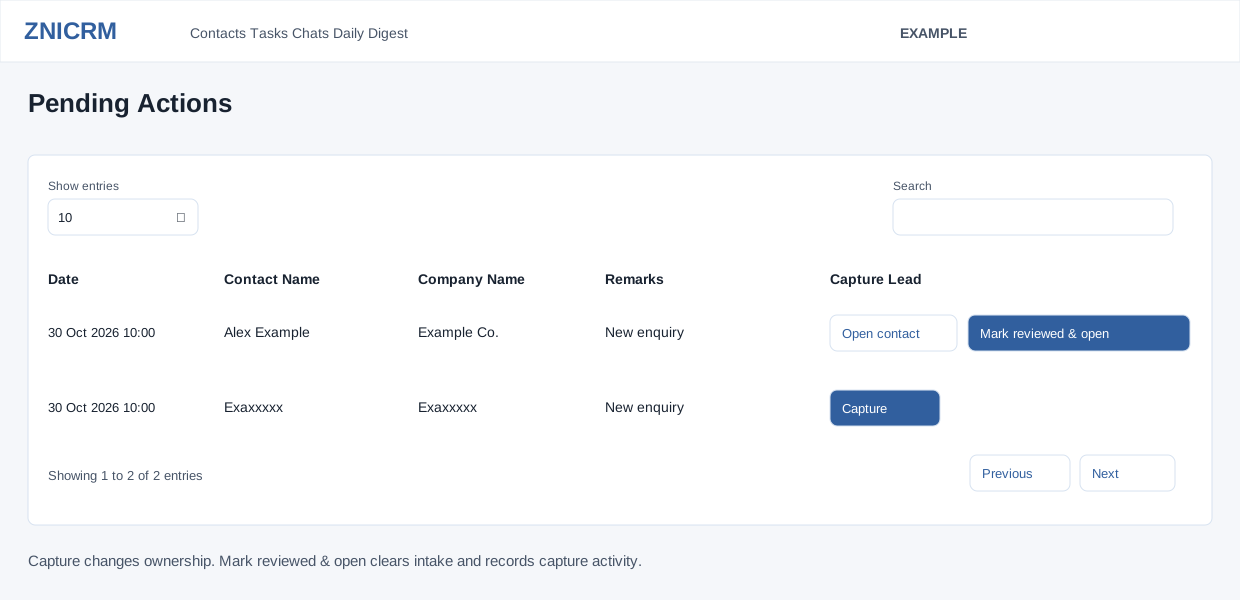
Before you act
Open Daily Digest → Today → Exception queue → Pending Actions. Confirm the selected user and your authority to take ownership. The report includes that user's intake and unassigned intake, limited to 500 loaded rows. Search, row sorting and paging operate on that loaded table.
| Column or control | Meaning |
|---|---|
| Date | Timestamp recorded for the intake item. |
| Contact Name / Company Name | Linked CRM identity. Unassigned rows intentionally mask the displayed names; do not interpret masking as corrupted contact data. |
| Remarks | Context from the intake event. Check it before deciding who should follow up. |
| Open contact | Opens an assigned item's contact in another tab without invoking this report's queue-clear action. |
| Capture | Takes unassigned intake through the capture flow. The system changes the linked account's ownership to the signed-in user and records capture activity. |
| Mark reviewed & open | Clears the intake item, records capture activity and opens its contact. This is not merely a navigation link. |
Review an assigned item
- Locate the row by its date, contact/account and remarks.
- Select Open contact to inspect the customer conversation first. Check what follow-up is actually required.
- When appropriate, return and choose Mark reviewed & open. Wait for the response. A successful response opens the contact and normally removes the row.
- Verify the contact and the refreshed Pending Actions queue. Clearing intake does not itself complete all tasks or resolve every issue on the contact.
Capture unassigned intake
- Review the available masked row and remarks. Choose Capture only if you intend to take responsibility.
- Wait for ownership checks and the configured interval between manual captures. An already-owned lead or a required wait can prevent capture.
- On success, inspect the opened contact and linked account ownership. Add the appropriate follow-up using the contact workspace; Capture alone is not a customer response.
If the contact does not open
A popup can be blocked after a successful queue change. The report replaces the action with an Open contact link in this case. Use that link and recheck the queue; do not repeat capture simply because no new tab appeared. On an error, the action button is restored and a message is shown. If a request's outcome is uncertain, refresh and check ownership before retrying.
Example: Alex Example reviews an assigned enquiry, checks the conversation, then marks the intake reviewed. An unassigned enquiry is captured only after Alex confirms responsibility for the account.