New Digest: tasks and recovery preview
See today's follow-ups alongside overdue work, then open the customer record to act.
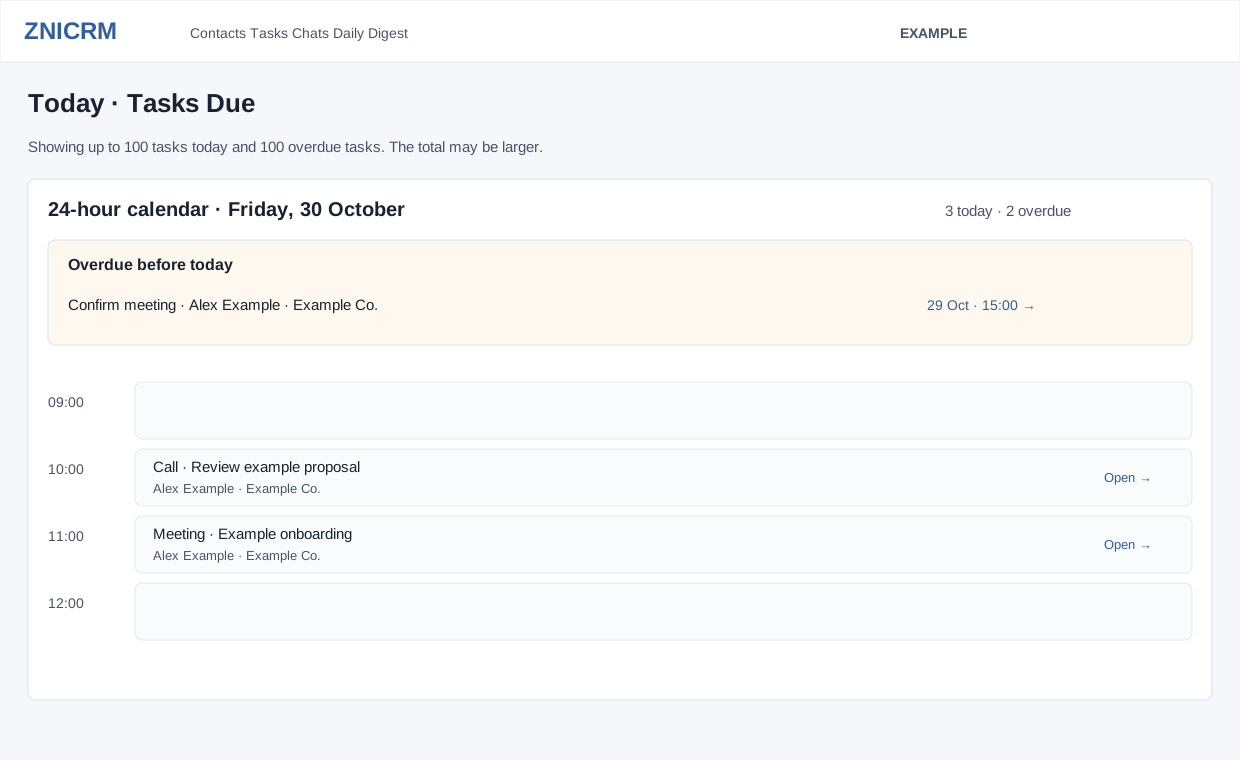
Review Tasks Due
- Open Daily Digest → Today → Tasks Due, or select Tasks through today in the business pulse.
- Review Overdue before today first. Today's tasks appear in a 24-hour calendar, with the current hour indicated. Each item shows its subject, contact/account and due time; the icon distinguishes call, meeting, email or general task.
- Select an item to open its contact conversation in another tab. This calendar link opens the customer record, not a standalone task editor. Locate the relevant task there and review its state and notes.
- Complete or reschedule work only after confirming the intended task and outcome. Return to Digest and refresh to check the resulting queue state.
The view retrieves at most 100 tasks today and 100 overdue tasks. The total count can be larger. Use Tasks and contact tasks to investigate additional work. A missing due time is shown as unavailable; do not assume midnight.
Use Recovery preview
When deal analytics and its recovery bridge provide this panel, select Recovery preview. It shows up to three lost-deal revival items, with priority, deal, recovery signal and due context. Select the item's recovery action to open its permitted destination, or Open Revival Queue to examine the broader queue.
A signal is a reason to review the relationship; it does not by itself reopen or win the deal. For example, Alex Example reviews a prior opportunity after new customer activity, confirms the context and then chooses an authorized follow-up. See deal analytics settings.
Check the result
If the calendar shows no task you expected, verify the selected user, due date, task state, permissions and retrieval limit in the source workspace. Do not create a duplicate simply because it is absent from this preview.