Timeclock settings
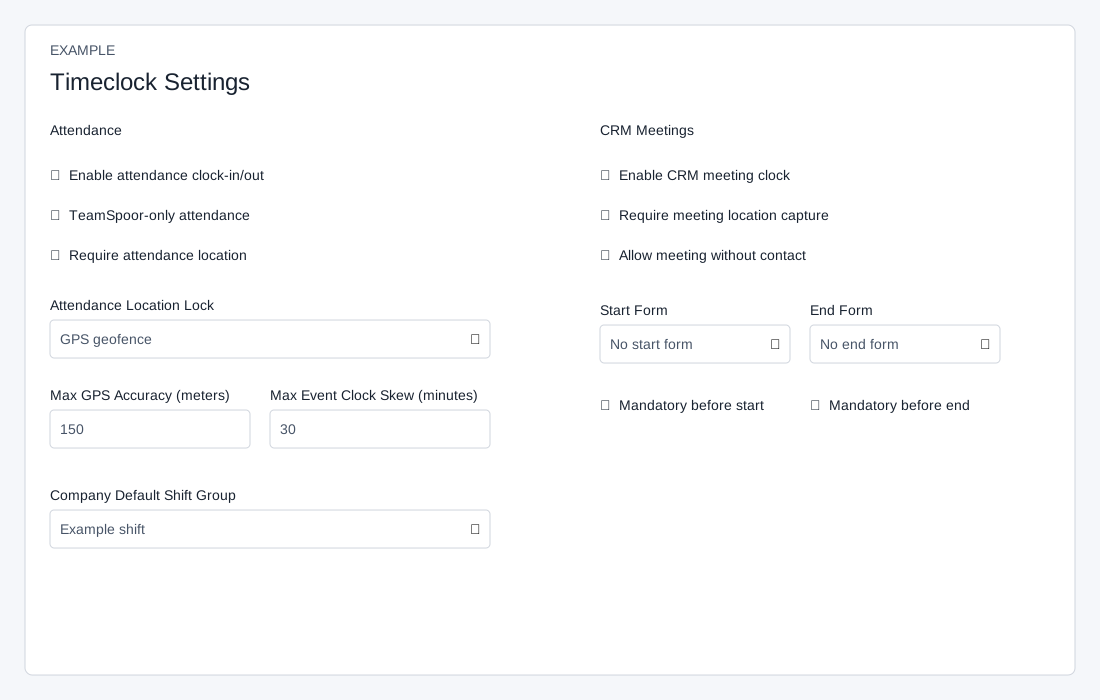
Attendance settings
ADMIN opens Account Settings → Features Settings → Timeclock. Enable attendance clock-in/out permits attendance events. TeamSpoor-only requires the integration and rejects other event sources. Require attendance location requires capture; Attendance Location Lock is None, GPS geofence, IP address, GPS or IP, or GPS and IP. Configure effective policies in Attendance Location before using a lock.
Max GPS Accuracy defaults to 150 meters and is clamped to 10–5,000; Max Event Clock Skew defaults to 30 minutes and is clamped to 0–1,440. Company Default Shift Group offers No default shift or an active group; user, department and company assignments take precedence. Enable auto logout closes eligible open rows after their stored shift end plus Auto Logout Grace Period, default 120 minutes, range 0–4,320. A scheduled worker and attendance events can run closure; it is not guaranteed to happen at the exact minute. Rows without a stored shift end are not closed by that overdue check. Enable timeclock API writes permits authenticated integration writes. Unchecking this option can leave API writes enabled. Verify the setting and consult an administrator.
CRM Meetings
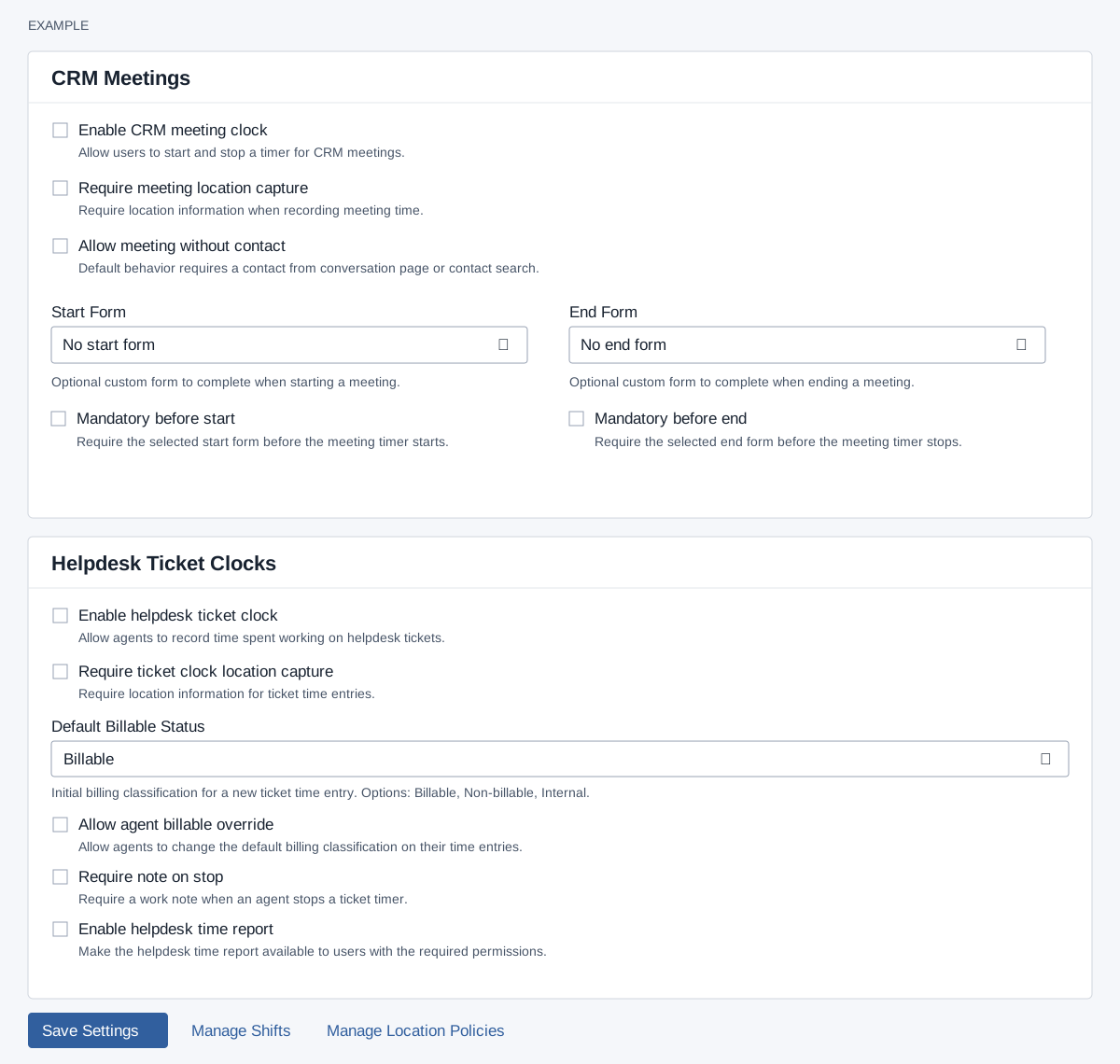
Enable CRM meeting clock and Require meeting location capture control meeting timing and location capture. Allow meeting without contact relaxes the contact requirement. Start Form and End Form offer No start/end form or a configured active custom form; Mandatory before start/end requires the respective form. A required end form with no linked contact can prevent completion; choose settings together and verify the intended workflow. Invalid selected forms prevent saving.
Helpdesk Ticket Clocks
Enable helpdesk ticket clock and Require ticket clock location capture control ticket timers. Default Billable Status offers Billable (default), Non-billable and Internal. Allow agent billable override, Require note on stop and Enable helpdesk time report control the respective actions and report availability. A report still requires applicable permissions.
For example, a CRM team can enable meeting clocks and select a start form for visit notes. Decide whether a contact is mandatory, save, then use an authorized meeting workflow to confirm the timer and required form behave as intended. If a timer cannot stop, inspect the end-form requirement and linked contact before changing settings.
Save and verify
Save Settings submits all sections, not autosave. Attendance settings are written first and meeting/ticket settings second; if the second write fails, attendance settings can already have changed. Refresh and inspect all sections before retrying. A request-token error requires refreshing; TeamSpoor-only requires its integration. Manage Shifts and Manage Location Policies open the separate policy screens. If settings fail to save, refresh and contact your administrator.