Project templates
Open the page
Account Settings → Features Settings → Project Management. Project permissions determine access and available actions.
Review and create
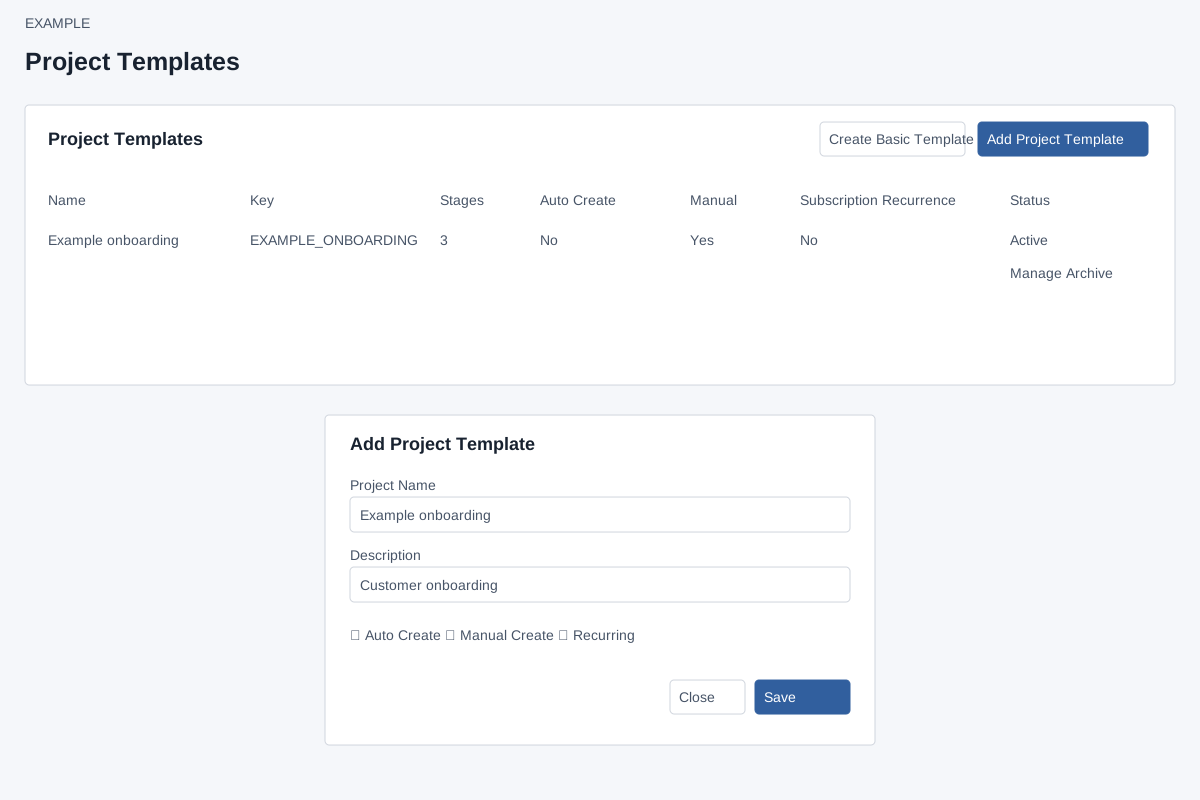
- The Project Templates table shows Name, Key, Stages, Auto Create, Manual, Subscription Recurrence, Status and Actions.
- Choose Add Project Template, enter Project Name and Description, and set Auto Create, Manual Create and Recurring as required. Choose Save to create it. Create Basic Template is a separate creation action.
- Example: create a Customer onboarding template that allows manual creation. Creating or changing a template affects future work.
Manage
- Open the template management action for its settings and stages. Use the row action to archive or activate a template only after considering existing workflows.
Related: Manage a project template
Create and manage templates
Template management permission is required. Add Project Template requires Project Name; Description is optional. Auto Create, Manual Create (initially checked), and Recurring are separate checkboxes; Save creates a template and opens its management page. A key is generated from the name when none is supplied. Create Basic Template asks for confirmation and creates a template with Pending, In Progress and Completed stages, then opens management.
Manage opens the row; Archive or Activate changes its availability. The table lists Name, Key, Stages, Auto Create, Manual, Subscription Recurrence, Status and Actions. Example: create an Example Co onboarding template with Manual Create enabled, then add its stages before expecting a useful board. Verify the template row and stage list after saving; if a control is missing check manage-templates permission.