Project stage settings
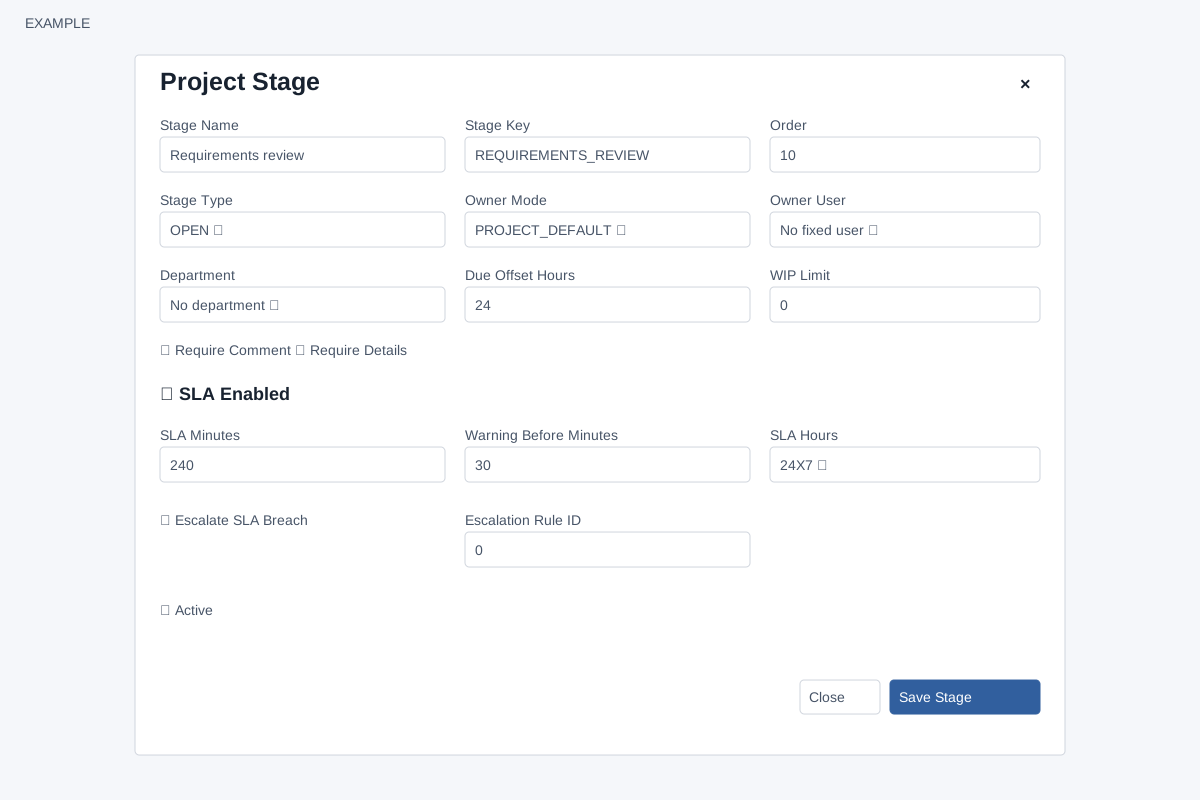
Open the page
Project Management → open a template → Add Stage or Edit. Project permissions determine access and available actions.
Define the stage
- Enter Stage Name, Stage Key and Order. Select Stage Type: OPEN, IN_PROGRESS, WAITING, DONE or CANCELLED.
- Select Owner Mode: PROJECT_DEFAULT, STAGE_USER, DEPARTMENT_QUEUE, CREATOR or WORKFLOW_OWNER. Choose Owner User or Department where relevant.
- Set Due Offset Hours (0 means no automatic offset), WIP Limit (0 means no configured limit), Require Comment and Require Details as configuration values; current task actions do not enforce those three controls.
Set the SLA and save
- Optionally enable SLA, enter SLA Minutes and Warning Before Minutes, and select 24X7 or BUSINESS_HOURS; the current calculation uses elapsed minutes for both modes. SLA escalation uses an escalation rule ID and is subject to plan and permission requirements.
- Choose Active and Save Stage. Example: a Requirements review stage has a 24-hour due offset and a 240-minute SLA. Confirm that business hours and owner assignments reflect the actual team before saving.
Related: Manage a project template
Settings and limitations
Stage Name is required; a blank Stage Key is generated from its name. Order sets display sequence and defaults to 10. New stages default to OPEN, PROJECT_DEFAULT, No fixed user, No department, zero offsets and limits, 24X7 and Active; completion and SLA checkboxes are unchecked. User and Department selectors remain visible for every owner mode, with No fixed user and No department options. The stage editor stores the owner mode, selected user and department, due offset, WIP limit and completion requirements. The current task move and complete handlers do not enforce WIP Limit, Require Comment or Require Details; do not rely on those settings as blocking rules. Likewise, changing a stage does not by itself establish that the stored owner mode will reassign an existing task.
Although the selector offers BUSINESS_HOURS, the current SLA date calculation adds elapsed minutes regardless of the selected mode. A positive SLA Minutes is required for an active SLA; otherwise its status is NOT_APPLICABLE. A warning is calculated only when Warning Before Minutes is positive and less than SLA Minutes. Escalation controls require project SLA permission and escalation entitlement. Save Stage adds or updates and reloads; Close dismisses. Archive/Activate changes stage status. After saving, reopen the stage and inspect an appropriate task’s actual owner, due and SLA before relying on the setup. If Save fails, check the stage name and permission; if escalation controls are disabled, check entitlement.