Project management reports
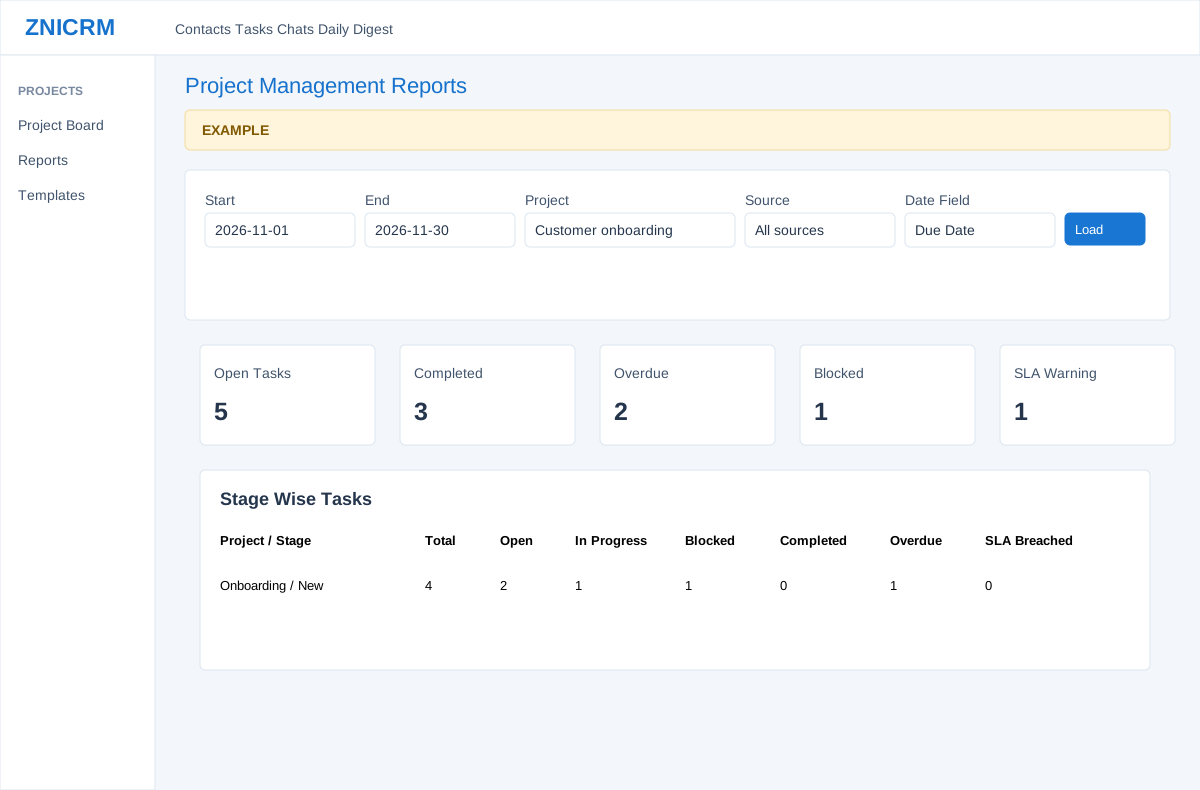
Open the page
Projects > Reports. Project Management Reports permission and company feature access are required for the intended entry path.
Set report scope
- Set Start and End, choose Project or All projects, choose Source and Date Field, and select Load. Date Field can be Created Date, Completed Date, Due Date or SLA Due Date; it determines which dates the main report applies to the range.
- Source choices include standalone, manual CRM, workflow, helpdesk, deal, subscription recurrence and booking. The Subscription Missed KPI counts subscription-linked active tasks past due using the selected range on Created Date and SUBSCRIPTION_RECURRENCE source, regardless of the selected Project, Source or Date Field. Its drilldown does carry selected Project and Date Field, so its list can differ from the card.
Interpret and drill down
- Open Tasks includes open, in-progress and blocked work. Review Completed, Overdue, Blocked, SLA Warning, SLA Breached, SLA Met Rate and Subscription Missed. SLA Met Rate is MET ÷ (MET + BREACHED) × 100 among tasks matching the selected date field; BREACHED includes open tasks, and the rate is 0% when the denominator is zero. These measures overlap: do not add them as independent totals.
- Review Stage Wise Tasks, User Assigned Tasks, Completed Tasks, Task List Date Wise, Stage Bottlenecks, Owner Workload, Department Workload, Template Performance, Completion Trend and Source Breakdown. Select linked counts or All Tasks to open task lists; not every count is linked. In Stage Wise Tasks, the Open count counts only OPEN status, while its linked Open Tasks queue includes OPEN and IN_PROGRESS, so the list may be larger; use Board to return to the board.
- Example: filter an onboarding project by due date and open Overdue to investigate tasks at risk.
Read tables and time windows
The default range is the first day of this month through today, inclusive; reversed dates are swapped in the report. Tasks lacking the selected date field are excluded. Stage Wise Tasks lists project/stage and total, open, in-progress, blocked, completed, overdue and breached. User Assigned Tasks groups by user and department with total, active, completed, blocked, overdue and breached. Completed Tasks groups by completion date with SLA met/breached and average cycle; its date link switches the list to Completed Date. Task List Date Wise groups by the selected date and links a day to that date's tasks.
Stage Bottlenecks shows active tasks, overdue, SLA and average age; age uses started time or creation when absent, not a stage-entry history. Owner and Department Workload show open, blocked, overdue and SLA counts. Template Performance shows total, open, done and overdue; Completion Trend shows daily completions and average creation-to-completion hours. Source Breakdown groups source and source event; its link filters the source but not the event, so a list can include other events of that source. Summary sections are bounded: stage/user 100 rows, completed 60 dates, date-wise 90, bottleneck/owner/department/template/source 15 rows, and completion trend 30 dates. Narrow the scope when investigating a missing group.
For Example Co, an overdue card of 4 and blocked card of 2 may overlap. Open Overdue, verify its inherited date and project filters, and inspect the task before assigning follow-up; do not add the two cards together.
Search and export loaded rows
When the shared report enhancement loads, each table provides search, sorting, 100-row pages and CSV, Excel and PDF exports. Exports include all loaded rows matching the table search across pages; they do not retrieve records beyond the limits described above. KPI cards and other tables are not recalculated by searching one table. If enhancement fails, the original controls may differ. See report table controls.