Roles and permissions
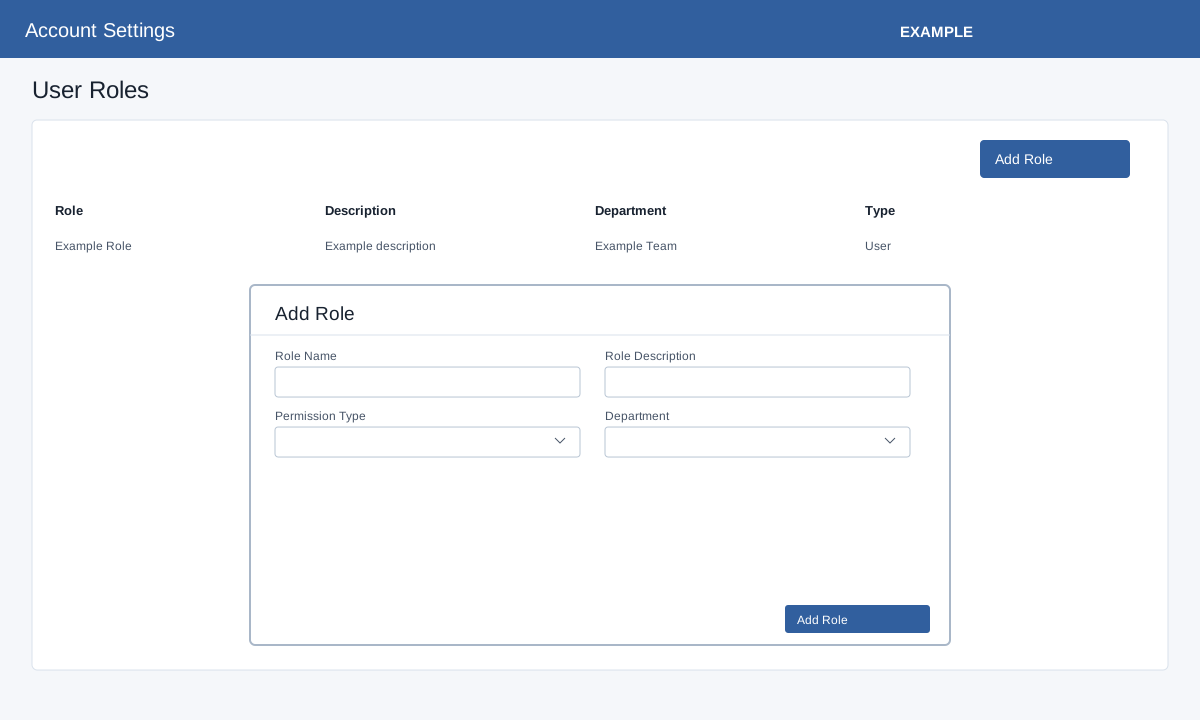
Open Account Settings → Roles as an administrator. The list shows role, description, department and type. Select Add Role: enter a Role Name containing letters, numbers or spaces, enter Role Description, choose Permission Type Administrator or User, and choose Available To All Departments or a department. Add Role saves and reloads the list. Edit icons change name or description; Delete asks for confirmation.
Select the role name to open Role Permissions. Search permissions and toggle the relevant checkboxes; changes save automatically and the screen warns they may take 4–8 hours to reach all users. Review the success or error message and re-open the role to verify. Choices vary with configuration and role. Require Digest before opening Contacts or Accounts is disabled for an administrator role. The role detail also lists users with Name, Email and Phone. The controls include:
View Contacts Page, View Accounts Page, Require Digest before opening Contacts or Accounts, Global View Access, View Profile, Delete Contacts, Transfer In Bulk, Change Account Type, Create Dialer Batches, Import Dialer Files, Create From Filters, Work Assigned Queues, Claim Shared Queue Items, Assign To Users, Assign To Departments, Assign Globally, Promote To CRM, View Dialer Reports, Start Auto Dialer Sessions, Access Travel Module, Itinerary Builder, Travel Products, Itinerary Templates, Suppliers, Operations, Documents, Reports, Aggregator Integrations, Travel AI, Travel Admin Settings, Allow Quotes Access, Allow Invoice Access, Manage Subscriptions, Manage Receipts, Complete Invoicing Access, Allow Sending Campaigns, Allow Sending Emails, Allow Managing Groups, Allow Sending SMS, Allow Sending Bulk SMS, Allow Managing SMS Groups, Allow Web Leads, Assign Incoming Chats, Allow Incoming Calls, Allow Outgoing Calls, Add Stock, Delete Stock, Manage Products, Allow Chatbot Management, View Project Tasks, Create Project Tasks, Manage Project Templates, Manage All Project Tasks, Assign Project Tasks, Move Project Stages, Comment On Project Tasks, Complete Project Tasks, View Project Reports, Manage Project SLA, Manage Subscription Recurrence, Claim Department Tasks, Add Users, Manage Users, Delete Users, Assign Licenses, Manage Payroll, View Payroll