Manage a user profile
Availability depends on your account configuration and permissions.
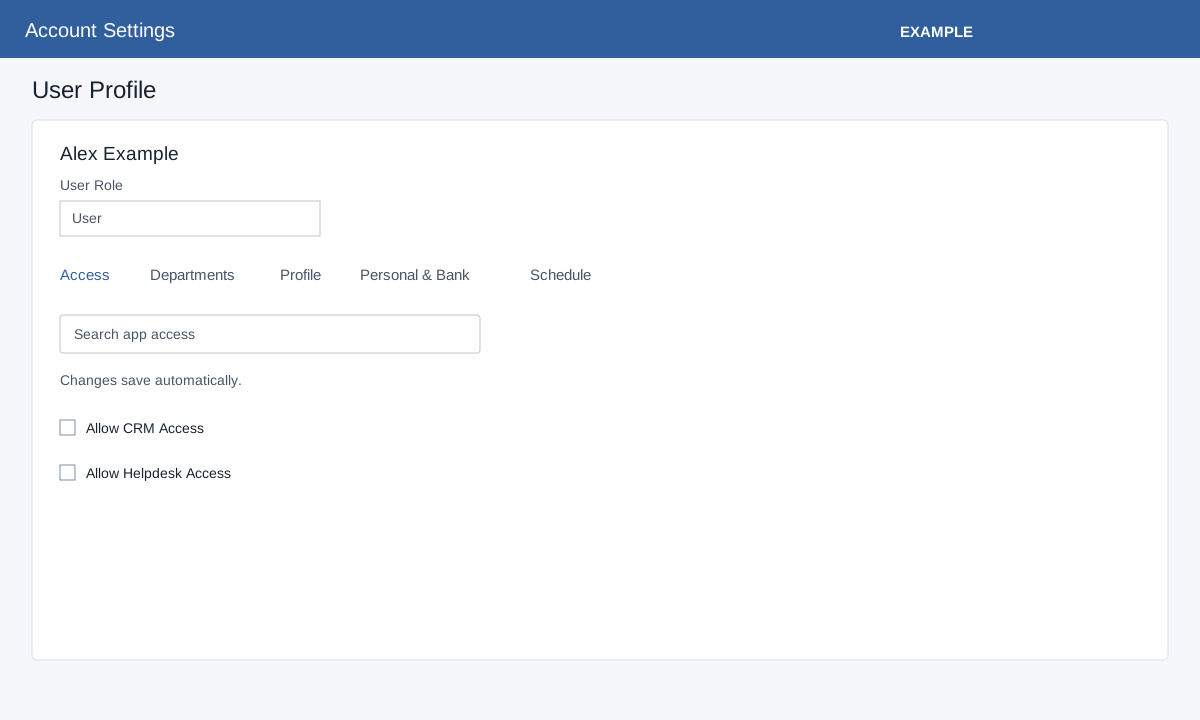
Open Account Settings → Users and select a user. Administrator access is required. Choose the appropriate tab and verify the saved result before leaving.
Change role and app access
- Open the inline User Role selector, choose a role and save the selection. Check the response and reopen the profile to verify it. The billing plan may limit administrator roles.
- On Access, use Search app access to find a control. Check or uncheck it; each change is sent immediately. Check the response and reload to verify, especially after an error.
The visible controls cover CRM, Dialer, Travel, Helpdesk, Invoicing, Email, SMS, WhatsApp Campaign, Inbound Lead, Chat, AI Chat, Project Management, Telephony, Inventory, HRMS, Tracking and Bookings. App access and role permissions both affect what a user can do.
Add or remove a department
- Open Departments and select Add Department. Choose a department and select Save changes; success reloads the profile. Cancel closes the dialog.
- To remove a membership, select Remove for its row and confirm. Check the response and the department list. For department-level routing and sequence, see Department details.
Update basic profile
- Open Profile and edit Full Name, Phone Number, Designation, City, State or Country.
- Select Update Profile, read the response and reopen the profile to verify. The request sends changed nonempty values; blank values are ignored, so this form cannot clear an existing value. The update applies to active users.
Change additional settings
- Enter the CRM Email ID and use its Update control. The page requires 7–40 characters.
- Enter a positive Monthly Sales Target shorter than 10 characters and use its Save control. Enter a positive three-digit Telephony User’s Extension and use its separate Save control.
- For Route Unassigned Leads To Department, edit the inline selector and save the selection; the page displays Assign To Self when none is set. This submits separately.
- Check or uncheck Create New Lead With Call Sync for incoming calls on Android phone sync. It sends immediately on change. Check the response and reopen to verify each setting.
Save personal and bank details
- Open Personal & Bank. Enter Date of Birth, Date of Joining, Personal Email, Current Address and Permanent Address as needed.
- Use Add Contact for up to five emergency contacts. Each row has Contact Name, Relationship, Primary Phone and Alternate Phone. Remove removes the row locally; the saved list changes when the profile is saved.
- Enter Account Holder Name, Bank Name, IFSC / SWIFT and Branch, and choose Account Type: Savings, Current, Salary or Other. Leave Account Number blank to retain the masked saved number, enter a replacement to change it, or check Clear saved account number to remove it.
- Select Save Personal Profile. Success reloads the page; reopen the tab and verify. If the form expired, refresh and re-enter the changes. Recent Bank Change Log shows date, changed by, source, changes and IP.
Change the schedule
- Open Schedule and set Starts At and Ends At for each applicable weekday, or check Day off.
- Each time or day-off change is sent immediately. Read its response and reload to verify; correct any rejected value before continuing.
Manage account status and password
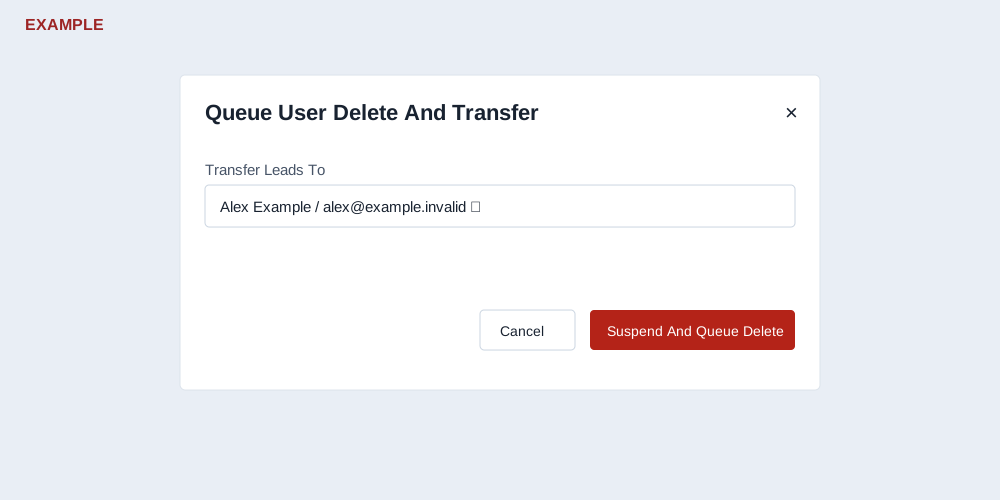
- For an active account, Reset Manually opens a password entry and Save changes; Reset Automatically asks for confirmation. Check the response before leaving.
- Suspend and Restore Account each ask for confirmation. Reopen the profile to check its status.
- Delete opens a transfer dialog. Select a different active account, choose Suspend And Queue Delete and confirm. The success message says deletion completes after lead transfer and a confirmation email follows. Verify completion rather than treating the queued message as final deletion.
- If no active recipient is available, create or restore one first. If queuing fails after suspension, the user may remain suspended. Check the user’s status and ask support for help if needed. Check status before retrying.