Salary structures and components
Review salary packages and the controls provided for their components.
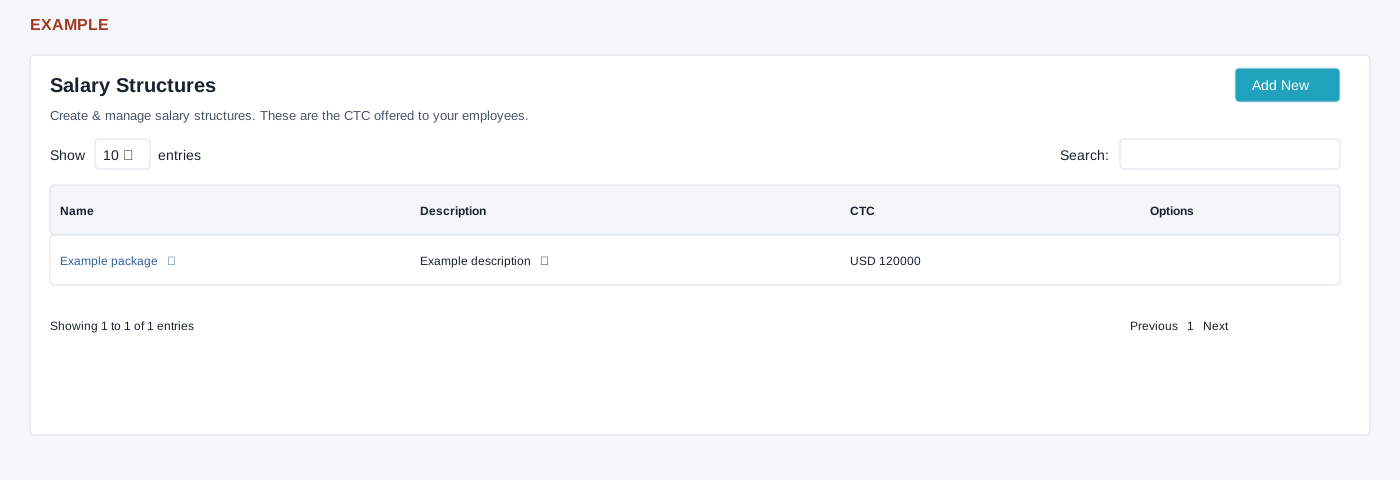
Open the list
Open HRMS → Salary Structure with HRMS access and payroll-management permission; an administrator satisfies the payroll check. The list loads up to 100 structures, ordered by ID, with Name, Description, CTC and Options; the name opens Manage Salary Components. Search, column sorting, page length and pagination apply to loaded rows. The name and description edit controls do not reliably save changes; ask support for help updating them. No delete action is rendered in the Options column.
Add a salary structure
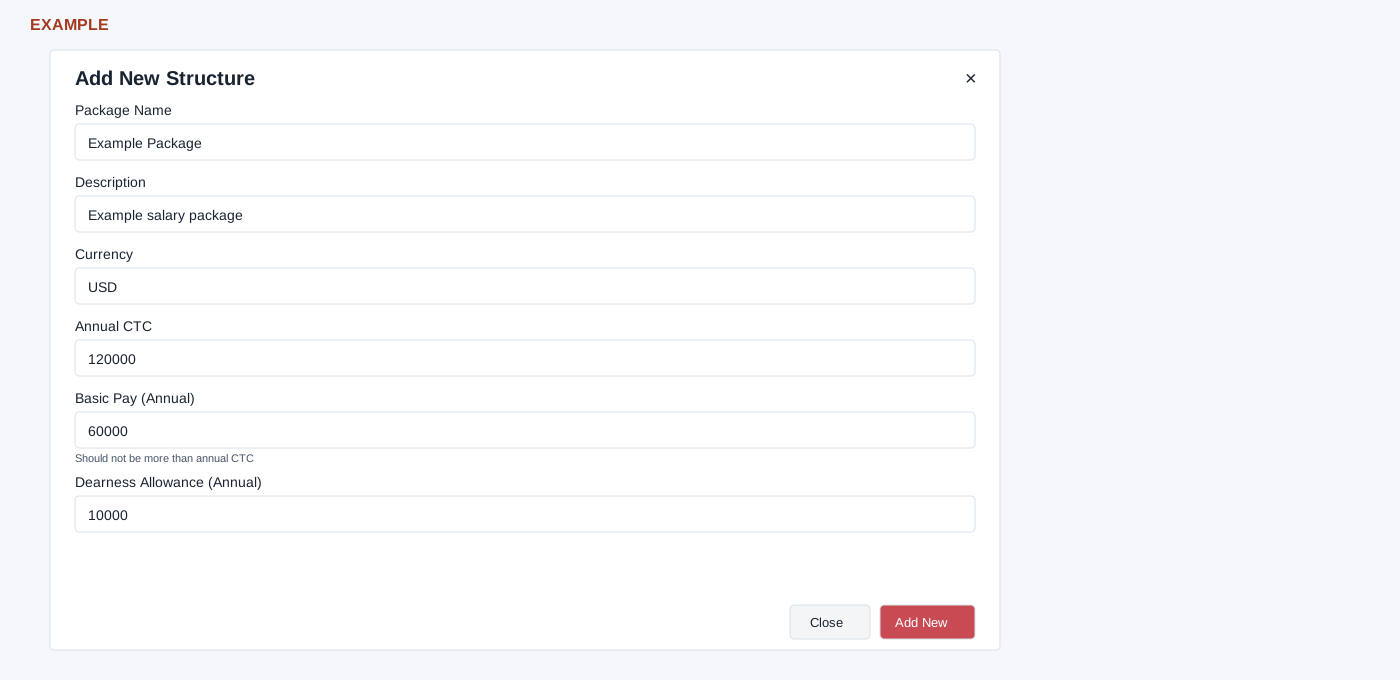
- Select Add New. Enter Package Name, Description, Currency, Annual CTC, Basic Pay (Annual) and Dearness Allowance (Annual). The page checks that name contains only letters, digits or spaces and that description is nonempty.
- Enter a positive Annual CTC. The form compares it with twice the entered dearness allowance rather than basic pay plus dearness allowance. Ask payroll to confirm that the package is financially consistent. Basic and dearness amounts default to zero when omitted. Currency is a text field.
- Select Add New. A successful save opens Manage Salary Components. Reopen the list and confirm the actual saved values; do not treat the displayed labels as proof that the underlying pay fields are annual, because the service stores the supplied values in fields named monthly basic pay and monthly dearness allowance.
Example: an administrator preparing an Example Co package enters its planned figures, verifies the stored package and asks payroll support to check the calculation before using it.
Component tabs and limitations
Manage displays Allowences, Benefits, Deductions, Incentives and Perks tabs, each with #, Name, Description, Value, Frequency and Actions, plus Total Compensation. The component tables and total do not reliably show saved components. The row controls are not reliable here.
Component creation is blocked in the form. Adding an allowance, benefit, deduction, incentive or perk can fail even when the visible fields are filled. Ask support to correct and verify the workflow before relying on it. The displayed dialogs are described below so you can identify the controls; do not use their submission as a payroll procedure.
- Add Allowance: Name, Description, Value; Is This Taxable? Yes/No (Yes initially); Is Tax Deduction Available? Yes/No (No initially); Tax Deduction Percentage, Tax Deduction Max Monthly Value, and Allowance Type Fixed/Variable.
- Add Benefit: Name, Description, Value, Benefit Type Fixed/Variable and Maximum Monthly Value, labelled for variable benefits. The selected type and maximum may not be saved as intended.
- Add Deductions: Name, Description and Value.
- Add Incentive: Name, Description and Incentive Chart; the selector only renders Select One and links to Create Incentive Chart. Adding the incentive is not reliable.
- Add Perks: Name and Description. The displayed perk fields may not be used when adding it.
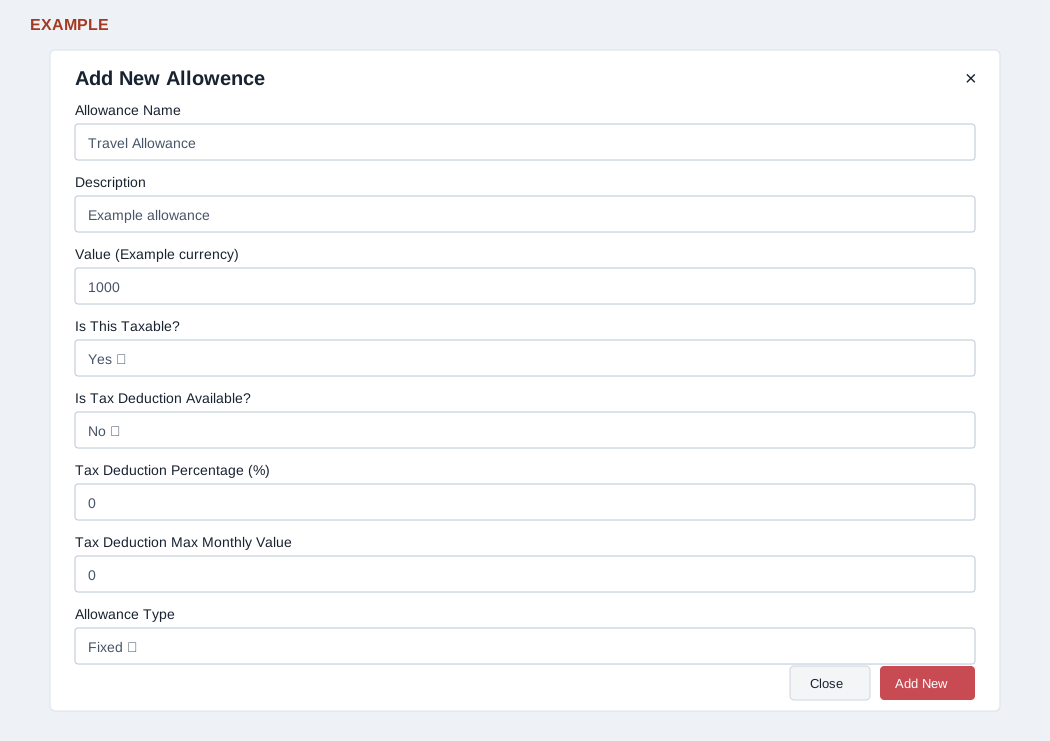
Each dialog provides Close and Add New; the form requires a name using letters, digits and spaces and a nonempty description. See Incentive structures for the separately blocked chart flow. If a list or form fails, check access and ask support.