Real Estate search, saving and recovery
Select the correct customer or account, complete linked fields and confirm the result of each saved action.
Select a customer, account or developer
- In a customer or account search field, type at least three characters. Wait for the permitted results beneath the field.
- Select the intended result. The search field shows the selected name and a selection message. Press Escape to close the results if you need to review the rest of the form.
- If you edit the selected name, select a result again. A typed name on its own does not establish the customer or account link.
- For the optional developer on a project, use Clear developer to remove the selection. It clears the field and shows No developer account selected; save the project to apply the change.
No permitted records matched or No permitted accounts matched means the search found no accessible match. Check the spelling and your access before creating a replacement customer. A search failure is different from an empty result: check the connection or session and repeat the search when the problem is resolved.
Complete fields that depend on another choice
| Choice | What to complete next |
|---|---|
| Country on a project or property | Wait for State / region options to load before saving. If Regions unavailable — select country again appears, select the country again and choose the correct region. |
| Project on a property | Selecting a project copies its country, city, locality, address, postal code and coordinates and loads its state. Review the copied location before saving. Selecting Standalone property does not automatically clear the previously entered location. |
| Rent listing or requirement | Select a rent period. Switching to Sale or Buy clears the rent period because it no longer applies. |
| Sale confirmation basis | The settlement threshold field becomes required for the invoice-settlement threshold option; it is disabled for staff approval. |
| Sale handover task | Selecting the task enables its due date/time and notes. The due date/time is required while the task is selected. |
| Brokerage fee calculation | Fixed total enables the fixed-fee field. Percentage enables the basis and rate fields. Complete the enabled fields for the agreed method. |
| External refund evidence | Select the original receipt. The receipt field is disabled for an external credit. |
| Correction of a deposit movement or external cash event | Select the original record. Support fields are disabled for a correction; the original record supplies the context. An agency collection requires its owner-issued rent document reference. |
Save and confirm the result
- Complete the required fields and review the record identity, customer, amounts and dates. Expand the relevant section when the action is inside a collapsed form.
- Select the form's action, such as Create project, Save listing or Record external evidence. Resolve any field-validation message. For an action with a confirmation prompt, review its effect before confirming; cancelling the prompt leaves the record unchanged.
- Wait while Saving… or Archiving… is displayed. Submission controls are disabled while that request is in progress.
- After success, the workspace opens or reloads the related record. Check the saved values, status, activity and linked documents as applicable. A success message for one action does not complete another action such as publishing a draft, activating a lease or paying an external recipient.
Recover without duplicating work
| Message or situation | What to do |
|---|---|
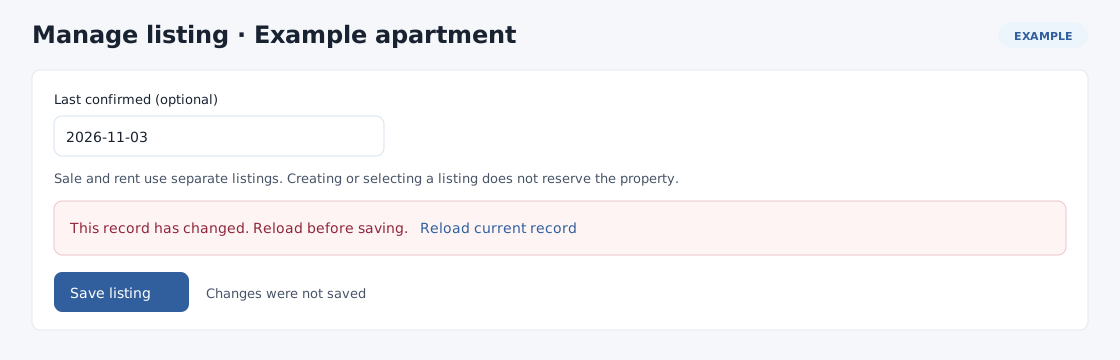
| This record has changed. Reload before saving. | Keep a copy of any unsaved values you still need, then select Reload current record. Compare the latest record with your intended edit before submitting it again. |
| Your form expired. Reload this page and try again. | Preserve any unsaved text, reload the current record and complete the action in the refreshed form. If the session ended, sign in again. |
| Unable to confirm this response / changes were not confirmed | Keep the page open and inspect the record or its history before submitting again. The browser may not have received a usable confirmation even when an action reached the service. Check documents and settlements especially carefully. |
| Changes were not saved | Read the accompanying error. Correct validation or access problems; if the response itself could not be confirmed, check the saved record first. |
| Assignment saved; delivery requires review | The assignment already exists. Open it and inspect delivery; do not create another assignment merely to resend it. Use Deliver saved assignment only when offered for a pending assignment. |
| File uploaded; product link requires attention | Use Link uploaded file to finish the link. It reuses the uploaded file. If the upload result is uncertain, review existing files before selecting the file again. |
| An action is missing or disabled | Check the record's status, required relationships, selected calculation type and workflow permissions. Read-only and historical views intentionally offer fewer actions. |
Continue with Projects, Listings, Viewings, Sales or Leases.