Real estate listings
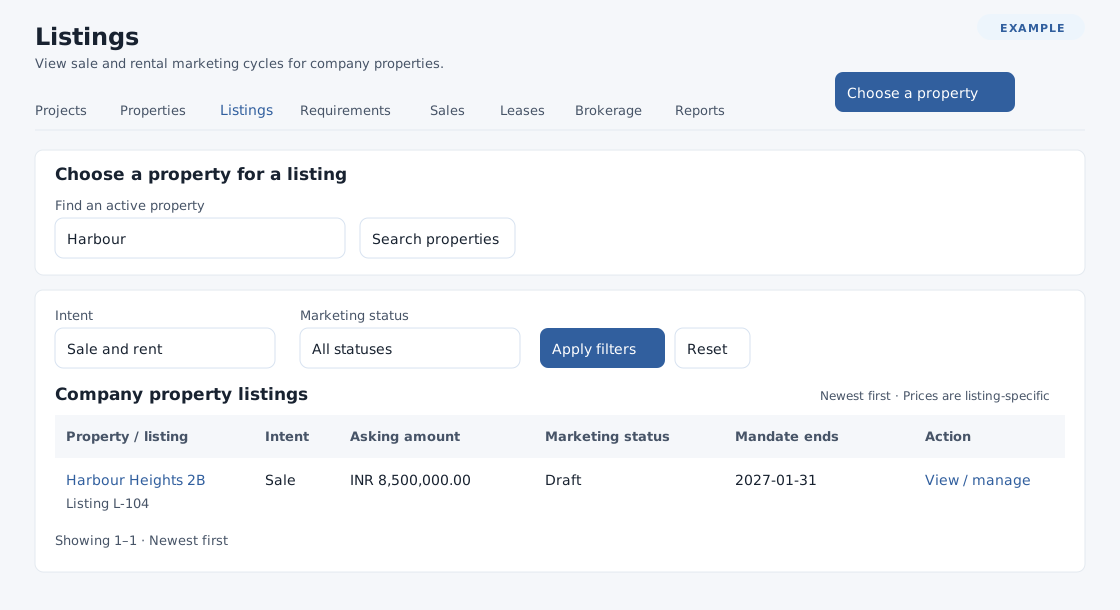
In Real Estate, choose Listings. A listing is a sale or rental marketing cycle for a company property. Its asking amount is specific to that listing; a listing does not reserve the property. See Properties for the underlying property.
Find and inspect listings
Choose Intent (Sale and rent, Sale or Rent) and Marketing status (All statuses, Draft, Active, Paused or Closed), then Apply filters; Reset clears them. The newest-first table shows Property / listing, Intent, Asking amount, Marketing status and Mandate ends. Open the property name or View / manage. Use Previous and Next for pages of up to 50 listings; scroll horizontally on small screens. Mandate information may be restricted.
For a field-by-field walkthrough, see Create and manage a listing.
Create a listing
- A listing manager selects Choose a property, searches Find an active property with Search properties, and selects Create listing beside a result. Use Previous properties available for listing and More properties available for listing if needed. If none appear, ask an Inventory manager to add or activate the Property item and its category or project.
- Choose required Listing intent Sale or Rent and enter required nonnegative Asking amount (up to two decimal places). The displayed currency is used. Choose Rent period for Rent: Per month, Per year, Per week or Per day; Sale uses Not applicable for sale.
- Optionally enter Mandate ends and Last confirmed. If available, enter Source and Mandate reference, and choose an existing current Owner / developer and Broker relationship, or No linked party. These fields require additional permissions. Establish relationships on the property first.
- Select Create draft listing. The listing opens in Draft; review its details and select Publish listing when ready. Only active, unexpired listings can match customer requirements.
Manage the marketing cycle
Open a listing and change its editable fields with Save listing. Intent and property cannot be changed after creation; sale and rent require separate listings. A property can have only one non-closed listing per intent. Draft offers Publish listing or Close draft; Active offers Pause listing or Close listing; Paused offers Reactivate listing or Close listing. Closing requires confirmation and retains history. A closed listing cannot be edited or reopened: create a new listing for a new cycle. Archived properties retain history but cannot start new marketing.
Renew an expired mandate before publishing or reactivating. A live sale allocation can prevent pausing, closing or shortening the mandate until released or completed. Committed tenancy may restrict changes to source terms and parties. If a save reports a conflict, reload the current record and review changes before trying again. If a response cannot be confirmed, check the record before submitting again.
Customer requirements · Property relationships · Real Estate overview
Field and paging limits
Asking amount accepts 0 to 9,999,999,999.99 with at most two decimal places. Source allows 120 characters and Mandate reference 90. Property-name search accepts 100 characters. Listing and property-picker pages show up to 50 rows per page. Optional dates must be valid dates from year 1000 onward.