Real Estate leases
Use Leases in the Real Estate workspace to record agreed tenancy terms, activate occupancy and review lease history. A draft does not reserve the property. The renter, dated landlord relationship and property must be accessible to you; creating and managing leases also requires the relevant permissions and customer search access.
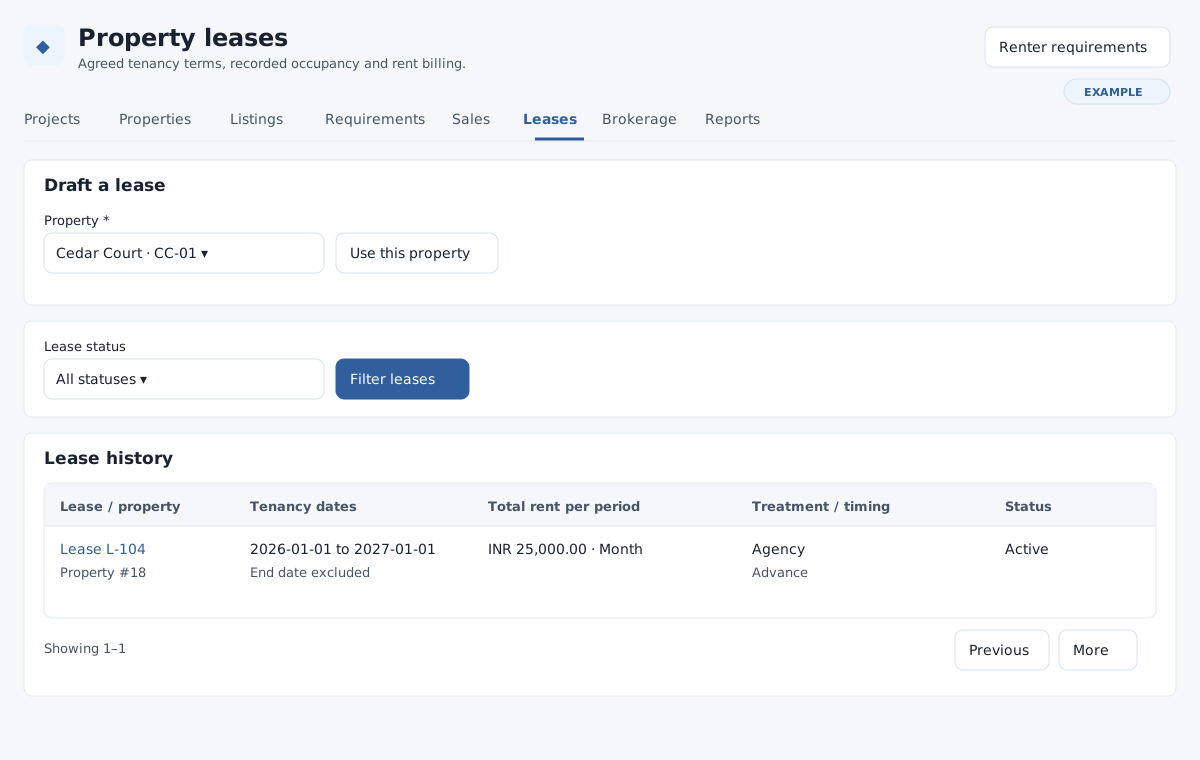
Find a lease
In Lease history, select Lease status and click Filter leases. Choices are All statuses, Draft, Active, Notice recorded, Terminated, Completed and Cancelled. Open a Lease L-number to see its terms and activity. The table shows property, tenancy dates, total rent per period, treatment and timing, and status. Use Previous and More to browse history. The displayed end date is excluded: a following tenancy can start on that date.
Draft agreed terms
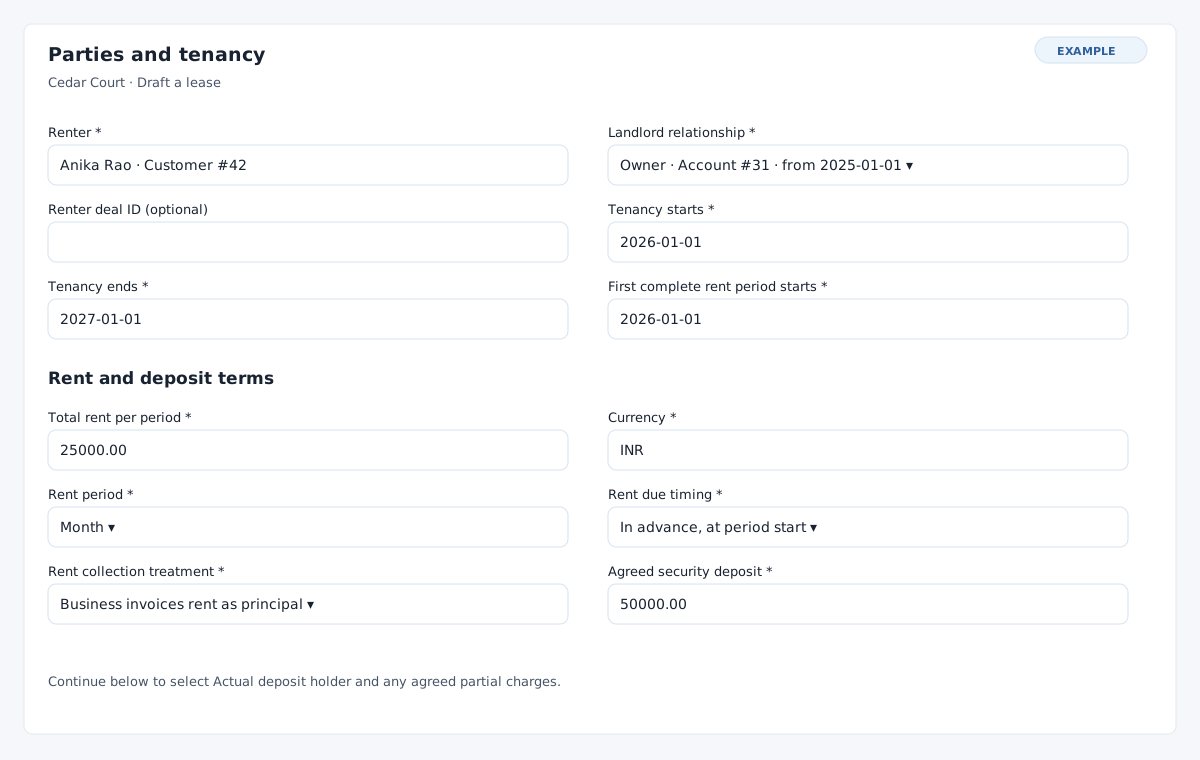
- In Draft a lease, choose Property and select Use this property. Alternatively start from an authorized open renter requirement and active rental listing; the property and context must be compatible. A linked requirement supplies its renter, and a linked listing supplies its rental context. Otherwise type at least three characters in Renter and select a permitted search result. Typing a name alone does not select a renter.
- Under Parties and tenancy, choose the dated Landlord relationship for the owner or developer. Optionally enter an existing authorized Renter deal ID for that renter. Enter Tenancy starts, Tenancy ends, and First complete rent period starts. Use dates in the date controls. The end must be later than the start; the anchor must be within the term. The end is excluded. The dated landlord relationship must cover the whole tenancy.
- Under Rent and deposit terms, enter positive Total rent per period including agreed taxes, Currency, and select Day, Week, Month or Year for Rent period. Choose advance at period start or arrears at period end, then Business invoices rent as principal or Collect on behalf of the owner.
- Enter Agreed security deposit and its actual holder: Business, Owner or No deposit. Use zero with No deposit; a positive deposit needs a holder. Amounts use up to two decimal places and can be at most 9,999,999,999.99; Currency accepts up to 15 characters. When an initial or final partial period exists, enter its explicitly agreed amount, including zero if none is due, and the Partial-charge agreement / reason. A positive initial or final charge needs its corresponding partial period. Even an approved zero charge for an existing partial period needs the agreement reason. No daily proration is assumed. Add optional lease notes.
- Select Create lease draft. The new lease details open. Review the recorded terms and billing period plan before activating it. If the selection is unavailable, check property, renter, owner relationship and permissions, or return to the requirement and listing.
There is no general edit-terms control on these screens. If an unactivated draft contains incorrect terms, cancel it with a reason and create the correct draft. For a committed tenancy, use the recorded termination or linked renewal workflow as appropriate to the actual agreement; do not assume that changing a related record amends the lease.
Continue with lease details and activation, billing and evidence, or property setup.
Check linked terms before activation
Lease currency must match the current company currency. Any linked requirement or listing must have compatible currency and rental period. At activation, the linked listing must still be Active with an unexpired mandate, and the linked requirement must still be Open. Confirm these records and the landlord relationship before proceeding.