Real Estate access and role settings
Give each team member access to the real-estate work they perform, including separate project and listing management controls.
Before assigning access
Sign in as an administrator. Real Estate is available to companies configured for that industry. The listing workspace and its project/listing management grants require the company's Inventory service and current entitlement. Users must be active members of the company. A role grant does not activate a company service.
Open Account Settings → HRMS → User Roles, select the role name, then find the Real Estate permission group. Use Search permissions to locate it when needed. Check the role's assigned users before changing permissions.
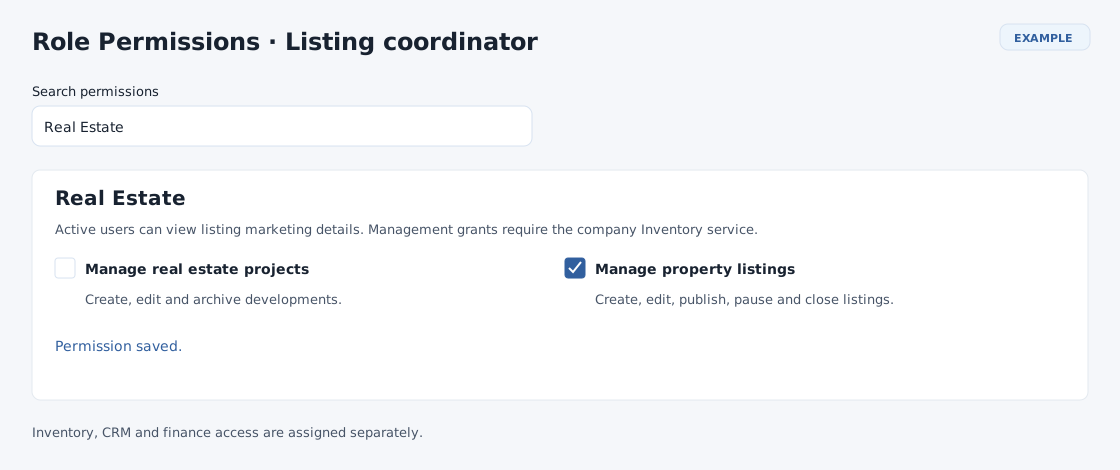
Set project and listing management permissions
| Checkbox | Allows | Separate access still needed |
|---|---|---|
| Manage real estate projects | Create, edit and archive developments, and open the project workspace. | Property inventory management and listing management. |
| Manage property listings | Create and edit sale/rental marketing listings; publish, pause, reactivate or close them. | Project management, property inventory, CRM parties and financial records. |
- Select the relevant checkbox. For a marketing coordinator, select Manage property listings; enable project management only if the coordinator also maintains developments.
- Wait for Permission saved. Each checkbox saves separately; there is no combined Save button for these controls.
- If saving fails, the checkbox returns to its previous state. Check the connection and session, then retry the intended change.
- Reopen the role to verify the stored state. Have the affected user reopen Real Estate and confirm the intended controls are available.
Administrator roles show both management checkboxes selected and disabled. Administrators retain these management permissions while the company service is available. Active company users can read listing marketing information without either management checkbox; granting management changes what they can do, rather than making listing marketing information visible for the first time.
Access for each workflow
| Workflow | Access to check |
|---|---|
| Read projects | Property catalog read access or Manage real estate projects. |
| Read and edit properties | Inventory read access for viewing; Inventory Manage Products for changes. Administrators have catalog access. |
| Requirements, shortlists and property relationships | Inventory and CRM read access; CRM write access for changes. Customer and account choices are limited to records the user can access. |
| Contact/account search | Permission to open the relevant CRM Contacts or Accounts list directly. A role restricted to working through the Digest cannot use the unrestricted picker; use an authorized contact context or ask the administrator to review the role. |
| Site visits and Real Estate Activity | Inventory, CRM and Assignments read access. Creating viewings and recording outcomes also require the corresponding write access. |
| Sales, leases and brokerage | Inventory and CRM read access for viewing. Changes require CRM write access and, for non-administrators, Inventory Manage Products. |
| Quotes and invoices | The relevant sales/lease/brokerage access plus Invoicing write access and the permission to create that document type. |
| Receipts and deposit evidence | The relevant management access plus Receipts write access. |
| Recurring rent billing | Lease management, permission to create invoices and Subscriptions write access. |
| Lease finance and owner statements | Lease read and Receipts read access, followed by access to the selected property, owner and financial source. |
| Maintenance | Lease read and Helpdesk read access to view links; lease management and Helpdesk write access to manage them. |
| Financial corrections | Lease or brokerage management plus invoice read access or permission to manage commercial funds. Each correction must also refer to an accessible source. |
Menu visibility is the first check. Opening a record or submitting an action also checks access to that customer, property or financial source. A listing viewer may see a reduced marketing view without owner/source details, purchase values or internal activity.
Verify the role
- Open Switch app → Real Estate as the intended user. Confirm Listings opens.
- For a listing manager, confirm Choose a property and the appropriate listing actions are available. For a project manager, confirm Projects and its management actions are available.
- Open a permitted customer and review Real Estate. Check separately that Requirements, Site visits, Sales or Leases appear for the user's duties.
- If a financial or report action remains absent, check the additional module access in the table rather than adding unrelated management grants.
For general role creation and membership, see User roles and Role permissions and users. Return to Real Estate workspace.