Real estate viewing assignments
Viewings use the existing Assignments workflow and its field delivery. Start new viewing work from an open customer requirement in Real Estate → Requirements; a viewing is linked to that requirement and its customer.
For the complete destination and assignment form, see Schedule and link property viewings.
Schedule a viewing
- For a marketed property, add its compatible listing to the shortlist, then select Schedule viewing for an active, non-rejected listing. For a project, choose Project viewing destination under Visit a project and select Open Create Assignment. Under Direct property enquiry, choose a Direct viewing destination and open the form for a property with no listing history. A property previously marketed must use an active compatible listing.
- On Create Assignment, verify Customer Details and Viewing destination. The destination is saved with the assignment and does not change the customer's home address. The panel also shows Active Assignments. Return to customer requirement, Cancel and Back to Assignments leave the form; Notes opens the notes panel. Change customer leaves the viewing context for ordinary customer selection.
- Enter required Assignment Due Date as YYYY-MM-DD HH:mm, select an Assignment Type, optionally enter Description, and select Assign To User. The user choices depend on the assignment type. Select Create Assignment. The assignment detail opens; inspect delivery and return to the requirement's viewing history.
The listing must still be active, compatible and unexpired on both the current date and scheduled date. A changed requirement, destination, listing or permission can make the viewing context unavailable; return to the requirement and review the current details.
Link an existing assignment
In Viewings and assignment history, expand Link an existing assignment when offered. Choose Existing assignment, then the matching Property destination or Project destination, and Listing context when applicable. Select Link existing assignment. The assignment must belong to this customer, be Pending or Completed, be accessible to you, and have the exact destination address and coordinates. It cannot already be linked to a real estate visit. Its existing date, assignee and instructions remain. A completed assignment can be retained as history; new or pending work requires an open requirement and an active compatible listing where applicable.
Review delivery and record the result
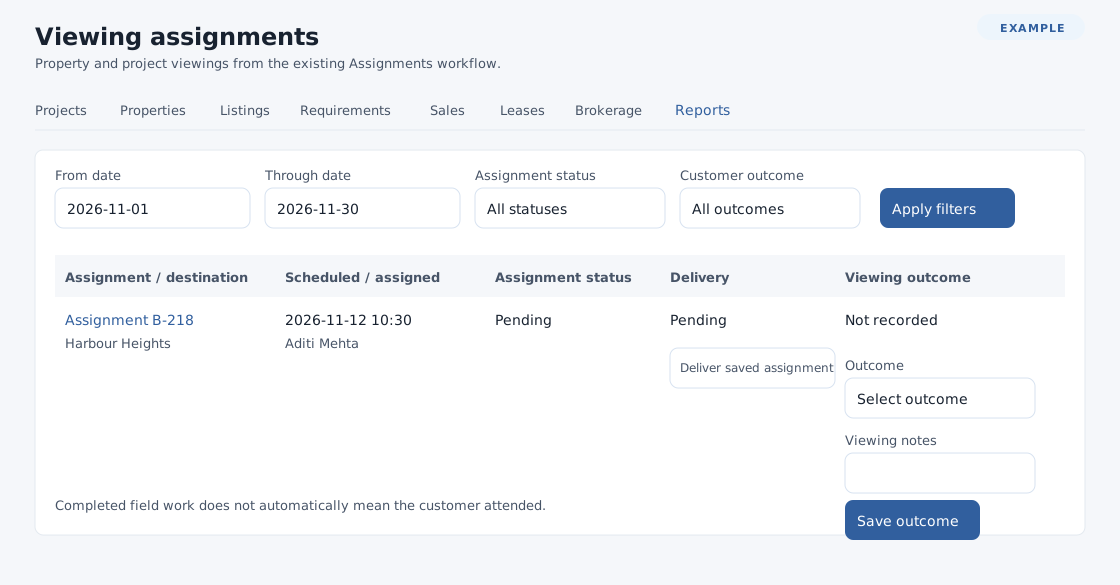
In the requirement or Viewing assignments, the table shows Assignment / destination, Scheduled / assigned, Assignment status, Delivery and Viewing outcome. Select an assignment to open it. Delivery may show Pending, Sending, Sent, Failed or Not required; older assignments can show Not tracked. Sent confirms TeamSpoor delivery. Not required can mean TeamSpoor is not integrated or a pending assignment was completed, cancelled or deleted before delivery. For an eligible Pending assignment with Pending delivery, use Deliver saved assignment. Sending or Failed means the saved assignment needs delivery review; do not create a duplicate. A warning can mean the assignment saved even though delivery could not be confirmed. Check the assignment before retrying or seeking help.
Completed field work does not itself establish customer attendance. Select Outcome Attended, No show or Declined, optionally enter Viewing notes (up to 65,535 characters), and select Save outcome. Saving an outcome or delivering from the viewing list opens the requirement’s viewing history; verify the updated row there. Reload the record if a conflict is reported.
Find viewings
Open Real Estate → Reports, then View assignments. Set required From date and Through date (inclusive), optional Assignment status (All statuses, Pending, Completed, Cancelled, Deleted) and Customer outcome (All outcomes, Attended, No show, Declined); select Apply filters. The default dates run from today through 30 days ahead. Use pagination and horizontal scrolling as needed. If loading fails, check the date range and try again. Results are limited to customers in your scope.
Requirement details · Assignments workspace
Assignment Description and Viewing notes each allow up to 65,535 characters.