Real estate projects
Projects group properties at a development. A property can also stand alone. Start with the real estate overview for the full workflow.
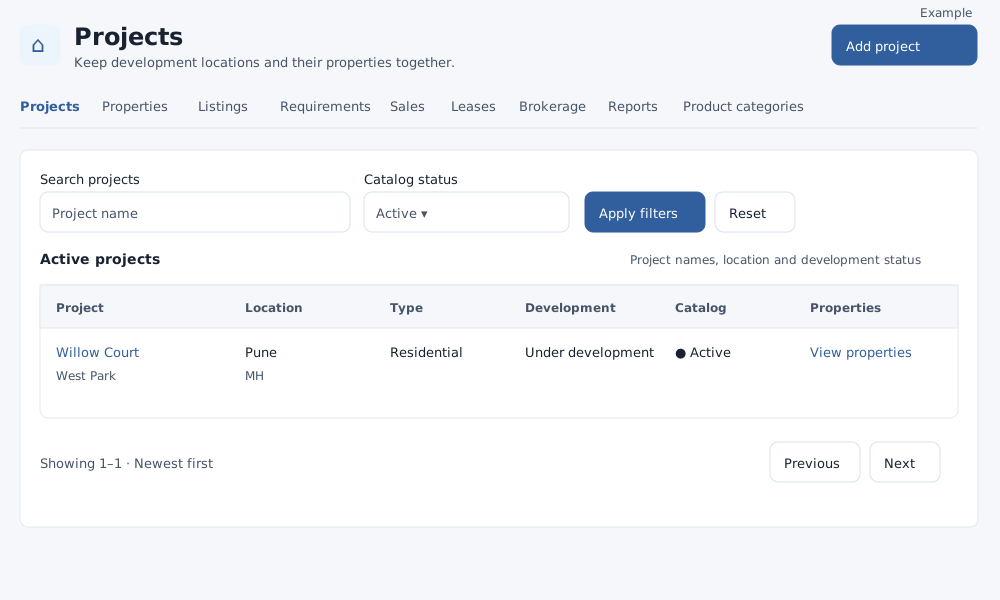
Find a project
Open Real Estate → Projects. Project read access is needed; creating, changing and archiving require project management access. Other tabs appear according to your permissions.
- Enter up to 100 characters in Search projects, choose Catalog status (Active, Archived or All statuses), and select Apply filters. Active is the default. Reset clears the filters.
- Review the project, location, type, development status and catalog status. Select its name to open details, or View properties to see its units if you have catalog access. On narrow screens, scroll the table sideways.
- Use Previous and Next to move through pages of up to 50 records, newest first.
For a field-by-field walkthrough and examples, see Create or edit a project.
Create a project
- Select Add project. Enter a Project name (required, maximum 90 characters).
- Optionally choose Project type: Residential, Commercial, Industrial or Land. Add a Description, select Development status (Planned, Under development, Completed or In possession), and enter Year built (1000–9999) and Possession date. Description permits up to 65,535 characters; the date must be valid from year 1000 onward.
- To link a developer, type at least three characters in Developer / vendor and select an available account result. Use Clear developer to remove it. Account lookup and access to the CRM account are required; if search is unavailable an existing link is retained.
- Choose Country, enter City and Address (all required). Optionally select State / region for that country and enter Locality / area (45 characters maximum) and Postal code (8 maximum). City allows 90 characters and address 65,535. Supply both coordinates or neither: latitude −90 to 90 and longitude −180 to 180, with up to seven decimal places.
- Select Create project. The saved project opens with a confirmation. Check the details and use View properties to add or find units.
Edit or archive
Open a project, change the fields and select Save changes. The Activity panel lists catalog changes and revisions. Cancel or Back to projects returns to the list. Changing a project's location does not automatically update the locations already stored on its properties.
To archive, open the active project, choose Archive project and confirm. First archive its active properties and close or cancel pending project visits; linked properties must also meet the property archive conditions. The archived project and its history remain visible through the Archived or All statuses filter, but the form is read-only. No restore control is shown here; ask an administrator for help if it was archived in error. Development status describes construction progress; it does not archive the catalog record.
If something does not save
Check required fields, permitted account selection and coordinate pairs. If regions fail to load, select the country again. If another user changed the record, reload it and reapply your edits. If the page or project is unavailable, return to Projects, adjust filters or ask an administrator to check access. For units and their archive conditions, see Properties.