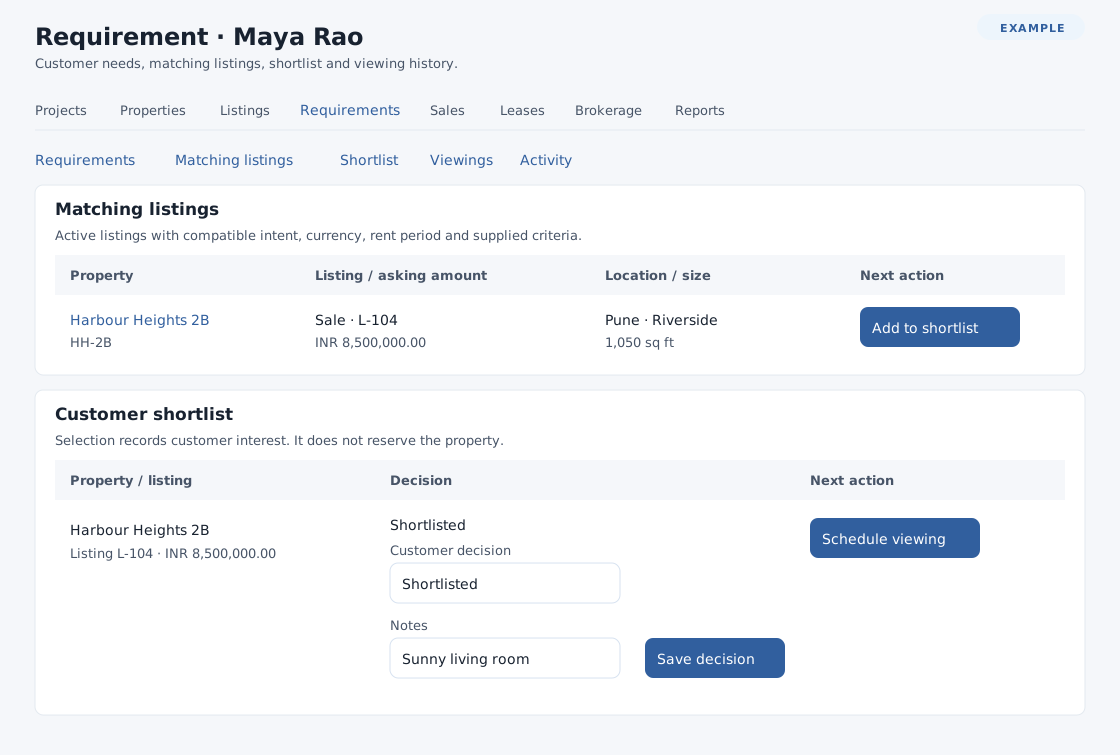
Real Estate requirement details
Open a customer from Real Estate → Requirements. Section links jump to Requirements, Matching listings, Shortlist, Viewings and Activity when available. Back to requirements returns to the list; View customer opens the contact conversation.
Edit or close
For an open requirement you can manage, update the criteria and select Save requirement. See Customer property requirements for every field. To close, enter required Reason for closing (up to 255 characters), select Close requirement and confirm. The shortlist and viewing history remain. A closed requirement cannot be edited, matched or used for new work until a manager selects Reopen requirement. Read-only users can inspect details but cannot edit them. Activity shows recorded requirement changes, dates and revisions.
Review matches and interest
Matching listings shows up to 50 active, unexpired listings for active properties and projects, with compatible Buy/Sale or Rent intent, currency and rental period. Supplied budget, bedroom and carpet-area ranges filter the recorded asking amount and property data. Country, state, city, locality and property type are exact, case-insensitive matches; carpet area uses the same unit without conversion. Blank preferences do not filter results. If no listing matches, review criteria and the property's recorded values, or Browse listings and check that a suitable listing is active and its mandate current.
Select Add to shortlist on a matching row. If the listing is already on the shortlist, do not select this again to review it: it resets the decision to Shortlisted and clears its Notes. Use the existing shortlist row instead. Under Customer shortlist, choose Customer decision Shortlisted, Selected or Rejected, optionally enter Notes (up to 65,535 characters), then select Save decision. A listing must still match to add it or save a non-rejected decision; an existing item can be rejected even when it no longer matches. Selected expresses interest and does not reserve the property.
For an open requirement and a non-rejected active listing, eligible users can choose Schedule viewing, Create sale hold for a sale listing, or Draft lease for a rental listing. Each requires its corresponding permissions and further validation. An inactive listing remains in history, with its status shown, but these actions are unavailable.
Viewing history
With viewing access, Viewings and assignment history lists linked assignments and allows eligible users to schedule a project or direct-property viewing, link a qualifying existing assignment, or record an outcome. See Schedule and link property viewings for the destination and assignment forms, and Viewing assignments for delivery and outcomes.
If a concurrent change is reported, reload the current record and review it before repeating the action. If a save response cannot be confirmed, inspect the record first to avoid duplicating work. If the form expires, reload it; if your session expires, sign in again. Access to individual customers and actions depends on CRM scope and permissions.