Real Estate: Schedule and link property viewings
Start in an open customer requirement with permission to manage the customer and viewings. A viewing creates or links an assignment for a property or project; it does not reserve a property.
Choose the destination
- For a marketed property, add a matching active listing to Customer shortlist and choose Schedule viewing on its non-rejected row. The listing must remain compatible and its mandate must cover today and the scheduled date.
- For a project, under Visit a project choose Project viewing destination and select Open Create Assignment.
- For an active property with no listing history, under Direct property enquiry choose Direct viewing destination and select Open Create Assignment. A previously marketed property requires an active compatible listing for new work.
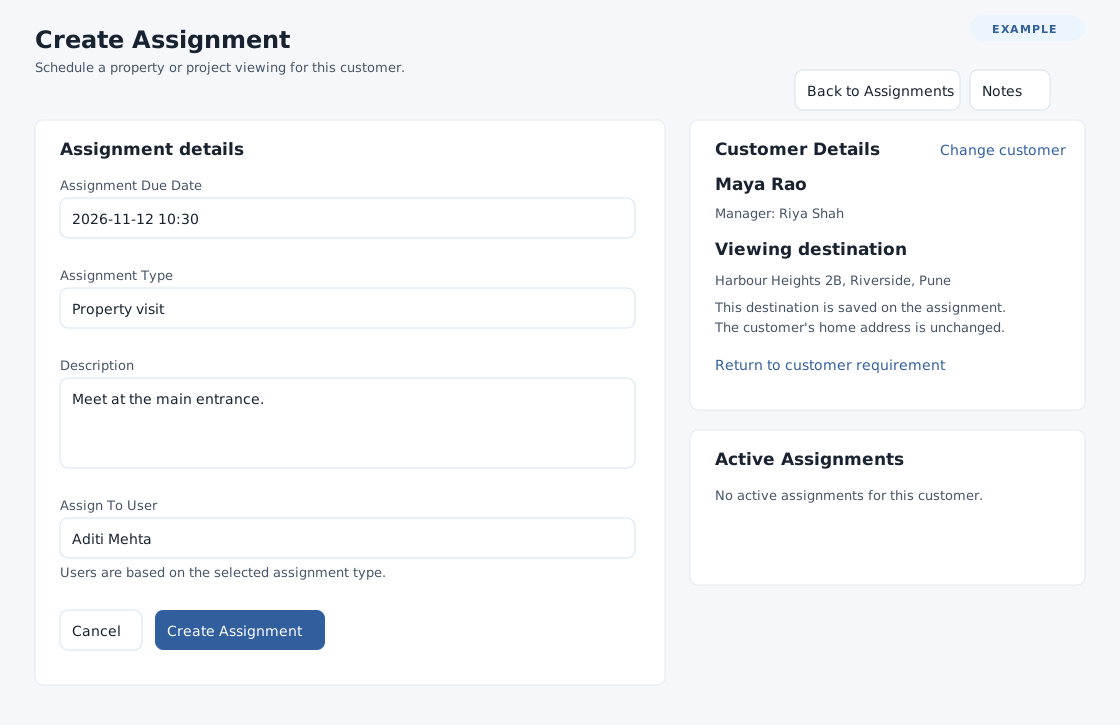
Complete Create Assignment
- Review Customer Details, Viewing destination and Active Assignments. The destination is stored with this assignment; the customer's home address is not changed. Return to customer requirement goes back without creating the assignment. Change customer opens the ordinary customer-selection flow, leaving this viewing context; return to the requirement to start a viewing for another customer.
- Enter Assignment Due Date in YYYY-MM-DD HH:mm format, or use its date and time picker. Choose a configured Assignment Type; wait for the eligible users to load and choose Assign To User. Enter optional Description as instructions for the assignee.
- Select Create Assignment. The assignment and its task are saved and delivery is attempted; the assignment detail opens. Cancel or Back to Assignments leaves the form. Notes opens the notes panel.
Assignment type and assignee availability depend on configuration and permissions. If users fail to load, select the assignment type again. Some types require an eligible active subscription covering the date and have a limit for its billing period. Follow the displayed error, or ask an administrator to check the type, subscription and assignee. If a response cannot be confirmed, check Active Assignments and the requirement history before creating another.
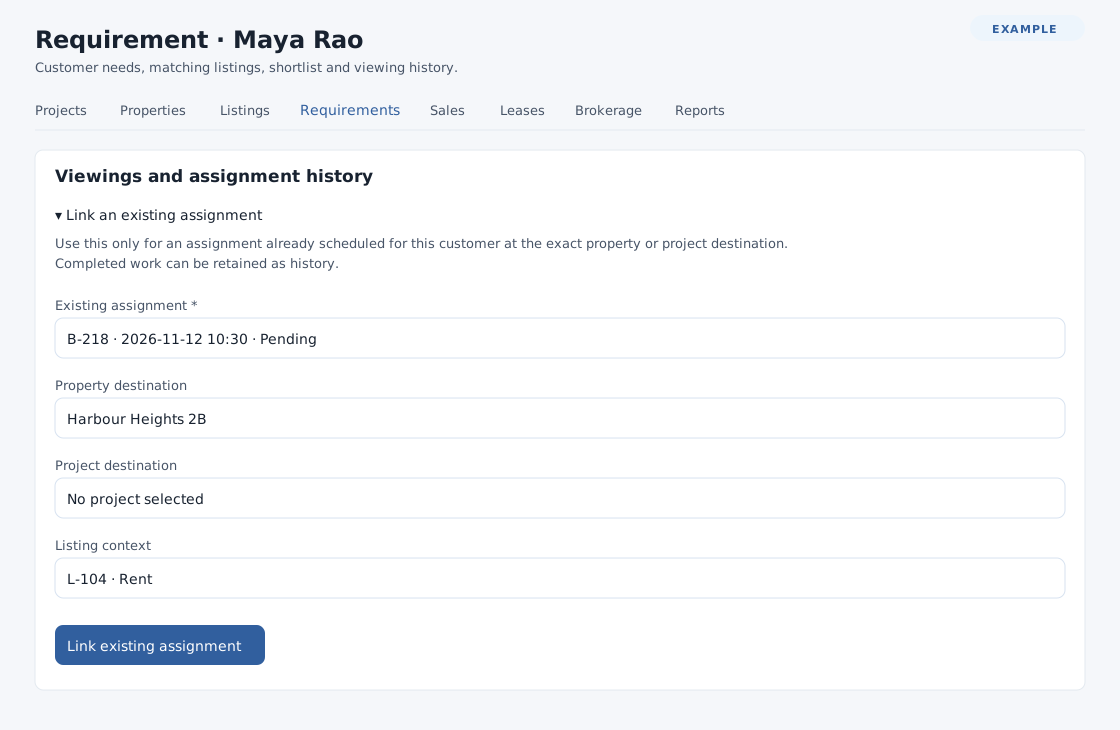
Link an existing assignment
Under Viewings and assignment history, expand Link an existing assignment when available. Select an Existing assignment from the customer's choices. Choose its exact Property destination or Project destination; if both are chosen, the property must belong to that project. Choose Listing context when applicable, then Link existing assignment. The assignment's date, assignee and instructions do not change.
The assignment must be Pending or Completed, accessible to you, for this customer, at exactly the selected destination including its stored coordinates, and not already linked to a real estate visit. The chosen property and project must still be active. Pending work requires an open requirement; a previously marketed property needs an active compatible listing with a mandate covering the scheduled date. A completed assignment can be linked as history even after the requirement closes, although any supplied listing must still correspond to the property and requirement's intent, currency and rental period. The selectors show up to 100 customer assignments and up to 500 properties or projects. If the destination does not match, review the assignment and property or project details before linking.
Use Viewing assignments to check delivery and record the customer outcome. See Assignments workspace for field work.