Real estate properties
A property is the stable physical record shared by sale and rental work. It can be a project unit or a standalone property. See the real estate overview for the wider workflow.
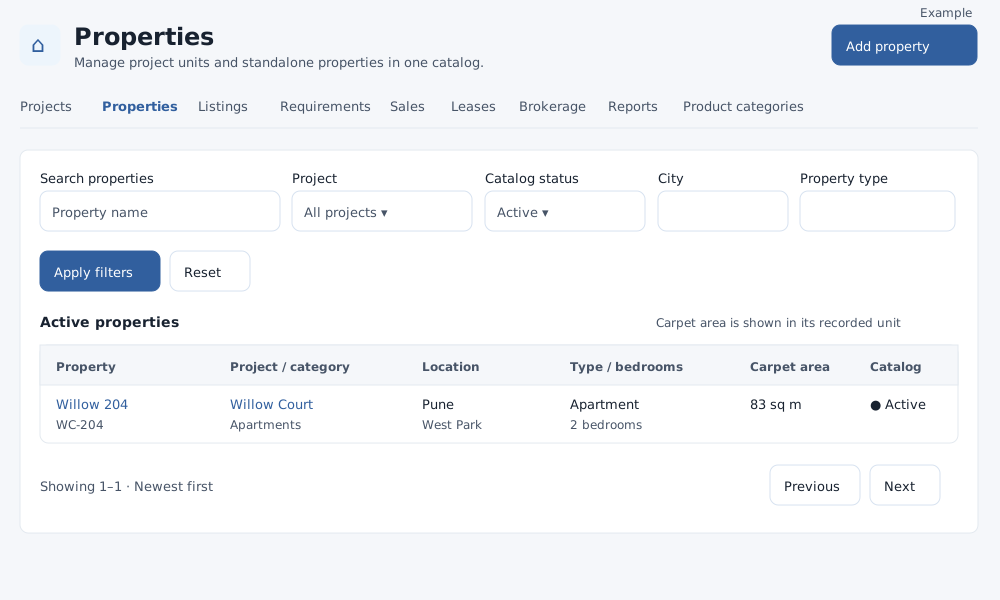
Find a property
Open Real Estate → Properties. Catalog read access is required; catalog management access is needed to add, edit or archive. Before adding a property, create an active product category with type Property using Product categories or Manage product categories.
- Enter a property name in Search properties (up to 100 characters), choose a Project and Catalog status, and optionally enter City (90 characters) and Property type (20 characters). Select Apply filters; Reset returns to the default active catalog. City and type filters match the recorded values.
- Review the property and reference, project and category, location, type and bedrooms, carpet area and catalog status. Open the property name for its details; project and category names open their respective records. Scroll the table horizontally on a small screen.
- Use Previous and Next for pages of up to 50 properties, newest first. Select Archived or All statuses when an archived record is missing.
Add a property
- Select Add property. If a project is selected in the list, it is preselected for the new unit when available. Otherwise choose an active project or Standalone property.
- Complete the required Property name, unique Property reference, Product category, Country, City, Address and Area unit. Selecting a project copies its current location into the form; review and adjust it for the individual unit before saving.
- Enter the optional specifications, rooms and catalog settings described in Property details and related records. Select Create property.
- The saved property opens with a confirmation. Verify its reference, category, location and area, then add a listing or use it in other permitted workflows.
Edit, move or archive
Open a property, make changes and choose Save changes. Changing the project copies the newly selected project's location into the form, so review those fields. Moving a unit between projects is subject to the same related-work restrictions as archiving. The Activity panel records changes and revision numbers. Cancel returns to the catalog.
Choose Archive property and confirm. First close all non-closed listings, close or cancel pending viewings, release or complete active sale allocations, and retain the property while a current or future committed tenancy remains. The details and history remain available under the Archived filter, but the catalog form is read-only. No restore control is shown on this page; ask your administrator for help if it was archived in error.
If the list cannot load, select Reload properties and check access if the problem continues. If a save fails, correct the displayed message. For a changed record, reload and re-enter your edits. Check category and project availability, a unique reference, required location and your permissions. See Projects, Requirements and viewings, Sales and Leases for related work.