Real estate property details
Open a property from Properties. The form describes the physical property; listings hold separate sale or rental asking amounts.
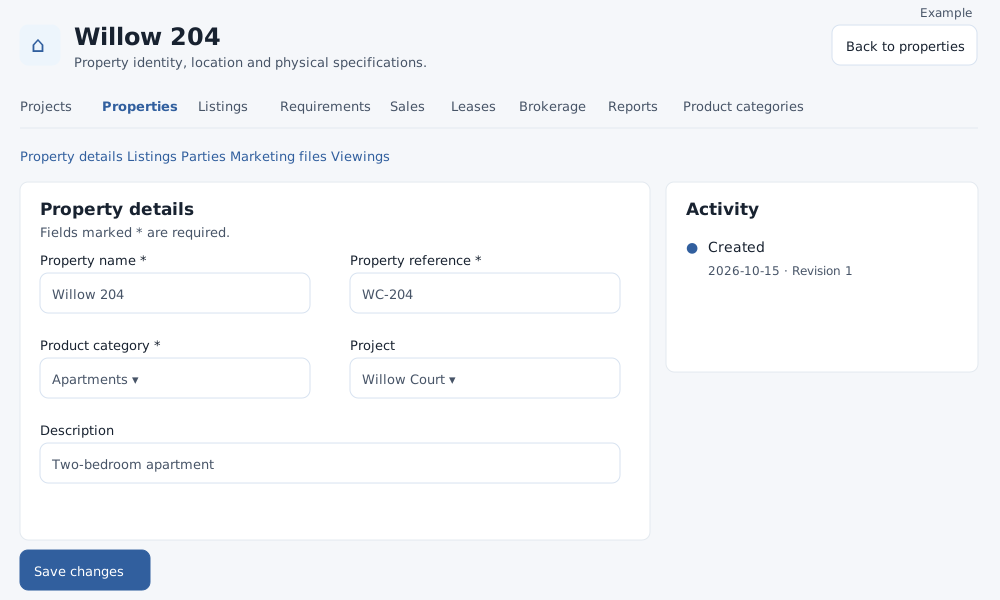
Complete the property form
Fields marked * are required. A catalog manager can edit active records; a reader or anyone viewing an archived record sees a read-only form.
- Property details: Property name (required, 100 characters maximum), Property reference (required, 64 maximum and unique within your company, ignoring case), Product category (required, active Property category), and Project (active project or Standalone property). Description is optional (65,535 maximum); Property type and Facing allow 20 characters each; Unit number and Tower / block allow 45 each. Floor number is an integer from −32,768 to 32,767. Possession date is optional and must be a valid date from year 1000 onward.
- Location: Country, City (90 maximum) and Address (65,535 maximum) are required. State / region is optional and must belong to the selected country. Locality / area (90 maximum) and Postal code (20 maximum) are optional. Latitude and longitude are optional together, with ranges −90 to 90 and −180 to 180 respectively and up to seven decimal places. Changing the selected project copies its location; check the values before saving.
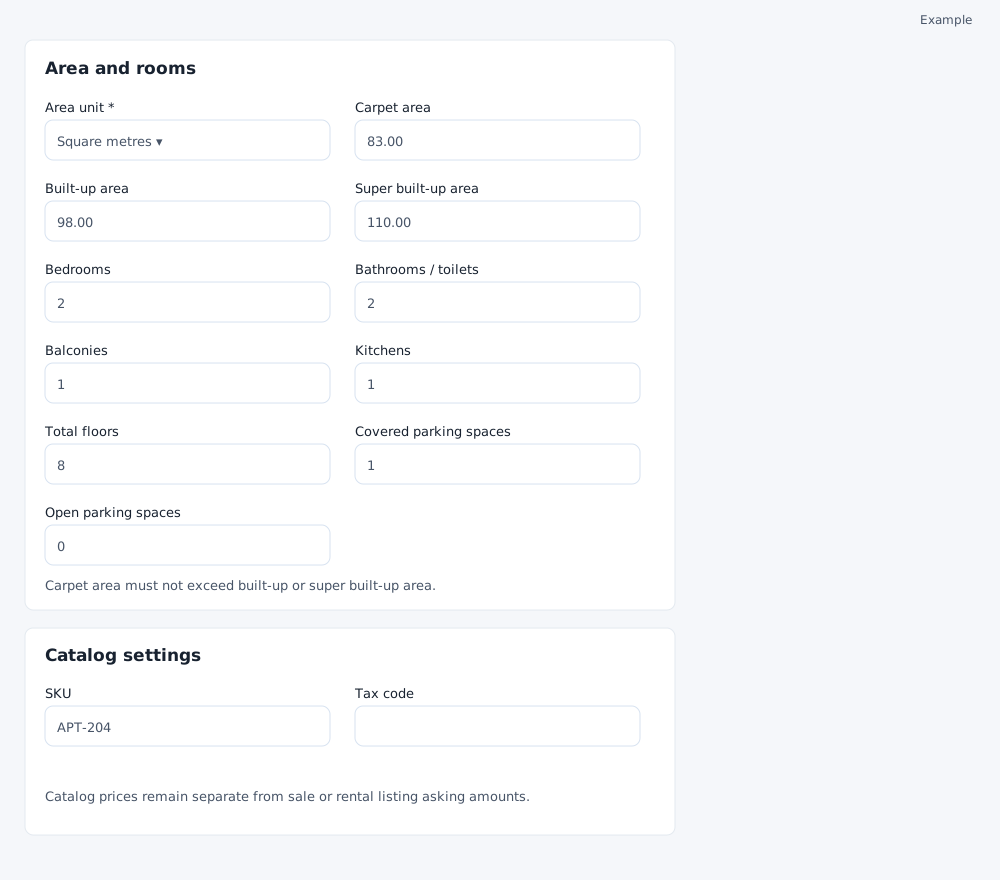
- Area and rooms: Choose a required Area unit: square metres, square feet, square yards or acres. Optional carpet, built-up and super built-up areas are nonnegative, at most 9,999,999,999.99 and use up to two decimal places. When supplied, carpet ≤ built-up ≤ super built-up, and carpet ≤ super built-up. Leave unknown values blank. Bedrooms, Bathrooms / toilets, Balconies, Kitchens, Total floors and covered and open parking spaces are optional whole numbers from 0 to 127.
- Catalog settings: SKU and Tax code are optional, each up to 20 characters. Catalog sale and purchase prices use the displayed currency, default to zero and accept nonnegative amounts up to 9,999,999,999.99 with two decimal places. Choose Yes or No for Available in product selection. These prices are separate from listing asking amounts; occupancy is not tracked as stock.
Select Create property or Save changes and check the confirmation and Activity panel. Cancel and Back to properties return to the list. View project opens the linked project; eligible lease managers can use Draft lease on an active record.
Listings and viewings
Use the section links to jump to Property details, Listings, Parties, Marketing files or Viewings as available. Sale and rental listings show intent, asking amount, marketing status and mandate end; open View / manage or use Add listing on an active property. See Listings. Viewings appear for users with viewing access. Each row links to the assignment and shows the destination, schedule, assignee, assignment status, delivery and viewing outcome. A viewing manager can select Attended, No show or Declined, add optional Viewing notes (up to 65,535 characters) and select Save outcome; completed field work does not itself record attendance. For an eligible pending assignment, Deliver saved assignment sends it. If delivery is failed or still sending, review the saved assignment rather than creating another. Use the requirements link to shortlist and schedule a viewing. See Requirements.
For the complete relationship and file workflow, see Property parties and marketing files.
Property parties
With the applicable requirements and account access, the Parties section shows CRM accounts, roles and effective periods. To add a relationship on an active property, type at least three characters and select a permitted CRM account; optionally search Contact at that account with at least three characters and select a permitted result. The selected contact must belong to that account. Choose Owner, Developer, Broker or Manager, enter the required Effective from date and optional Effective until, then select Add relationship. The end date is excluded from the relationship period and, if supplied, must follow the start date; overlapping relationships for the same account and role are not accepted. Check the resulting row. To end a relationship, enter its End date and select Save end date. Close or change linked open listings first; an owner relationship must also cover committed tenancy service. An end date must preserve existing dated owner financial attribution. If saving is rejected, review the owner statement and choose a date that preserves the recorded events and allocations. The relationship remains in the history. These controls require the relevant catalog and requirements management and account lookup permissions.
Public marketing files
On an active property, eligible catalog and inventory file managers can choose a PNG, GIF, JPEG or PDF under Add public marketing file and select Upload marketing file. Check that it appears in the list; open its link to review it. These links are public: keep private owner documents in the appropriate authorized CRM account. If upload succeeds but linking fails and Link uploaded file appears, use it to retry the link rather than choosing the file again.
Recover from a problem
Follow the error shown on the form. Select the country again if regions cannot load; wait for them before saving. Reload a record changed by someone else and reapply your edits. If an account or contact cannot be found, check access and that the contact belongs to the chosen account. If a form cannot be secured or has expired, reload before trying again. If a file upload is not confirmed, check existing files before uploading again. If a section or action is missing, ask an administrator to check the relevant permissions. See Properties for archive restrictions and list filters.