Header timeclock
Record attendance or a contact meeting when your organization enables the timeclock.
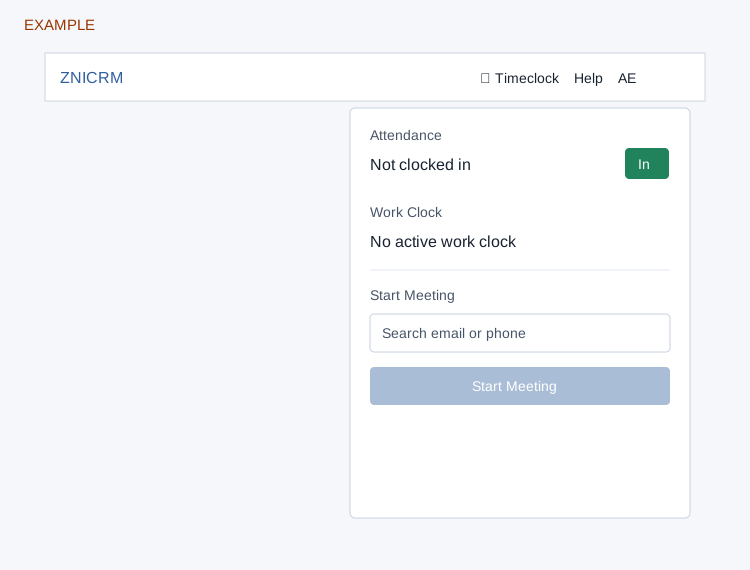
Attendance and work clock
Open Timeclock in the header. It appears only when at least one relevant permission and feature are enabled. Attendance shows In when not clocked in and Out when open; TeamSpoor-only configuration hides those buttons. Attendance can require an effective shift and location validation; permit location if requested and follow any policy error. Clock-in opens an attendance record and clock-out closes it; an overdue record can already have been closed automatically. A running Work Clock shows elapsed time and Stop; where available, its active label links to the related work.
For a helpdesk work clock, Stop can show Work note (required when configured) and Billable, Non-billable or Internal when override is allowed. Enter the required information before stopping. The actual stop records the work session; review the result and active status before retrying an error.
Start a meeting
- When meeting clock access and settings allow it, no other work clock is active and attendance requirements are met, search for a contact by email or phone. Search starts after two characters and returns up to ten accessible contacts.
- Select a result to enable Start Meeting, then select it to start recording. An account-configured start form may be required before the meeting starts. Stop can require an end form and location; save the form when required, or use Skip only when offered. Closing an unfinished form cancels that attempt. Starting and ending create contact timeline events; verify the active status and record after either action.
If the control is missing or disabled, check permissions, attendance, an existing active clock and administrator configuration.