Your profile and integrations
Review your account details, update your profile and bank details, and manage personal connections.
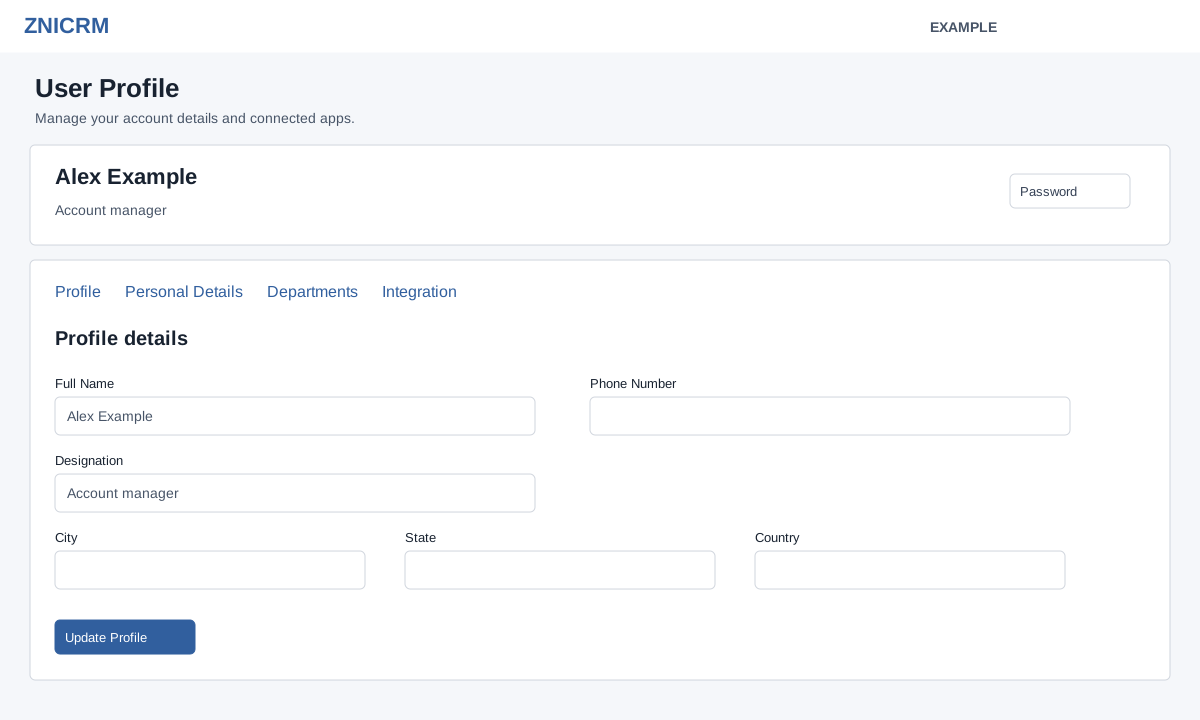
Open your profile
Open the account menu in the top bar and choose View Profile. The Profile, Personal Details, Departments and Integration tabs organize your information.
Update profile and password
- On Profile, edit Full Name, Phone Number, Designation, City, State or Country and choose Update Profile. A success message updates the displayed summary; reopen the page to check the saved values. Blank values are ignored when saving, so these profile fields cannot be cleared through this form; submitting no changed values returns “There is nothing to update.”
- For a password, open Password. Reset Manually opens a New Password field; enter a nonempty password (maximum 45 bytes) and select Save changes. Reset Automatically asks for confirmation and says the password will be sent to the registered email. Cancel leaves it unchanged.
Both reset paths send a password-reset email to the registered address. The manual path includes the entered password in that email. A success message does not confirm email delivery; check the registered mailbox and follow your organization’s credential-handling procedure.
Personal details and bank
The Personal Details tab displays date of birth, joining date, personal email, addresses and emergency contacts as read-only. Departments shows assigned departments. Ask an administrator if read-only information needs correction.
- Under Personal Details → Bank Details, enter Account Holder Name, Bank Name, IFSC / SWIFT, Branch and an Account Type (Savings, Current, Salary or Other) as applicable.
- The account number is masked. Leave its entry empty to retain the existing number, enter a replacement to change it, or select Clear saved account number to remove it.
- The account number is normalized by removing spaces and hyphens and must then contain 4–34 letters or digits. IFSC / SWIFT is optional; if supplied it must contain 4–45 letters, digits or hyphens after spaces are removed. Do not enter a replacement while selecting Clear. The save is restricted to your own active user; if the form expires, refresh and retry. Choose Save Bank Details. The page reloads on success; check the masked number and other fields. If saving fails, read the message and correct the entries.
Bank field reference
| Field | Accepted value and verification |
|---|---|
| Account Holder Name, Bank Name, Branch | Each is normalized to at most 120 characters. Reopen Bank Details to check the saved text. |
| IFSC / SWIFT | Optional. Spaces are removed and letters uppercased; a supplied value must contain 4–45 letters, digits or hyphens. |
| Account Type | Blank or Savings, Current, Salary or Other. |
| Account Number | Leave empty to keep the saved number. A replacement removes spaces/hyphens, uppercases letters and accepts 4–34 letters or digits. Verify the displayed last digits after saving. |
| Clear saved account number | Removes the saved number and cannot be combined with a replacement. It does not automatically clear the other bank fields. |
Integration
Use Integration to manage connected services. See Personal integrations for the email gateway fields and other connection options.